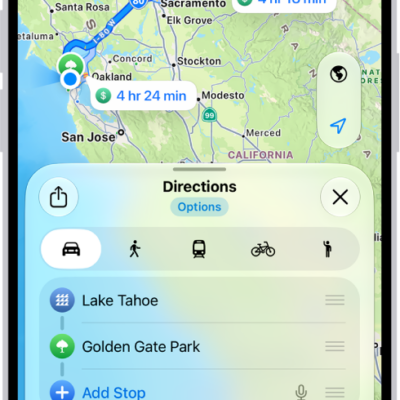
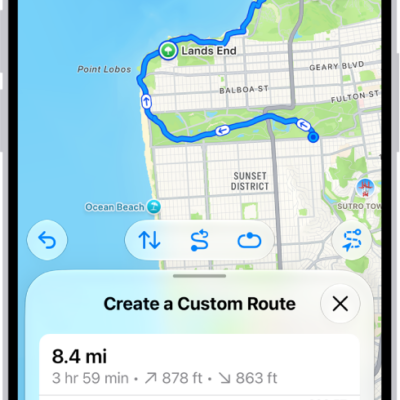
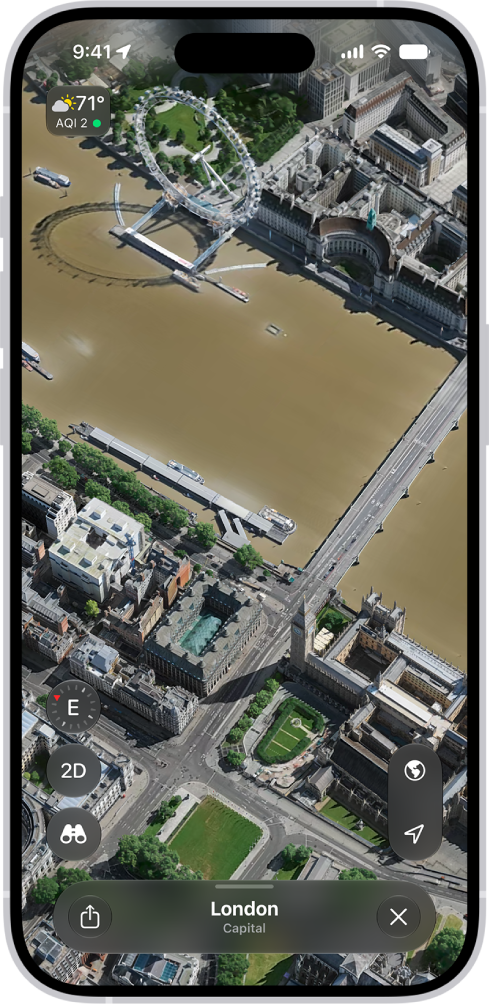
While exploring any location on a map, you can rotate the map to see an area with extra dimensions. In some locations, you can zoom in to see a detailed, 3D satellite view.
Maps uses aerial imagery to render cities in true-to-life detail. To see sharp details, such as architectural fixtures or the shapes of individual trees, zoom into a 3D satellite map. Or with Look Around, move through a 360-degree panoramic view.
Here’s how to explore maps with immersive views on iPhone.
Note: Not all features are available in all countries or regions.
Explore a city in 3D detail
- Open the Maps app on your iPhone.
- In most cities, tap the Exploring Map Mode button and tap Satellite. Tap the Close button.
- Pinch open to zoom in. Then swipe up with two fingers to see the map in 3D.
Look around locations
Some locations have 360-degree panoramic views you can look around.
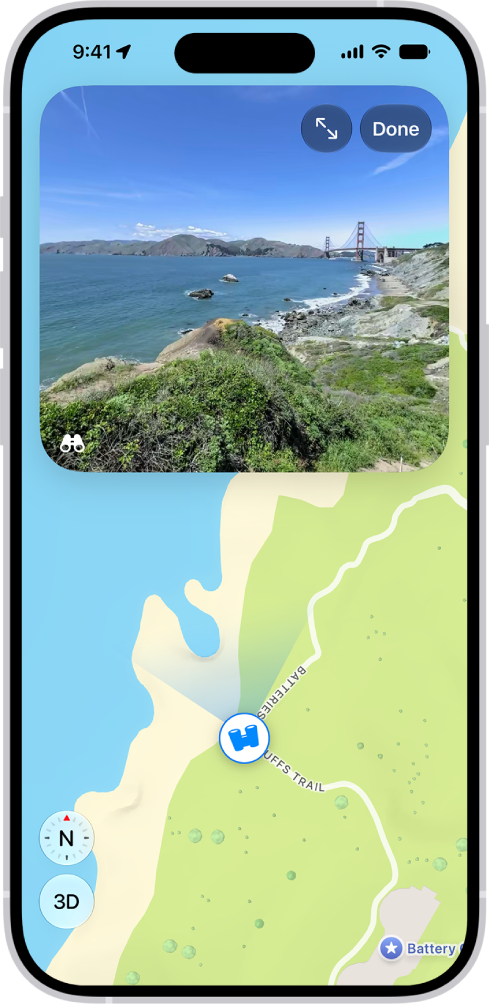
- Open the Maps app on your iPhone.
- In select cities, tap the Look Around button near the bottom of a map.
- To change the view, do any of the following:
- Pan: Drag a finger left or right on the scene.
- Move forward: Tap the scene.
- Zoom in or out: Pinch open or closed.
- View another point of interest: Switch from full-screen view and then tap elsewhere on the map, or drag the map.
- Switch to or from full-screen view: Tap the Enter Full Screen Mode button or the Exit Full Screen Mode button.
- Remove labels in full-screen view: Swipe up from the place name near the bottom of the screen and tap Hide Labels.
- When finished, tap Done.
Move, zoom, or rotate a map or globe
- Open the Maps app on your iPhone.
-
Do any of the following:
- Move around in a map: Drag the map.
-
Zoom in or out: Double-tap. Then drag up to zoom in or drag down to zoom out.
Or pinch open or closed on the map.
-
Rotate the map: Touch and hold the map with two fingers and then rotate your fingers.
To show north after you rotate the map, tap the Compass button.
View a 3D map
- Open the Maps app on your iPhone.
-
To turn a 2D map into a 3D map, do one of the following:
- Drag two fingers up.
- Tap 3D.
-
While looking at a 3D map, you can do any of the following:
- Adjust the angle: Drag two fingers up or down.
- See buildings and other spatial details: Zoom in.
-
View the Earth: Zoom out until the map changes to a globe.
Drag the globe to rotate it, or zoom in or out.
- Return to a flat map: Tap 2D.