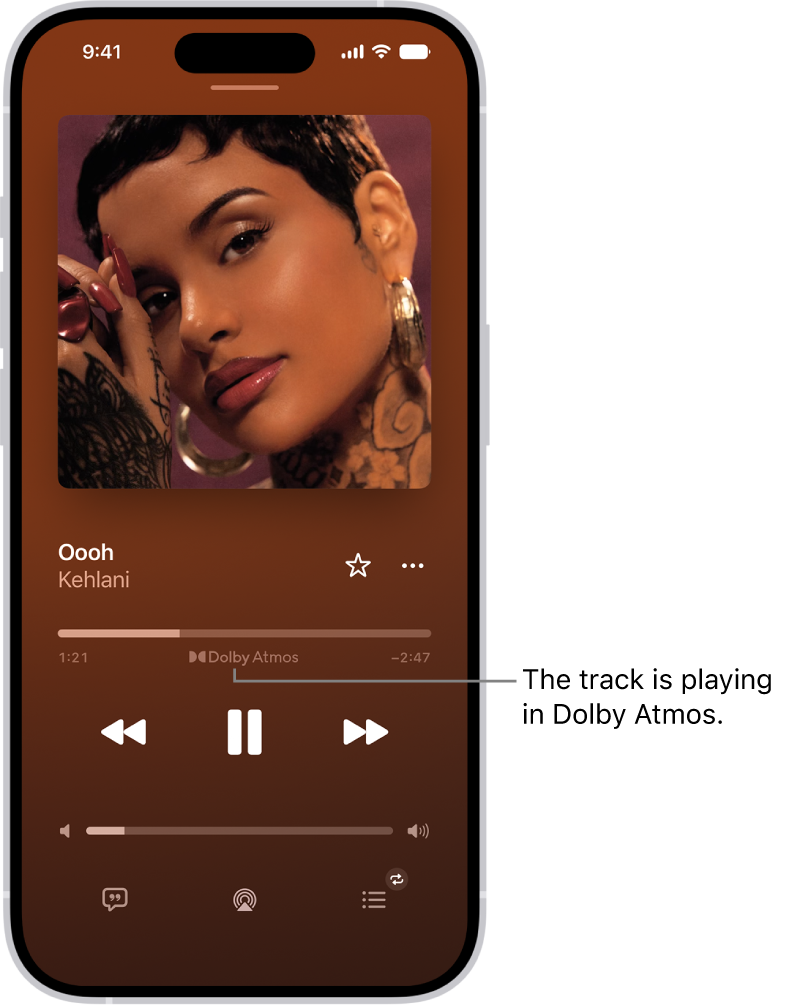
If you subscribe to Apple Music, you can play available tracks in Dolby Atmos, which creates an immersive, three-dimensional (spatial) audio experience on stereo headphones and speakers or receivers compatible with Dolby Atmos. Albums and songs available in Dolby Atmos have the Dolby icon next to them, and if a track is playing in Dolby Atmos, the icon also appears on the Now Playing screen.
You can also control Spatial Audio and head tracking on iPhone, and download songs in Dolby Atmos.
Note: Apple Music and Dolby Atmos aren’t available in all countries or regions.
Turn on Dolby Atmos
- Open Settings, tap Apps, and then tap Music.
- Tap Dolby Atmos and then choose Automatic or Always On.
- Automatic: Plays Dolby Atmos whenever iPhone is connected to compatible headphones such as AirPods 3, AirPods Pro, or AirPods Max, or to speakers or receivers compatible with Dolby Atmos.
- Always On: Plays Dolby Atmos on any headphones or speakers. The Music app will attempt to play Dolby Atmos tracks on any headphones or speakers connected to iPhone. Dolby Atmos will play on any headphones, but not all speakers will play Dolby Atmos as intended.
Control Spatial Audio and head tracking on iPhone
With AirPods 3, AirPods Pro, or AirPods Max, Spatial Audio and head tracking can create an immersive, theater-like environment with sound that surrounds you when you play supported music on your iPhone. To control Spatial Audio and head tracking in Control Center, follow these steps.
- Wear your AirPods and open Control Center.
- Touch and hold the volume control. Then tap Spatial Audio at the lower right.
- Tap one of the following:
- Off: Turns off both Spatial Audio and head tracking.
- Fixed: Turns on Spatial Audio without head tracking.
- Head Tracked: Turns on both Spatial Audio and head tracking. This setting allows the sound to follow the movement of your head.
The settings you choose are saved and applied automatically the next time you use that app. For example, if you tap Fixed while listening to a song in Apple Music, the Fixed setting is automatically used the next time you play a song in Apple Music.
Note: You can disable head tracking for every app on your iPhone. Go to Settings > Accessibility > AirPods, tap your AirPods, and then turn off Follow iPhone.
Download songs in Dolby Atmos
- Open Settings, tap Apps, and then tap Music.
- Turn on Download in Dolby Atmos.