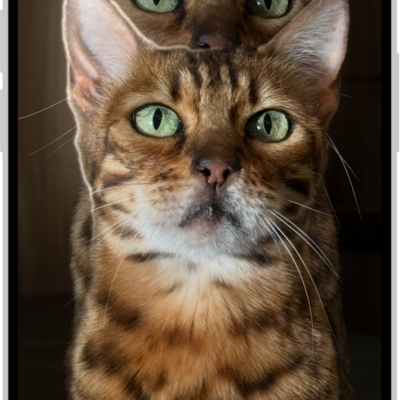
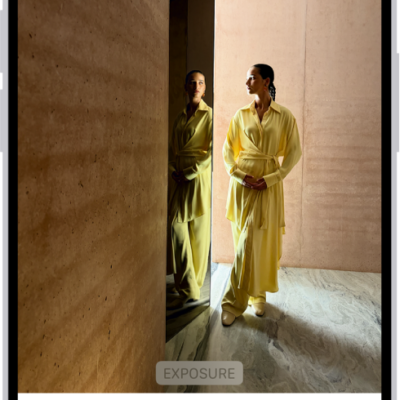
In the Photos app, you can edit Live Photos, change the key photo, and add fun effects like Bounce and Loop.
In addition to the photo editing tools, you can trim a Live Photo’s length and mute the sound. You can even turn a Live Photo into a still of its key photo. Effects like Loop repeat the action in a continuous looping video.
Here’s how to edit Live Photos on iPhone.
Make Live Photo edits
Besides the photo editing tools, you can trim a Live Photo’s length, mute the sound, change its key photo, and turn it into a still photo.
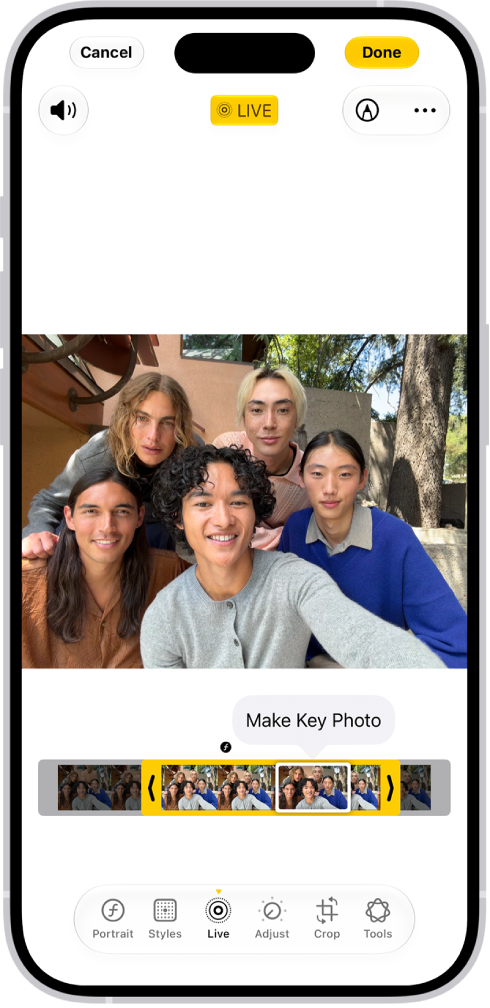
- Open the Photos app on your iPhone.
- Open a Live Photo, then tap the Edit button.
- Tap the Live Photo button. Do any of the following:
- Set a key photo: Move the white frame on the frame viewer, tap Make Key Photo, and tap Done.
- Trim a Live Photo: Drag either end of the frame viewer to choose the frames the Live Photo plays.
- Make a still photo: Tap the Live button at the top of the screen to turn off the Live feature. The Live Photo becomes a still of its key photo.
- Mute a Live Photo: Tap the Mute button at the top of the screen. Tap it again to unmute.
Note: On an iPhone 15 model or later, Live Photos taken with a portrait effect lose that effect if you change the key photo.
Add effects to a Live Photo
Adding effects to Live Photos turns them into fun videos.
- Open the Photos app on your iPhone.
- Open a Live Photo.
- Tap Live in the top-left corner. Choose one of the following:
- Live: Applies the Live video playback feature.
- Loop: Repeats the action in a continuous looping video.
- Bounce: Rewinds the action backward and forward.
- Long Exposure: Simulates a DSLR-like long exposure effect by blurring motion.
- Live Off: Turns off the Live video playback feature or applied effect.
- Portrait: Applies the Portrait effect.
- Portrait off: Turns off the Portrait effect.
Turn a Live Photo into a video
To share a Live Photo with people who aren’t on Apple devices, for example, you can turn it into a short video to save or share.
- Open the Photos app on your iPhone.
- Open a Live Photo.
- Tap the More button in the top-right corner. Then tap Save as Video.