You can search for email messages using different criteria.
Mail searches the address fields, the subject, the email body, plus documents and links, and the most relevant messages appear in Top Hits. You can narrow a search with a keyword, search by timeframe, or search by email attributes, like flagged or unread. And you can quickly find travel booking confirmations for flights and hotels with the three-letter airport code or the city name.
Here’s how to search for email in Mail on iPhone.
Quick tip: Search results in Mail can reflect what you mean, not just the words you type.
For example, a search for “NYC business trip” brings up emails about event locations, travel details, and your itinerary, plus other relevant messages.
Search for text in an email
- Open the Mail app on your iPhone.
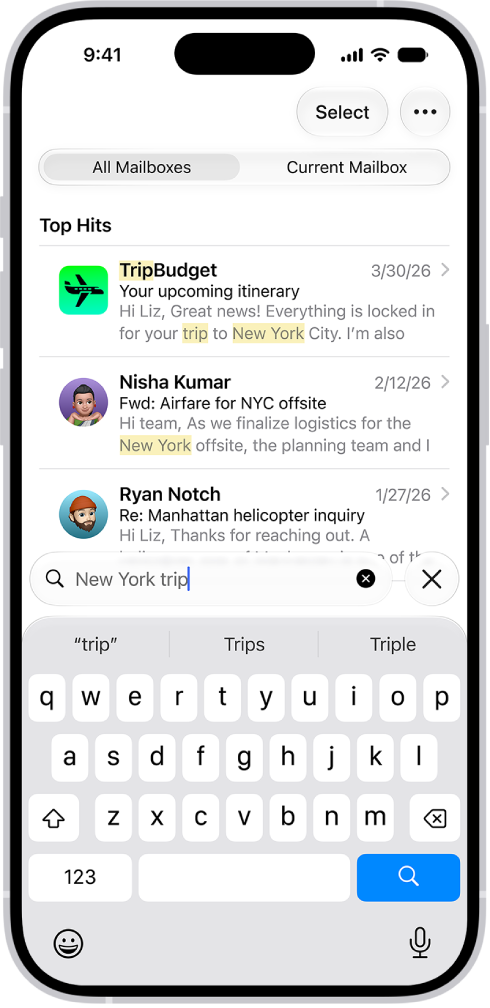
- Tap the search field and type the text you’re looking for.
- Choose between searching all mailboxes or the current mailbox above the results list.
-
Tap a message in the results list to read it.
Mail searches the address fields, the subject, the email body, documents, and links.
The most relevant messages appear in Top Hits above the search suggestions as you type.
Tip: To quickly find travel booking confirmations for flights and hotels, enter the three-letter airport code or the city name.
Search by timeframe
- Open the Mail app on your iPhone.
- Tap the search field of a mailbox list.
- Enter a timeframe, like “September” and then tap the calendar suggestion buttons to see all emails from that timeframe.
- To narrow the search, tap the search field again, then enter a keyword, like “meeting.” Tip: Refine your search by timeframe using the Date, Before, or After options above the message list.
Search by email attributes
- Open the Mail app on your iPhone.
-
In an inbox, tap the search field.
Before you begin typing, you may see suggested recent searches, recent documents, and links listed.
-
Enter your search criteria and tap one of the listed items, or do any of the following: Find all flagged messages: Enter “flag” in the search field, scroll down, then tap “Message is flagged” below Suggestions.
- Find all unread messages: Enter “unread” in the search field and scroll down. Tap “Message is unread” below Suggestions.
- Find all messages with attachments: Enter “attachment” in the search field and scroll down. Tap “Messages with attachments” below Suggestions.