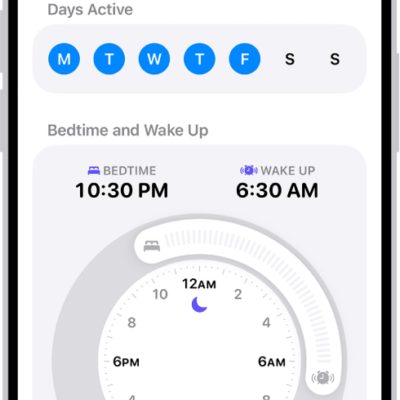
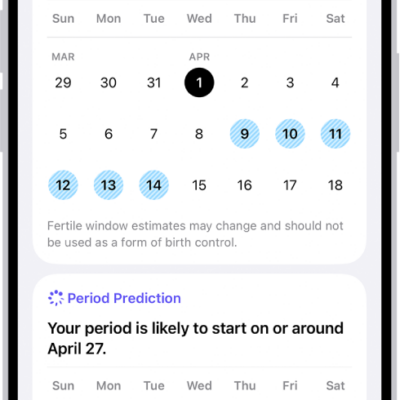
Sleep data provides insight into your sleep habits. To obtain sleep data, you can use a sleep tracker or monitor, or manually add the data on your iPhone.
In the Health app, you can view sleep data by week or month, change the time span displayed in the graph, and view the details for a day. The Sleep screen shows the estimated time you spent awake and in REM, Core, and Deep sleep, and you can also get cumulative sleep data.
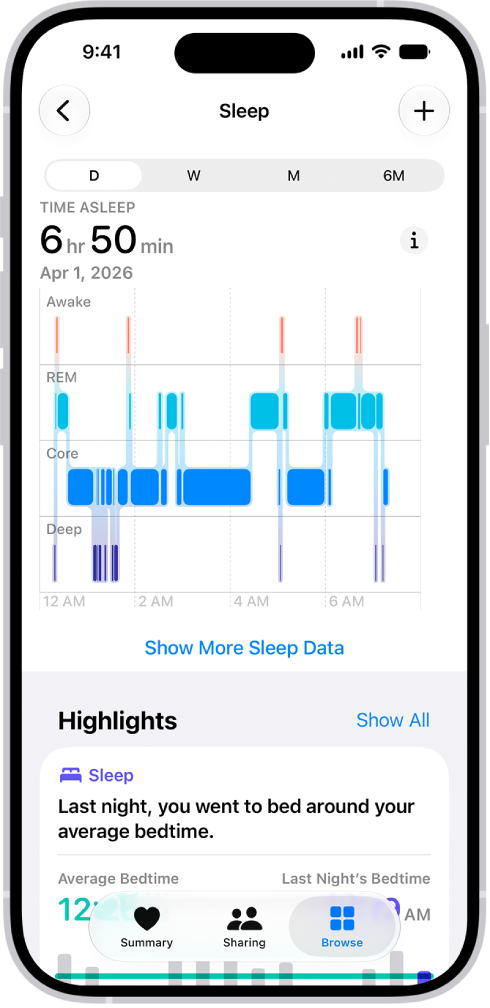
- Start the Health app on your iPhone.
- Tap Browse and tap Sleep. Tap Sleep again.
- Do any of the following:
- View sleep data by week or month: Tap a tab at the top of the screen.
- Change the time span displayed in the graph: Swipe the graph left or right.
- View the details for a day: Tap the column for the day.
- Manually add sleep data: Tap the Add button in the top-right corner of the screen.
- Get cumulative sleep data: Tap Show More Sleep Data.
Tag: Health