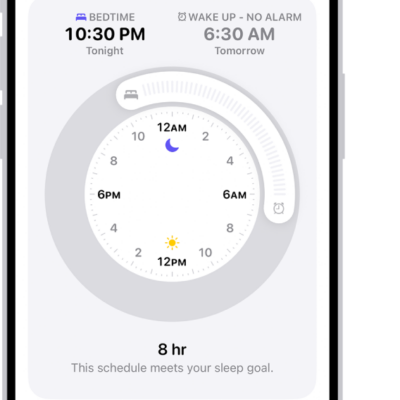
You can schedule regular times for going to bed and waking up to help meet your sleep goals. You can create multiple schedules, for example, one for weekdays and another for weekends.
To help you wake up on time, you can select an alarm sound, a vibration, and a snooze option, or choose to have no alarm at all.
For the sleep schedules you set, a Sleep Focus helps reduce distractions before and during bedtime. It can filter out notifications and phone calls, and signal to others that you’re not available. You can also schedule a wind down period to begin from 15 minutes to 3 hours before your bedtime, and your Sleep Focus begins at the start of your wind down time.
Set up your first recurring sleep schedule
When you set up a Sleep Focus, you can set your next bedtime and wake up time. This schedule repeats only once. To set up a recurring sleep schedule, do the following:
- Start the Health app on your iPhone.
- Tap Browse and tap Sleep. Tap Sleep again.
- Tap Get Started, then tap Continue.
- To set your sleep goal, tap Sleep Goal and then make a selection.
- To set your sleep schedule, tap Edit below Schedule and then do the following:
- Set the days for your schedule: Tap a day to add or remove it from your schedule. The schedule applies only to days shown with solid-color circles.
- Adjust your bedtime and wake up schedule: Drag the Bedtime button to change your bedtime, the Ringing Alarm button to change your wake up time, or the semicircle between the icons to shift both times simultaneously.
- Set the alarm options: Turn Alarm on or off.
When Alarm is turned on, you can choose a sound, its volume, a vibration, the snooze option, and a snooze duration.
- When you’re finished, tap the Done button, tap Next, and tap Done.
Add, modify, or delete sleep schedules
After setting up your first sleep schedule, you can do the following:
- Start the Health app on your iPhone.
- Tap Browse and tap Sleep. Tap Sleep again.
- After setting up your first sleep schedule, you can do the following:
- Set up additional schedules: For example, if you have a weekday schedule, you can add a weekend schedule.
- Change schedules: You can adjust the bedtimes, wake up times, and alarm options for an entire sleep schedule or for only your next schedule.
- Turn off alarms: You can turn off alarms for all sleep schedules, for a particular schedule, or for only your next scheduled wake up time.
Set up a Sleep Focus
When you’ve set up your sleep schedule, there’s also a Sleep Focus you can set up to help cut distractions before and during bedtime.
- Start the Settings app on your iPhone.
- Tap Focus and tap Sleep.
- Customize your focus.
You might allow interruptions from people important to you, for example, customize the Lock Screen and Home Screen, and choose how apps and your iPhone behave while a Sleep Focus is on.
Note: If you want alarms that don’t turn on a Sleep Focus, use the Clock app to set one-time and repeating alarms.