Use tabs to help you navigate between multiple open webpages.
You can open a link in a new tab, view a tab’s history to see which webpages you previously visited in it, close tabs, and even open a recently closed tab. And to stay on the current webpage when you open new links, you can have them open in a separate tab in the background, right in Safari on iPhone.
Open a link in a new tab
- Open the Safari app on your iPhone.
- Touch and hold the link. Then tap Open in New Tab.
To stay on the current webpage when you open new links in a separate tab, go to the Settings app , tap Apps, then tap Safari. Tap Open Links, then tap In Background.
View a tab’s history
In this tab, you can see which webpages you’ve previously visited.
- Open the Safari app on your iPhone.
- Touch and hold the Back button or the Forward button.
Close tabs
- Open the Safari app on your iPhone.
- Tap the Tabs button. Then tap the Close button in the upper-right corner of a tab to close it.
Quick tip: You can close every tab in this Tab Group at the same time. Just touch and hold the Done button and tap Close All [number of] Tabs.
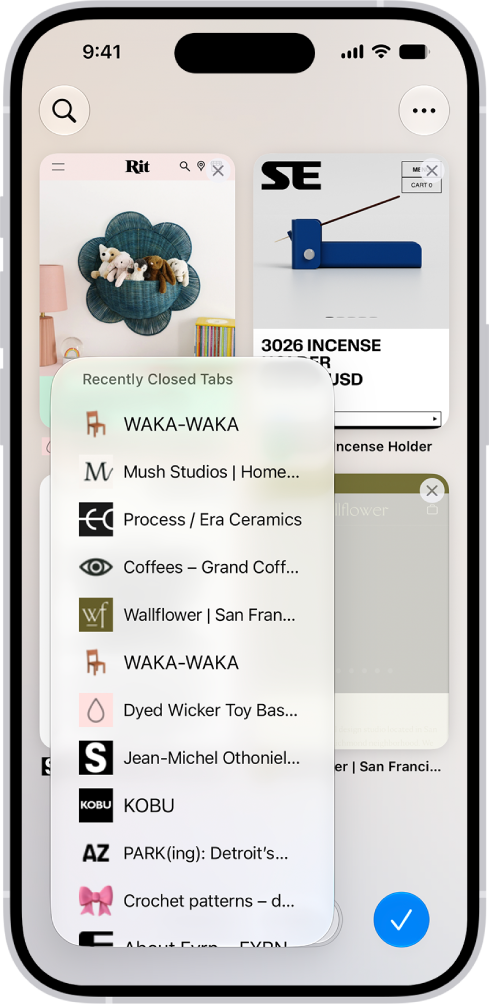
Open a recently closed tab
- Open the Safari app on your iPhone.
- Tap the Tabs button.
-
Touch and hold the New Tab button. Choose from the list of recently closed tabs.
Tag: Safari