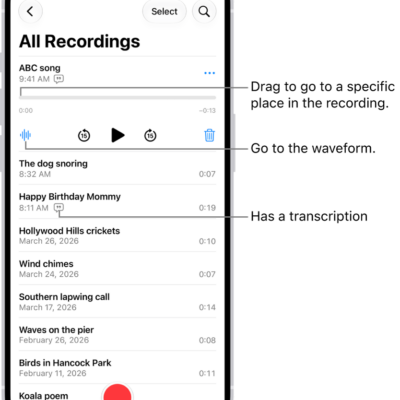
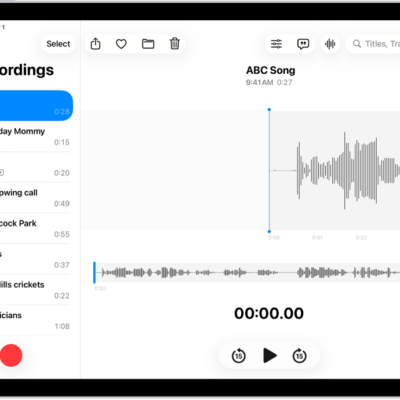
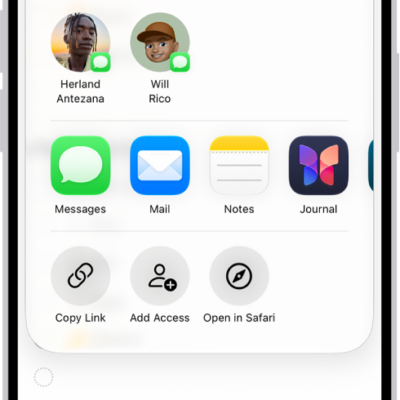
You can use iPhone as a portable recording device to record personal notes, classroom lectures, musical ideas, and more, using the built-in microphone, a supported headset, or an external microphone. You can fine-tune your recordings with editing tools like trim, replace, and resume.
When Voice Memos is turned on in iCloud settings, your recordings appear and update automatically on your iPhone, iPad, and Mac signed in to the same Apple Account. You can also filter out background sounds and record in stereo or mono.
Make a basic recording
-
Start the Voice Memos app (in the Utilities folder) on your iPhone.
Note: To make it easier to find and open the Voice Memos app, you can move it from the Utilities folder to the Home Screen.
-
Tap the Record button to begin recording.
To adjust the recording level, move the microphone closer to or farther from what you’re recording.
-
Tap the Stop button to stop recording.
Your recording is saved with the name New Recording or the name of your location, if Location Services is turned on in Settings > Privacy & Security. To change the name, tap the recording, then tap the name and type a new one.
Note: For your privacy, when you use Voice Memos to make recordings, an orange dot appears to indicate your microphone is in use.
Filter out background sounds
Your recording can include or exclude background sounds.
- Start the Voice Memos app (in the Utilities folder) on your iPhone.
- Open Control Center.
- Tap Voice Memos at the top of Control Center.
- To filter out background sounds in your recording, select Voice Isolation.
- To include the background sounds, select Wide Spectrum.
Note: Wide Spectrum isn’t available on all iPhone models.
Record stereo, mono, or Spatial Audio
How the recording sounds when it’s played depends on the recording mode you select.
- Start the Settings app on your iPhone.
- Tap Apps and tap Voice Memos.
- Tap Recording Mode, then choose one of the following:
- Mono: Audio playback is the same in both ears.
- Stereo: Separates audio playback between the left and right ears.
- Spatial Audio: Audio playback is immersive—it seems to play from all directions.
Note: Spatial Audio isn’t available on all iPhone models.
With Stereo or Spatial Audio selected, Voice Memos uses multiple microphones on your iPhone and records with right and left audio channels. Listen through headphones, and you’ll hear different sounds from different microphones, though the waveform display still looks the same.
Use the advanced recording features
To make a recording in parts, pause and resume as you record.
- Start the Voice Memos app (in the Utilities folder) on your iPhone.
-
Tap the Record button to begin a recording.
To adjust the recording level, move the microphone closer to or farther away from what you’re recording.
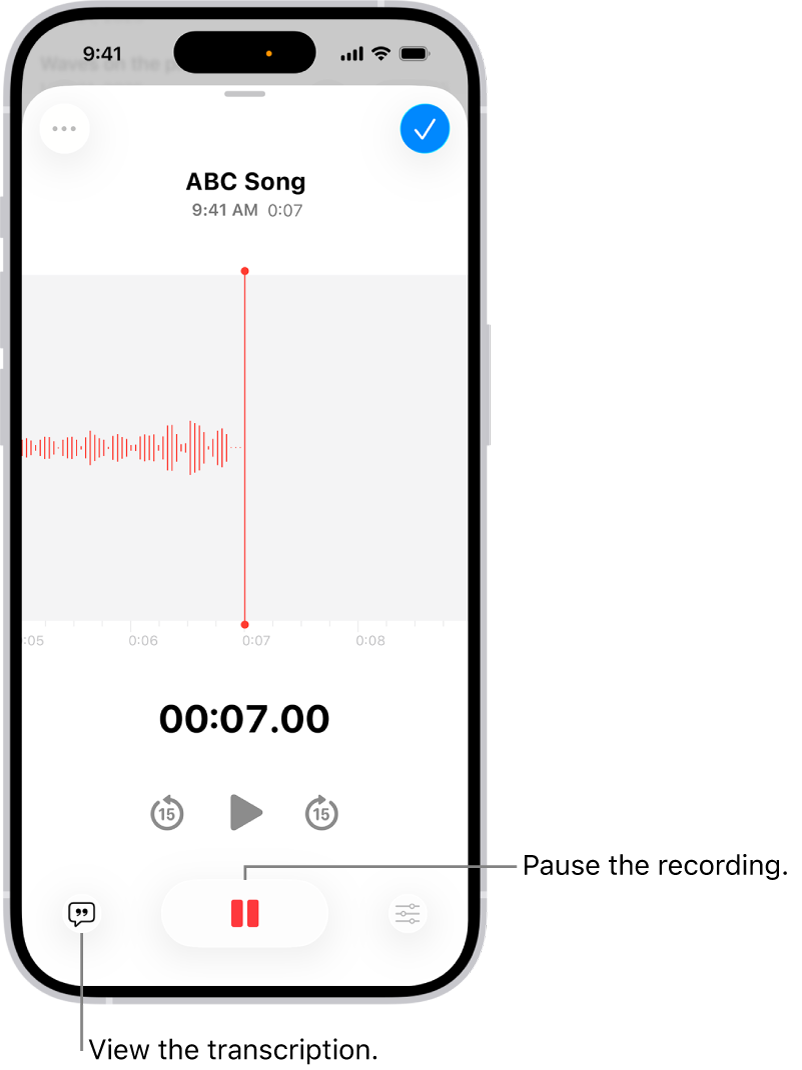
To see more details while you’re recording, swipe up from the top of the waveform.
- Tap the Pause button to stop recording; tap Resume to continue.
-
To review your recording, tap the Play button.
To change where playback begins, drag the waveform left or right across the playhead before you tap the Play button.
-
To save the recording, tap Done.
Your recording is saved with the name New Recording or the name of your location, if Location Services is turned on in Settings > Privacy & Security. To change the name, tap the recording, tap the name, then type a new name.
Mute the start and stop tones
To mute the start and stop tones, turn on Silent mode.
Open Control Center, then tap the Silent Mode Off button to turn on Silent mode.
Use another app while recording
During a recording, you can use another app if it doesn’t play audio on your iPhone.
- Start the Voice Memos app (in the Utilities folder) on your iPhone.
- Tap the Record button to begin recording.
- While you’re recording, go to the Home Screen. Then open another app.
Voice Memos stops recording if the other app starts playing audio.
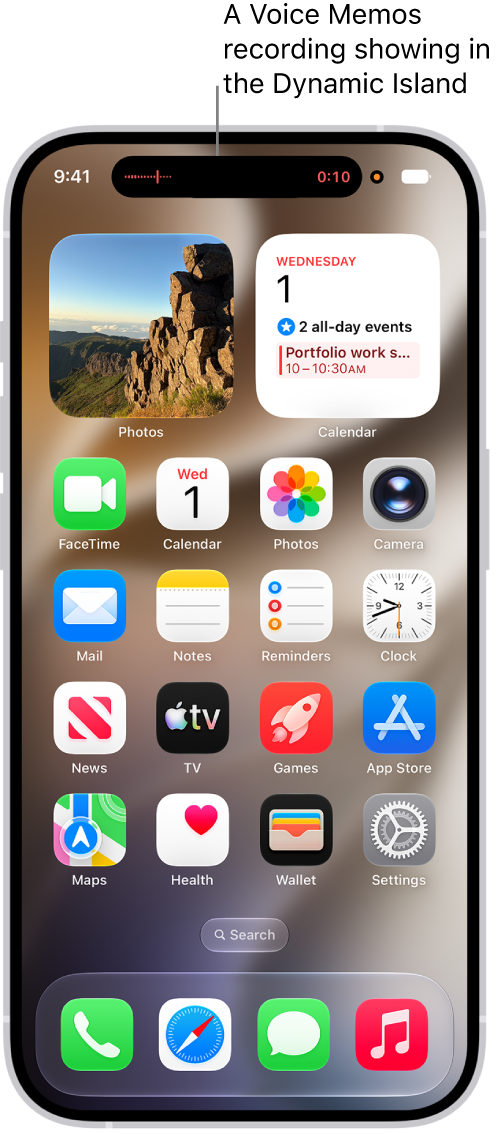
On supported models, you can see your recording in progress in the Dynamic Island on the Home Screen and in other apps. Tap the Dynamic Island to expand it, or navigate back to Voice Memos.
When you turn on Voice Memos in iCloud settings or iCloud preferences, iCloud saves your recording. It then appears automatically on your Mac, iPad, and iPhone where you’re signed in to the same Apple Account.
Supported iPhones record in Spatial Audio automatically when you use the built-in microphone. Earlier iPhone models record in Mono instead, unless you turn on Stereo Recording in Settings, and you can also record in Stereo with an external stereo microphone or audio interface that works with iPhone. Accessories with the Apple “Made for iPhone” or “Works with iPhone” logo are the ones to look for.