On Apple Watch, you can view and adjust settings for individual apps, check how much storage space your apps are using, and configure Screen Time and privacy restrictions that are shared between your Apple Watch and iPhone.
Some settings are shared between your watch and iPhone, so if you change them on your iPhone, the same changes apply to your Apple Watch.
Here’s how to view app settings and storage on Apple Watch.
Change app settings
- Start the Settings app on your Apple Watch.
- Tap Apps. Scroll down to see apps you installed.
- Tap an app to change its settings.
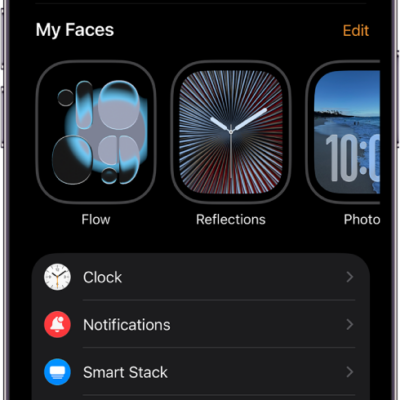
You can also go to the Apple Watch app on your iPhone, tap My Watch, scroll down to the apps, then tap an app to change its settings. Some settings can only be changed in the Apple Watch app on your iPhone.
Change Screen Time, content, and privacy settings
Your Apple Watch and iPhone share some settings, so changing them on your iPhone applies the same changes to your Apple Watch.
To adjust these settings, use your iPhone.
- Start the Settings app on your iPhone.
- Change any of the following settings:
- Privacy & Security: Turn on or off features such as Location Services, Analytics, Contacts, and Health.
- Screen Time: Tap Content & Privacy Restrictions and turn on Content & Privacy Restrictions. Adjust any restrictions.
Check storage used by apps
On Apple Watch, you can see the amount used by each app, the amount remaining, and the total amount of storage used.
- Start the Settings app on your Apple Watch.
- Tap General and then tap Storage.
You can also check the storage on your iPhone—go to the Apple Watch app, tap My Watch, tap General, then tap Storage.
See also