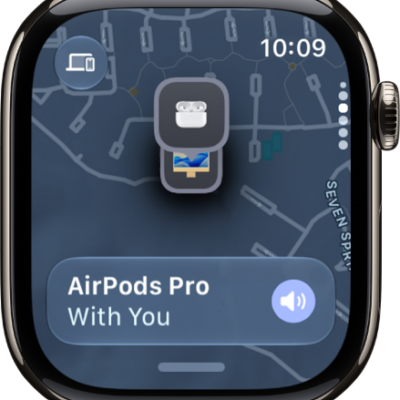
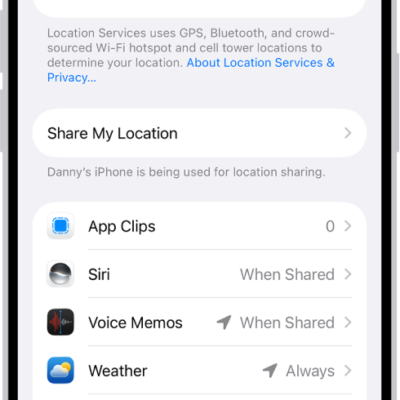
If you lose your Apple Watch, you can try to locate it in Find My, put it in lost mode, erase it, and remove payment cards.
When you mark your Apple Watch as lost, it’s locked with a passcode so others can’t access your personal information, and Apple Pay is suspended. Before you erase it, you can still try to locate it or play a sound on it, since Find My can’t do either after that.
Locate your Apple Watch
- Open the Apple Watch app on your iPhone.
- Tap My Watch, then tap All Watches.
- Tap the Info button next to your watch and then tap Find My Apple Watch.
- In the Find My app on your iPhone, tap your watch to see its location on a map.
If the map tells you your Apple Watch is at your location, tap Play Sound.
Mark your Apple Watch as lost
Marking your Apple Watch as lost locks your watch with a passcode, so others can’t access your personal information. It also suspends the ability to pay with Apple Pay using credit or debit cards in Wallet.
- Open the Apple Watch app on your iPhone.
- Tap My Watch, then tap All Watches.
- Tap the Info button next to your watch and then tap Find My Apple Watch.
- In the Find My app on your iPhone, tap your Apple Watch and then tap the More button.
- Tap Lost Mode and then tap Continue.
- Enter a phone number if you want the person who finds your Apple Watch to contact you.
- Tap Next. Enter a message that will be shown on your Apple Watch when someone finds it.
- Tap Next and then tap Activate to mark Apple Watch as lost.
When you find your Apple Watch, either enter your passcode on the watch or, on your iPhone, open Find My, tap Devices, tap your Apple Watch, tap Activated, then tap Turn Off Mark As Lost.
Erase a lost Apple Watch
Try to locate your device or play a sound on it before you erase it, because after you erase it, Find My can’t do either.
- Open the Apple Watch app on your iPhone.
- Tap My Watch, then tap All Watches.
- Tap the Info button next to your watch and then tap Find My Apple Watch.
- In the Find My app on your iPhone, tap your watch and then tap Erase.
Remove payment cards using a web browser
You can remove your cards by signing in to the Apple Account website with your Apple Account if your Apple Watch is lost or stolen.
- In the Devices area, choose the device.
- Click Remove Items below Wallet & Apple Pay, then click Remove Items again to confirm.
You can also call the issuers of your cards.
When your iPhone and Apple Watch are no longer connected, or one of them isn’t working as expected, start by erasing the contents of your Apple Watch. Then unpair it in the Apple Watch app on your iPhone, if it’s available.
See also