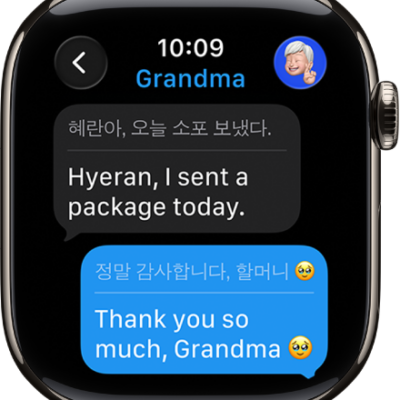
In the Messages app, you can read incoming text messages, then reply with a quick reaction or suggested response.
You can also send a reply by dictating, typing, or scribbling, mute or delete a conversation, and choose how to be notified of new messages. You can see when a message was sent, and use information in a message, like dates, flight numbers, and package tracking codes.
Here’s how to read and respond to messages on Apple Watch.
WARNING: For important information about avoiding distractions that could lead to dangerous situations, see Important safety information for Apple Watch.
Read a message on Apple Watch
- When you feel a tap or hear an alert sound telling you that a message has arrived, raise your Apple Watch to read it. If the message arrived a while ago, swipe down from the top of the screen to see the notification. Then tap it.
-
Turn the Digital Crown to read more of the message. To return to the beginning, tap the top of the screen.
Tip: Swipe left on a message to see when it was sent. You can also tap information within a message—like dates, flight numbers, package tracking codes, and currency amounts—to see relevant actions, such as creating a calendar event or tracking a package.
Send a reply
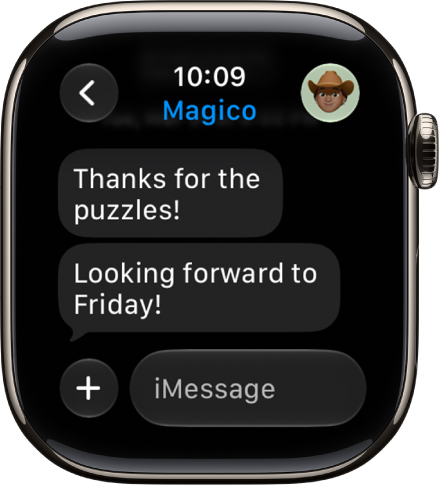
When you’re in a message conversation, do any of the following:
- Send a reaction: Double-tap the message bubble, then choose a tapback—such as a thumbs up or heart.
- Send a suggested reply: Scroll down to see the suggestions, then tap one to send it.
- Compose a reply: Tap the text field, then dictate, type, or scribble your response.
- Reply to a specific message: Double-tap the message bubble, scroll down, then tap Reply.
Mute or delete a conversation
- Start the Messages app on your Apple Watch.
- In the Messages conversation list, swipe left on a conversation. Do any of the following:
- Mute the conversation: Tap the Notifications Off button.
- Delete the conversation: Tap Trash button.
Choose how to be notified of new messages
- Start the Apple Watch app on your iPhone.
- Tap My Watch, tap Apps, and tap Messages.
- Tap Custom to set options for how you want to be notified when you receive a message.
If you’re using a Focus that doesn’t allow Messages notifications, you won’t receive a notification.
Detect sensitive content
If you choose, your Apple Watch can detect and blur sensitive photos and videos before you view them.
- Start the Settings app on your iPhone.
- Tap Privacy & Security, then tap Sensitive Content Warning.
- Turn on Sensitive Content Warning and then make sure AirDrop and Messages are turned on.
-
To view the content after being warned, tap Show and tap I’m Sure.
To learn how to deal with sensitive content, tap Ways to Get Help.
Turn on this setting, and it affects images and videos on your Apple Watch as well as on iPhone.
Note: Apple doesn’t have access to the photos or videos.
See also
- Write messages on Apple Watch
- Translate messages on Apple Watch
- See and respond to notifications on Apple Watch