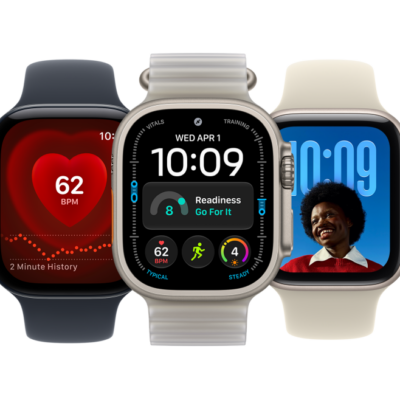
You can manage the medications, vitamins, and supplements you take in the Health app on your iPhone or iPad. In the Medications app on your Apple Watch, you can keep track of your medications and log them with reminders.
You set up a medication schedule on your iPhone or iPad first. You can also turn on Follow Up Reminders and Critical Alerts.
Here’s how to track your medications on Apple Watch.
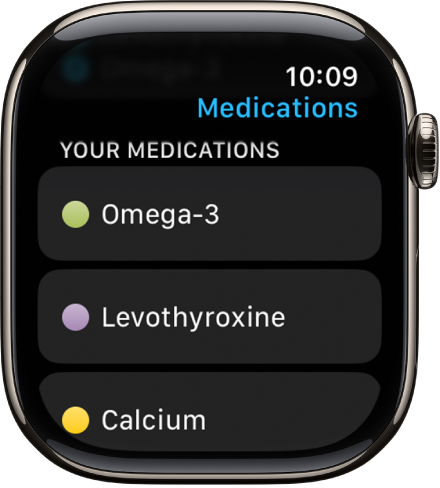
Note: The Medications feature should not be used as a substitute for professional medical judgment. Additional information is available on the labels of your medications, but please consult your healthcare provider prior to making any decisions related to your health.
Set up a medication schedule on iPhone or iPad
- Go to the Health app on your iPhone or iPad.
-
Do one of the following:
- On iPhone: Tap Browse and tap Medications.
- On iPad: Tap the sidebar, then tap Medications.
- Tap Add a Medication (to start your list) or Add Medication (to add to your list).
-
To identify the medication, do one of the following:
-
Type the name: Tap the search field, enter the name, and then tap Add.
In the U.S. only, suggestions appear as you begin typing. You can select a suggestion, or finish typing the name, then tap Add.
-
Use the camera: (U.S. only; on iPhone SE (2nd generation and later), iPhone XS, iPhone XR, and later) Tap the Camera button next to the search field. Follow the onscreen instructions.
If a match isn’t found, tap Search by Name, then type the name (as described above).
-
Type the name: Tap the search field, enter the name, and then tap Add.
-
Do the following:
- Choose the medication type: Tap an option and tap Next.
- Choose the medication strength: Tap an option and tap Next.
-
Set a schedule: Follow the onscreen instructions to set the frequency and duration of your scheduled medication. Then tap Next.
Tap Change under “When will you take this?” to choose a different schedule type, like On a Cyclical Schedule, or Every Few Days.
- Choose the shape (optional): Tap an option and tap Next.
- Choose the colors (optional): Tap an option and tap Next.
- When you’re finished, tap Done.
Log your medications
By default, your Apple Watch reminds you when it’s time to log your medications based on the schedule you’ve created in the Health app on iPhone or iPad. To log your medications, follow these steps.
Note: Health app data only syncs across devices that are signed in to the same Apple Account, have internet access, and run the latest OS version.
- If you’ve received a notification to log your medications, tap the notification. Otherwise, open the Medications app on your Apple Watch.
- Tap the current medications schedule—the medications you take in the morning, for example.
-
Tap Log All as Taken.
Apple Watch records the dosage, the number of units taken, and the time you took the medication.
-
To log individual medications, scroll down, tap Taken below a medication, and tap the Done button.
The medication’s name and time logged appears below Logged.
- To change the status of a logged medication, tap it and tap Taken or Skipped. Then tap the Done button.
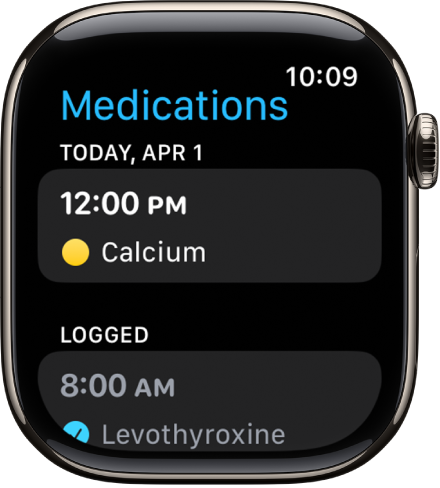
To view the log and your medication history on your iPhone, open the Health app, tap Browse, then tap Medications. On iPad, open the Health app, tap the sidebar, then tap Medications.
Turn on Follow Up Reminders and Critical Alerts
If you set a medication schedule, the Health app sends notifications reminding you to log the medication. You can also get follow-up reminders when a medication hasn’t been logged 30 minutes after the scheduled time.
- Go to the Health app on your iPhone or iPad.
-
Do one of the following:
- On iPhone: Tap Browse and tap Medications.
- On iPad: Tap the sidebar, then tap Medications.
-
Tap Options at the bottom of the screen and turn on Follow Up Reminders.
When you turn on Follow Up Reminders, you can also turn on Critical Alerts for each of your medications. Critical Alerts appear on the Lock Screen and play a sound (even if a Focus is on or your iPhone is muted).
- To receive critical alerts, tap Critical Alerts and tap the button next to a medication. Tap Allow.
To turn off all critical alerts, go to the Settings app on your iPhone or iPad, tap Apps, tap Health, tap Notifications, then tap the button next to Critical Alerts.
See also