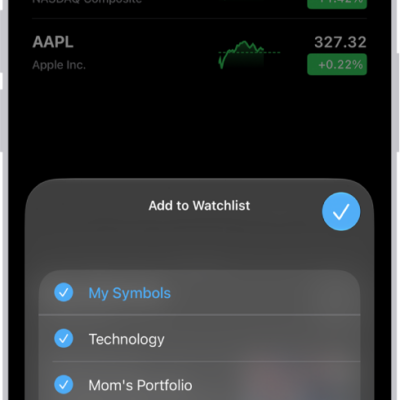
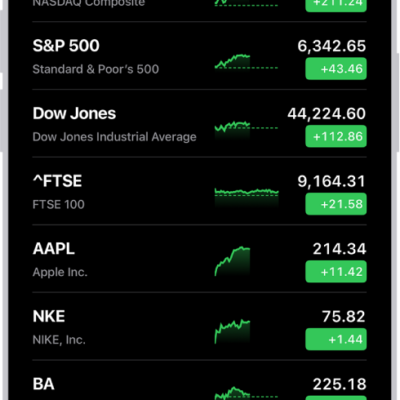
You can see information on the stocks you follow on your iPhone. You can also add, remove, or reorder stocks right from your wrist.
It’s the same list. Your watch shows the stocks found in the Stocks app on your iPhone, and when you change the order on one device, the other changes to match. You can also choose which data metrics appear, like Price Change, Percentage Change, or Market Cap.
Here’s how to track stocks on Apple Watch.
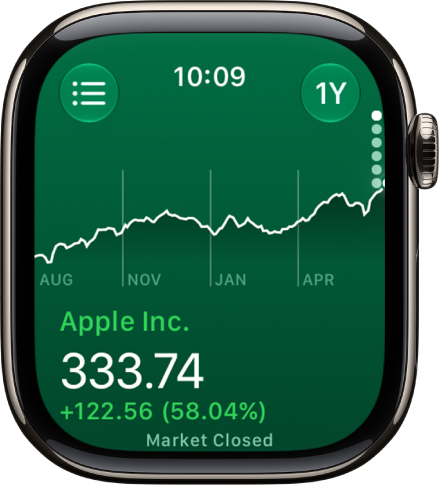
See stock data on Apple Watch
- Start the Stocks app on your Apple Watch.
- Turn the Digital Crown to browse the stocks in the list.
Add and remove stocks
The stocks in the Stocks app on your iPhone show up on your Apple Watch, and you can add and remove stocks right on your Apple Watch too.
- Start the Stocks app on your Apple Watch.
- Tap the List button. Do any of the following:
- Add a stock: Tap the Add button and then enter the stock name. Tap the name of the stock in the list.
- Remove a stock: Swipe left on the stock you want to remove, then tap the Delete button.
- Reorder stocks: Touch and hold a stock and drag it to a different position.
You can also open the Stocks app on your iPhone, tap the More Options button, tap Edit Watchlist, drag a stock into your preferred position, then tap Done.
Change the order on one device, and the other changes to match.
Choose data metrics
Do the following to choose the metrics that show up in the Stocks app and in Stocks complications:
- Change the data metric in the Stocks app: Go to the Stocks app on your Apple Watch, tap the List button, tap the View Options button, then choose Price Change, Percentage Change, or Market Cap.
-
Change the data metric for Stocks complications: Go to the Settings app on your Apple Watch, tap Stocks, tap Data Metric, then choose a metric.
You can also go to the Apple Watch app on your iPhone, tap My Watch, tap Stocks, then choose a metric.
See also