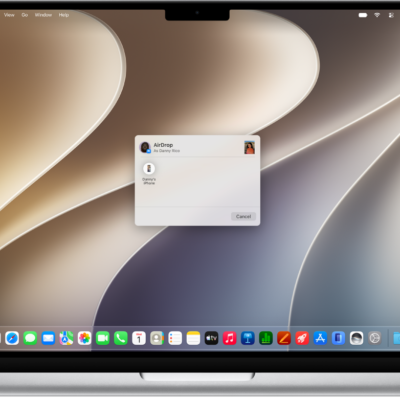
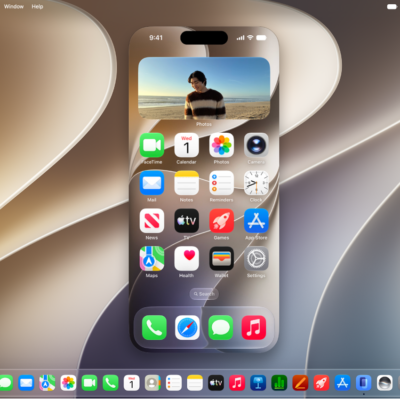
Handoff lets you move from one device to another without losing focus on what you’re doing. For example, even though you can reply to email using the Mail app on Apple Watch, you might want to switch to your iPhone so you can reply using the onscreen keyboard.
Handoff is on by default, and you pick up the task from the App Switcher on your iPhone. You can turn it off, too.
Note: Handoff is available on an Apple Watch you set up for yourself, but not on an Apple Watch you set up for a family member.
Continue a task on your iPhone
- Unlock your iPhone.
- Do one of the following:
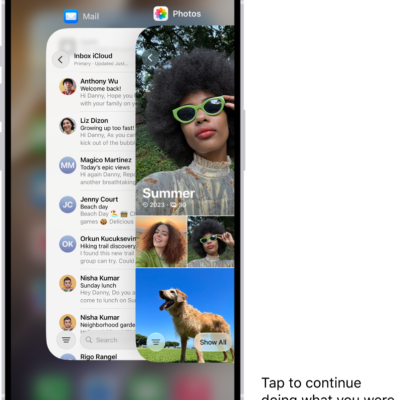
- On an iPhone with Face ID: Swipe up from the bottom edge and pause to show the App Switcher.
- On an iPhone with a Home button: Double-click the Home button to show the App Switcher.
- Tap the button that appears at the bottom of the screen to open the same item on your iPhone.
Quick tip: No button in App Switcher? Check that Handoff is on for your iPhone in Settings > General > AirPlay & Handoff.
Handoff is on by default. To disable it, go to the Apple Watch app on your iPhone, tap My Watch, tap General, then turn off Enable Handoff.
Handoff works with Activity, Alarm, Calendar, Home, Mail, and Maps, along with Messages, Music, News, Phone, Podcasts, and Reminders. Settings, Siri, Stocks, Stopwatch, Timers, Wallet, Weather, and World Clock work with it too. Handoff needs Apple Watch connected to your paired iPhone.
With OS X 10.10 or later installed on your Mac, you can also hand off from Apple Watch to your Mac.
See also