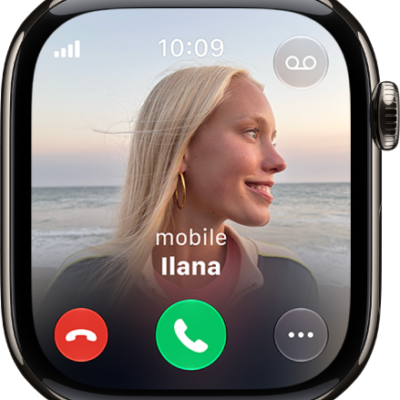
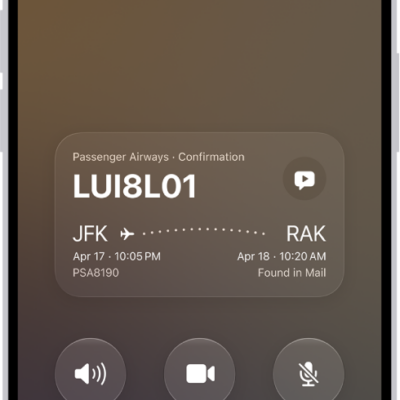
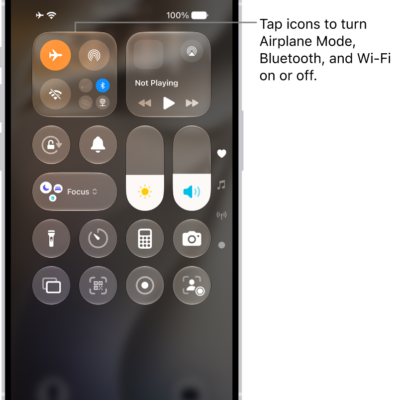
During calls on your Apple Watch, you can adjust audio settings, switch between devices, enter numbers for extensions or verification codes, and use Hold Assist to wait for a live agent.
You can adjust the volume, mute the call, and move the call to your iPhone or to an audio device. With Call Context, you can get relevant information, too, and Hold Assist recognizes when a live agent is available.
Here’s what you can do while on a call on Apple Watch.
Adjust the audio volume
- Open the Phone app on your Apple Watch.
- During a call, do any of the following:
- Adjust the volume: Turn the Digital Crown.
- Mute the call: Tap the Mute button.
Switch the call to another device
- Open the Phone app on your Apple Watch.
- During a call, do any of the following:
- Move the call from your Apple Watch to your iPhone: Unlock your iPhone and then tap the green button or bar at the top of the screen.
- Move the call to an audio device: Tap the More Options button, then choose a device.
Enter additional numbers during a phone call
- Open the Phone app on your Apple Watch.
- During a call, tap the More Options button, then tap Keypad. (Not available on FaceTime calls.)
- Tap the digits on the keypad.
Use Hold Assist
Hold Assist can wait on hold for you if someone puts you on hold during a call, then notify you to return to the call when it recognizes that a live agent is available.
Note: Hold Assist is available when your Apple Watch is nearby your paired iPhone and requires iPhone SE (3rd generation), iPhone 12, or later. Hold Assist isn’t available in all languages, countries, or regions.
- Open the Phone app on your Apple Watch.
-
During a call, tap the More Options button and tap Hold Assist.
Apple Watch automatically detects when you are placed on hold and asks if you want to be notified when an agent is available. Tap the Hold button in the notification to turn on Hold Assist.
- Hold Assist notifies you when an agent is available and transcribes the part of the call you missed. Tap the Answer Call button to rejoin the call.
Get relevant information
When you’re calling a business, Call Context can proactively surface relevant information from across your apps, such as a confirmation code from Mail when you call an airline.
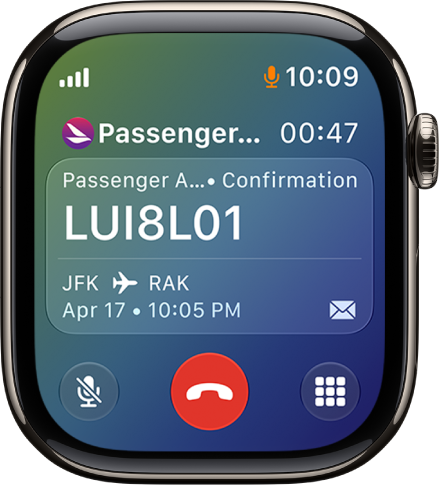
Note: Call Context requires your paired iPhone nearby. Call Context on watchOS 27 or later is an Apple Intelligence feature available when your Apple Watch is paired with an Apple Intelligence-enabled iPhone. Apple Intelligence isn’t available in all regions or languages.*
*Apple Intelligence is available with Siri and device language set to Chinese (Simplified), Chinese (Traditional), Danish, Dutch, English, French, German, Italian, Japanese, Korean, Norwegian, Portuguese, Spanish, Swedish, Turkish, or Vietnamese. Some features may not be available in all regions or languages. Some devices may not be available in all regions. Siri AI is available in beta in iOS 27, iPadOS 27, macOS 27, watchOS 27, and visionOS 27 and requires an Apple Intelligence–enabled device set to a supported language. Available in English to start. Siri AI will not be initially available in the EU on iOS, iPadOS, and watchOS. Certain Apple Intelligence features that rely on server-side models are subject to daily usage limits, including but not limited to Siri AI, Intelligent Photo Editing Tools, Image Playground, and AFM 3 Cloud models in Shortcuts. Daily limits may vary by feature, request complexity, system demand, system policies, and other factors. Expanded access to such features will be available for a fee in the future. Use of these features is subject to the Apple Intelligence Terms and Conditions.
See also