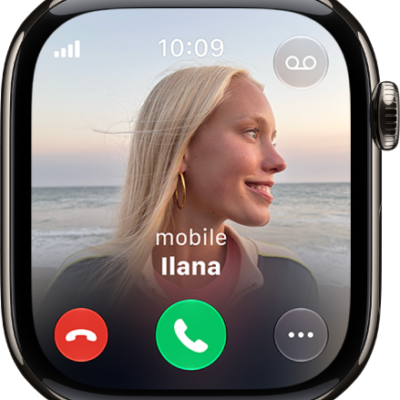
Apps can send notifications to keep you informed—meeting invitations, messages, noise alerts, and Activity reminders are just a few examples. Apple Watch can display notifications as they arrive, but if you don’t read one right away, it’s saved so you can check it later.
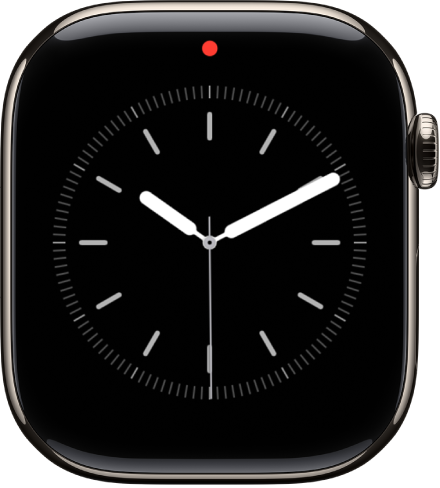
A notification looks different depending on whether the display is active or idle. When you have unread notifications, a red dot appears at the top of your watch face, and they wait for you in Notification Center.
WARNING: For important information about avoiding distractions that could lead to dangerous situations, see Important safety information for Apple Watch.
Respond to a notification when it arrives
-
If you hear or feel a notification, raise your wrist to view it.
How the notification looks depends on whether the display is active or idle.
- Active display: A small banner appears at the top of the display.
- Idle display: A full screen notification appears.
- Tap the notification to read it.
- To clear a notification, swipe down on it. Or scroll to the bottom of the notification and tap Dismiss.
See notifications you haven’t read
Notification Center saves any notification you don’t read when it arrives, and a red dot at the top of your watch face means you have unread notifications.
-
From the watch face, swipe down to open Notification Center. From other screens, touch and hold the top of the screen. Swipe down.
Note: You can’t open Notification Center when viewing the Home Screen on Apple Watch. Instead, press the Digital Crown to go to the watch face or open an app, then open Notification Center.
- Swipe up or down or turn the Digital Crown to scroll the notifications list.
- Tap the notification to read or respond to it.
Quick tip: Siri can read your Notification Center notifications aloud, through the Apple Watch speaker or Bluetooth headphones, as soon as you say “Read my notifications.”
To clear a notification from Notification Center without reading it, swipe it to the left, then tap the Delete button. To clear all notifications, scroll to the top of the screen, then tap Clear All.
If you use group notifications, tap a group to open it, then tap a notification.
Quick tip: To keep the red dot off the watch face, go to the Settings app on your Apple Watch, tap Notifications, and turn off Notifications Indicator.
See also
- Use gestures for notifications and alerts on Apple Watch
- Silence notifications for extended periods on Apple Watch
- Change notification settings on Apple Watch