You can use the onscreen keyboard to enter and edit text. You can also use Dictation, an external keyboard, and Apple Pencil to enter text.
You can type one key at a time, or slide from letter to letter without lifting your finger, and you can even switch methods in the middle of a sentence. With the onscreen keyboard, you can type uppercase letters, turn on Caps Lock, enter numbers, punctuation, or symbols, and hear clicks as you type.
Enter text using the onscreen keyboard
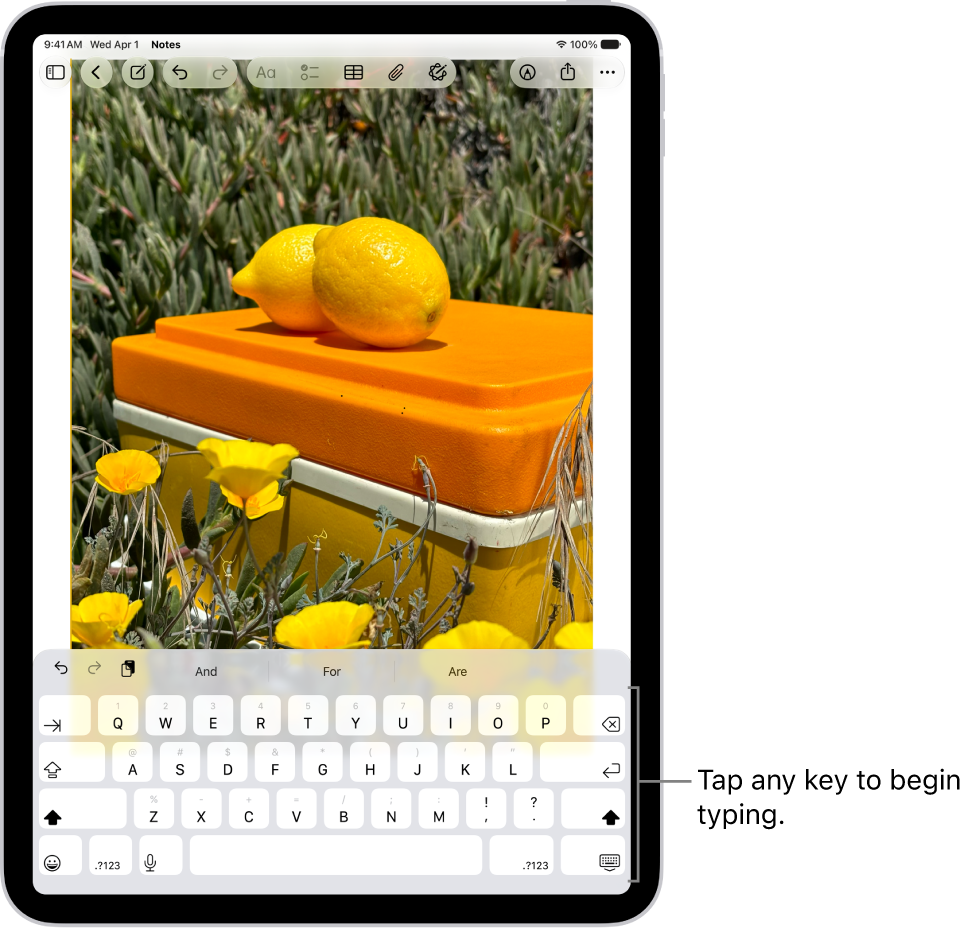
You can tap individual keys to type, or slide from one letter to the next without lifting your finger (QuickPath isn’t available for all languages).
-
In any app where you can enter text, tap a text field. The onscreen keyboard opens.
Tip: For easy one-handed typing, drag the keyboard from the bottom of the screen, then move it. To return to the full-size keyboard, pinch open.
- Tap individual keys to type, or touch and hold the first letter, slide to the next letters. Lift your finger at the end of a word. You can use either method as you type, and even switch in the middle of a sentence.
-
While entering text, you can do any of the following:
- Type an uppercase letter: Tap the Shift key, or touch the Shift key. Then slide to a letter.
- Turn on Caps Lock: Double-tap the Shift key.
- Quickly end a sentence with a period and a space: Double-tap the Space bar.
- Enter numbers, punctuation, or symbols: Tap the Numbers key or the Symbols key.
- Hide the onscreen keyboard: Tap the Hide Keyboard key.
For more on editing text, read our article, Select, cut, copy, and paste text.
Hear clicks as you type
Keyboard settings let you turn keyboard sounds on or off.
- Start the Settings app on your iPad.
- Tap Sounds.
- Turn on Keyboard Clicks.
Enter accents, diacritics, and other special characters
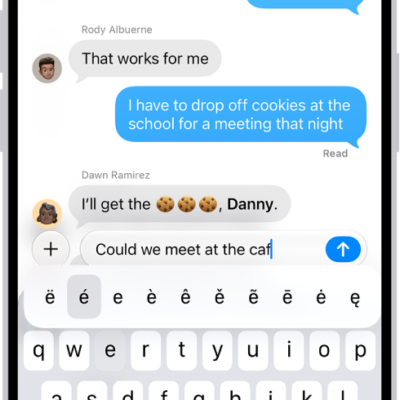
While using the keyboard, touch and hold the letter, number, or symbol related to the character.
For example, to enter é, touch and hold the e key, then slide your finger and release it on the option you want.
On a keyboard for another language, you can also do any of the following:
- On a Thai keyboard: To choose native numbers, touch and hold the related Arabic number.
-
On a Chinese, Japanese, or Arabic keyboard: Tap a suggested character or candidate at the top of the keyboard to enter it, or swipe left to see more candidates.
Note: To view the full candidate list, tap the up arrow on the right. To return to the short list, tap the down arrow.
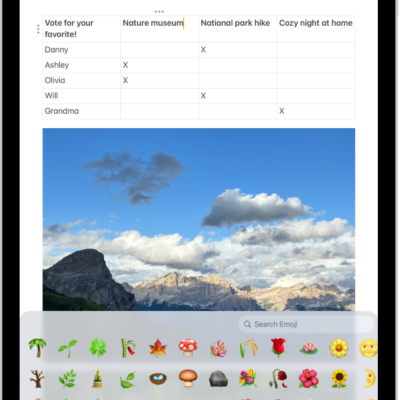
Using the emoji keyboard, you can add other characters.
Change keyboard settings
You can turn special typing features—such as predictive text and auto-correction—off and on.
- Start the Settings app on your iPad.
- Tap General, then tap Keyboard.
- Turn the typing features (below All Keyboards) on or off.
Quick tip: While you’re using the onscreen keyboard, you can change your keyboard settings: Touch and hold the Switch Keyboard key or the Emoji button, then tap Keyboard Settings.
See also
- Select, edit, and move text on iPad
- Use the onscreen keyboard with VoiceOver on iPad
- Dictate text on iPad