In the App Store app, you can discover new apps, featured stories, tips and tricks, in-app events, and offers.
Today shows featured stories, apps, and in-app events, while Games and Apps let you explore new releases and top charts. You can also get information about an app, buy and download it, and share it. You need an internet connection and an Apple Account to use it.
Here’s how to get apps in the App Store on iPad.
Note: You need an internet connection and an Apple Account to use the App Store. The availability of the App Store and Apple Arcade varies by country or region.
Discover and find apps
- Open the App Store app on your iPad.
- Tap any of the following:
- Today: Browse featured stories, apps, and in-app events.
- Games: Find your next game across dozens of categories including action, adventure, racing, puzzles, and more.
- Apps: Explore new releases, see the top charts, or browse by category.
- Arcade: Enjoy the curated collection of premium games from Apple Arcade (subscription required) without ads or in-app purchases.
- Search: Tap the Search button, then enter what you’re looking for. You can search by app name, category, developer, and more. You can also explore different categories or browse the suggested apps.
Get information about an app
- Open the App Store app on your iPad.
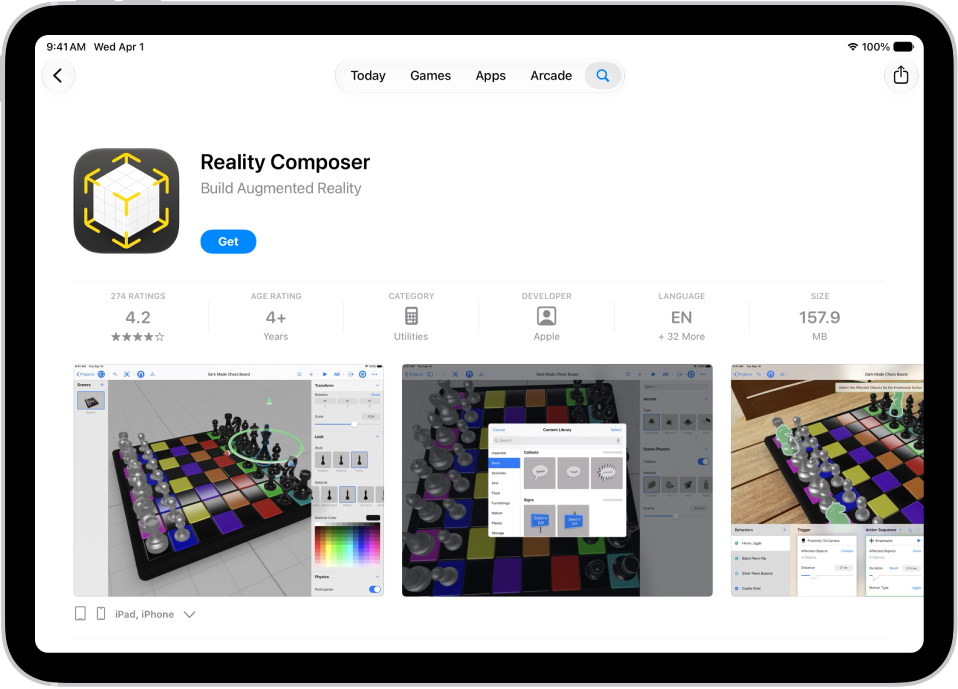
- Tap an app’s name or icon to see the following details:
- Screenshots or previews
- Ratings and reviews
- In-app events and offers
- Developer
- File size
- Compatibility with other Apple devices
- Supported languages
- Age rating
- Game Center and Family Sharing support
- Supported accessibility features
- Privacy information
Buy and download an app
- Open the App Store app on your iPad.
-
Go to the app you want and tap Get (if the app is free) or the price.
If you see the Redownload button instead of Get or the price, you’ve already purchased this app before. Tap the Redownload button to download it again for free.
-
If required, authenticate with Face ID, Touch ID, or your passcode to complete your purchase.
Purchases are made with the payment method associated with your Apple Account.
The app shows up in the Recently Added category in App Library, and while it’s downloading, its icon displays a progress indicator. For more, see our article, Find and use your apps in App Library, and our guide, Change where new apps get downloaded.
Share and approve purchases with Family Sharing
You can view and download eligible apps other family members purchased if you’re part of a Family Sharing group.
Note: You only see purchases made by family members if they choose to share their purchases. Once a family member leaves the family group, purchases made with Family Sharing may not be accessible.
The family organizer can review and approve eligible purchases made by other family members under a certain age.
See also
- Change settings and restrictions in the App Store on iPad
- Change the default apps on iPad
- Control access to information in apps