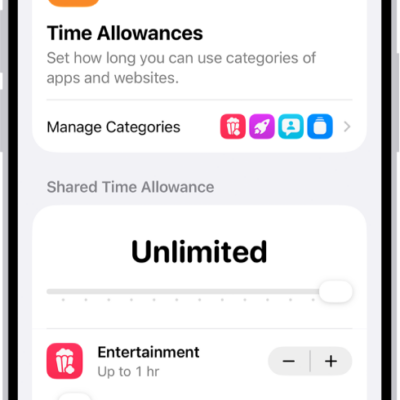
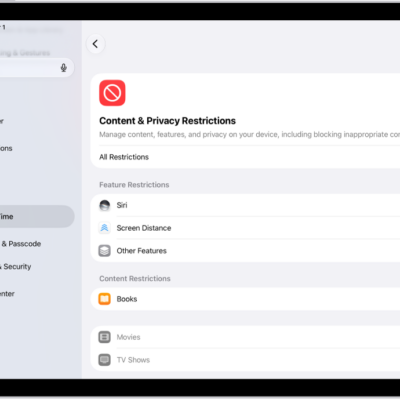
You can allow or block content that’s labeled sensitive or explicit in the Music app, Apple TV app, Books app, and more. You can also allow or block built-in apps and features like AirDrop, Tracking, and more.
The settings can vary depending on your Siri version, and you can choose whether to allow Siri with or without AI capabilities.
Here’s how to block features or content with Screen Time on iPad.
Note: All the latest Screen Time features require macOS 27, iPadOS 27, iOS 27, watchOS 27, visionOS 27, or later on every one of your Apple devices. When you’re setting these features up in a Family Sharing group, each device has to be upgraded to macOS 27, iPadOS 27, iOS 27, watchOS 27, visionOS 27, or later.
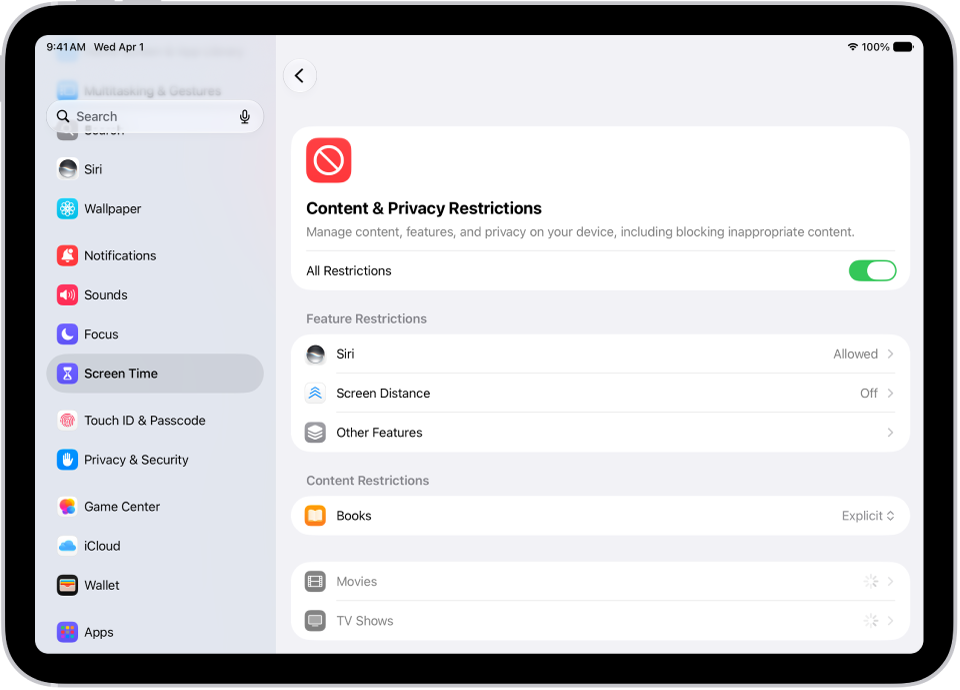
Set content restrictions in Music app, Apple TV app, Books app, and more
- Open the Settings app on your iPad.
- Tap Screen Time, tap Content & Privacy Restrictions, and allow or block any of the settings shown under Content Restrictions, like Books, Movies, TV Shows, and Music.
Block or allow built-in apps or features
- Open the Settings app on your iPad.
- Tap Screen Time, tap Content & Privacy Restrictions and tap Other Features. Allow or block any of the settings shown, like AirDrop, Camera, and more.
Block or allow Siri and Apple Intelligence features
Note: The settings that appear here may vary depending on your Siri version. Siri AI is available in beta on iPadOS 27 or later on an Apple Intelligence-enabled iPad mini (A17 Pro) or iPad model with M1 or later set to a supported language. Available in English to start. Siri AI will not initially be available in the EU on iPadOS. Usage limits may apply. Apple Intelligence on iPadOS 27 or later is available on an Apple Intelligence-enabled iPad mini (A17 Pro) and iPad models with M1 or later. Apple Intelligence is not available in all languages or regions. Usage limits may apply.
- Open the Settings app on your iPad.
- Tap Screen Time, tap Content & Privacy Restrictions, tap Siri, and do any of the following:
- Block Siri: Tap Don’t Allow Siri.
- Allow use of Siri without AI capabilities: Tap Siri (Classic Version).
- Allow use of Siri with AI capabilities: Tap Siri AI (Beta).*
- Allow or block specific capabilities: Select Allow or Block under any of the Siri AI capabilities, such as Image Creation, Sensitive Topics, or Explicit Language.
*Apple Intelligence is available with Siri and device language set to Chinese (Simplified), Chinese (Traditional), Danish, Dutch, English, French, German, Italian, Japanese, Korean, Norwegian, Portuguese, Spanish, Swedish, Turkish, or Vietnamese. Some features may not be available in all regions or languages. Some devices may not be available in all regions. Siri AI is available in beta in iOS 27, iPadOS 27, macOS 27, watchOS 27, and visionOS 27 and requires an Apple Intelligence–enabled device set to a supported language. Available in English to start. Siri AI will not be initially available in the EU on iOS, iPadOS, and watchOS. Certain Apple Intelligence features that rely on server-side models are subject to daily usage limits, including but not limited to Siri AI, Intelligent Photo Editing Tools, Image Playground, and AFM 3 Cloud models in Shortcuts. Daily limits may vary by feature, request complexity, system demand, system policies, and other factors. Expanded access to such features will be available for a fee in the future. Use of these features is subject to the Apple Intelligence Terms and Conditions.
See also