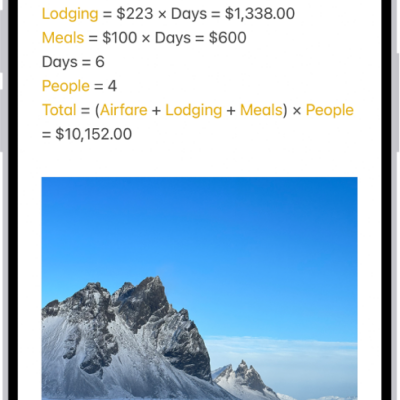
In the Notes app, you can add photos, videos, and information from other apps, such as maps, links, and documents.
That could be a location from Maps, a webpage from Safari, or a PDF from Files. You can change the preview size of attachments, and even draw on a photo. Photos and videos you take in Notes can be saved to the Photos app, too.
Here’s how to add photos, video, and more to notes on iPad.
Add a photo or video
- Start the Notes app on your iPad.
- In a note, tap the Attachments button and choose an option.
Quick tip: Tap the photo, then tap the Handwriting Tools button, and you can draw on a photo.
To save photos and videos taken in Notes to the Photos app, go to Settings > Apps > Notes, then turn on Save to Photos.
Add info from another app to a note
You can attach information from another app to a note, such as a webpage in Safari, a screenshot, a location in Maps, or a PDF in Files.
- In the app you’re using, open the item you want to share (for example, a map or webpage).
- Tap Share or the Share button. Then tap Notes or Add to Quick Note.
- Save the item to a new note or choose an existing note.
Change the preview size of attachments
- Start the Notes app on your iPad.
- In a note, you can change the preview size of the following:
- A single attachment: Touch and hold the attachment or tap the More button, tap View As, and choose an option.
- All attachments in a note: Tap the More button, tap Attachment View, and then choose Set All to Small or Set All to Large.
View all attachments in Notes
- Start the Notes app on your iPad.
- Above the notes list, tap the Folder Actions button. Tap View Attachments to see thumbnails of photos, links, documents, and other attachments. (Attachments in locked notes aren’t shown.)
- To go to a note with a specific attachment, tap the attachment thumbnail. Then tap Show in Note.
See also