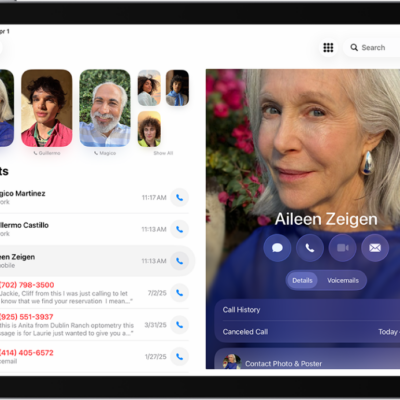
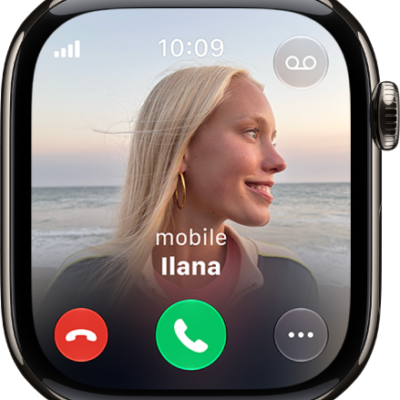
When you’re on a phone call on iPad, you can switch the audio to the speaker or a Bluetooth® device. With Apple Intelligence, you can also get a wait time prediction and view relevant information during a call.
During a call, a Call Context card with related information, like tickets, orders, confirmation numbers, or reservations, may appear, and you can use another app while you’re on the call. Hold Assist can notify you when a live agent is available.
Adjust the audio during a call
To change the volume, press the volume buttons on the side of iPad. Or swipe down on the call banner, then do any of the following:
- Mute: Tap the Mute button.
- Put the call on hold: Touch and hold the Mute button.
- Talk handsfree: Tap the Audio button, then choose an audio destination.
Use another app while on a call
- Go to the Home Screen, then open the app.
- To return to the call, tap the green call indicator at the top of the screen.
View relevant information during a call
With Apple Intelligence,* a Call Context card with related information may appear during a call—like tickets, orders, confirmation numbers, or reservations.
To turn Call Context cards on or off, do the following:
- Open Settings, then tap Apps.
- Tap Phone, then tap Siri.
- Turn Show When Calling on or off.
Note: Apple Intelligence on iPadOS 27 or later is available on an Apple Intelligence-enabled iPad mini (A17 Pro) and iPad models with M1 or later. Apple Intelligence is not available in all languages or regions. Usage limits may apply.*
Get a wait time prediction (U.S. only)
With Apple Intelligence,* you can get predictions of how long you’re estimated to wait before your call is answered, based on average wait times in the past.
Note: Apple Intelligence on iPadOS 27 or later is available on an Apple Intelligence-enabled iPad mini (A17 Pro) and iPad models with M1 or later. Apple Intelligence is not available in all languages or regions. Usage limits may apply.*
Receive a notification when you’re no longer on hold
Placed on hold during a call? Hold Assist can tell you when a live agent is available. That way, you don’t have to stay on the line.
Note: Available on iPad Pro 12.9-inch (5th generation or later), iPad Pro 11-inch (3rd generation or later), iPad Air (4th generation or later), iPad (10th generation or later), and iPad mini (6th generation or later). Hold Assist isn’t available in all countries or regions.
- Open the Phone app on your iPad.
-
When you’re in a call and put on hold, tap the More button. Then tap Hold Assist.
Important: Check your ring settings before you step away from the call. If your iPad is on silent or Do Not Disturb is turned on, you won’t hear the incoming call when an agent is available. See Change iPad sounds.
- Hold Assist will notify you when an agent is available and transcribe the part of the call you missed. Tap the Answer Call button to rejoin the call.
Note: Phone can also detect hold music automatically and prompt you to start Hold Assist. To turn this on, go to Settings > Apps > Phone, then turn on Hold Assist Detection.
Respond to a second call on the same line
If a second call comes in while you’re on a call, do one of the following:
- Ignore the call and send it to voicemail: Tap Ignore.
- End the first call and answer the new one: When using a GSM network, tap End & Accept. With a CDMA network, tap End; when the second call rings back, tap Accept, or drag the slider if iPad is locked.
-
Put the first call on hold and answer the new one: Tap Hold & Accept.
To switch between calls when you have a call on hold, tap Swap to switch between calls, or tap Merge Calls to talk with both parties at once. See Start a conference or three-way call.
Note: With CDMA, you can’t switch between calls if the second call was outgoing, but you can merge the calls. You can’t merge calls if the second call was incoming. If you end the second call or the merged call, both calls end.
*Apple Intelligence is available with Siri and device language set to Chinese (Simplified), Chinese (Traditional), Danish, Dutch, English, French, German, Italian, Japanese, Korean, Norwegian, Portuguese, Spanish, Swedish, Turkish, or Vietnamese. Some features may not be available in all regions or languages. Some devices may not be available in all regions. Siri AI is available in beta in iOS 27, iPadOS 27, macOS 27, watchOS 27, and visionOS 27 and requires an Apple Intelligence–enabled device set to a supported language. Available in English to start. Siri AI will not be initially available in the EU on iOS, iPadOS, and watchOS. Certain Apple Intelligence features that rely on server-side models are subject to daily usage limits, including but not limited to Siri AI, Intelligent Photo Editing Tools, Image Playground, and AFM 3 Cloud models in Shortcuts. Daily limits may vary by feature, request complexity, system demand, system policies, and other factors. Expanded access to such features will be available for a fee in the future. Use of these features is subject to the Apple Intelligence Terms and Conditions.
See also