With VoiceOver, a gesture-based screen reader, you can use iPad even if you can’t see the screen. VoiceOver gives audible descriptions of what’s on your screen, so you can hear the battery level, who’s calling, or what item your finger is on. You can also customize the VoiceOver speaking voice to suit your needs.
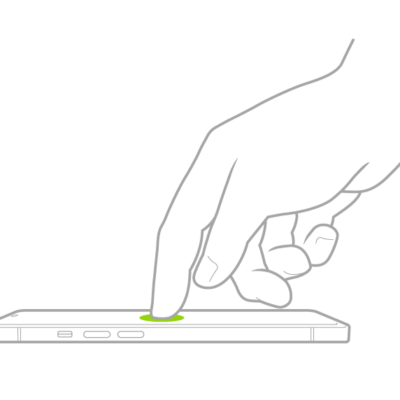
As you touch the screen or drag your finger over it, VoiceOver speaks the name of the item your finger is on, including icons and text. You use VoiceOver gestures to interact with an item, such as a button or link, or to move to another item.
When you go to a new screen, VoiceOver plays a sound, then selects and speaks the name of the first item on the screen, typically in the top-left corner. It also tells you when the screen changes to landscape or portrait orientation, when the screen becomes dimmed or locked, and what’s active on the Lock Screen when you wake iPad.
Turn VoiceOver on or off
Important: VoiceOver changes the gestures you use to control iPad. When VoiceOver is on, you must use VoiceOver gestures to operate iPad.
To turn VoiceOver on or off, you can do any of the following:
- Go to Settings > Accessibility > VoiceOver, then turn VoiceOver on or off.
- Use Control Center if you’ve added VoiceOver there.
- Use the Accessibility Shortcut if you’ve set it up to turn on VoiceOver.
Siri: Ask Siri something like, “Turn on VoiceOver.” Learn how to use Siri.
Siri knows when VoiceOver is on and often reads more information back to you than appears on the screen. You can also use VoiceOver to read what Siri shows on the screen.
Use an interactive tutorial to learn VoiceOver
To learn VoiceOver basics and practice essential gestures, try the interactive VoiceOver Tutorial.
With VoiceOver turned on, go to Settings > Accessibility > VoiceOver, then tap VoiceOver Tutorial to get started.
Practice VoiceOver gestures
In the VoiceOver Practice area, you can safely try out VoiceOver gestures and hear what they do, all without performing any action or otherwise affecting iPad.
Try different techniques to discover which works best for you. If a gesture doesn’t work, try a quicker movement, especially for a double tap or swipe gesture. To swipe, try brushing the screen quickly with your finger or fingers. For best results using multifinger gestures, touch the screen with some space between your fingers.
- Open Settings, tap Accessibility, and then tap VoiceOver.
- Turn on VoiceOver, tap VoiceOver Practice, and then double-tap to start.
- Practice the following gestures with one, two, three, and four fingers:
- Tap
- Double tap
- Triple tap
- Swipe left, right, up, or down
- When you finish practicing, tap Done. Then double-tap to exit.
See also
- Change your VoiceOver settings on iPad
- Get live descriptions of your surroundings
- Detect text around you and have it read out loud using Magnifier on iPad
- Accessibility features for vision on iPad