You can use VoiceOver Recognition on iPad to scan your surroundings and get live descriptions of the scenes detected in the camera view. With Apple Intelligence, you can also get information and ask questions about onscreen images and interface elements, even in apps and on webpages that don’t provide accessibility information.
With Live Recognition, you choose the kinds of visual information you want VoiceOver to describe.
Here’s how to hear what’s on your screen and around you with VoiceOver on iPad.
Important: VoiceOver Recognition should not be relied upon in circumstances where you could be harmed or injured, in high-risk situations, for navigation, or for the diagnosis or treatment of any medical condition.
Get descriptions and ask questions about your surroundings with Live Recognition
-
With VoiceOver on, triple-tap the screen with four fingers to start Live Recognition.
-
Do any of the following:
-
Position iPad so the rear camera can detect what’s around you. VoiceOver describes what the camera detects.
To interrupt VoiceOver speech and move to the next detected item, tap the screen with two fingers.
To turn off Live Recognition, triple-tap the screen with four fingers. Or if the VoiceOver cursor is focused on an interface element for Live Recognition, do a two-finger scrub (move two fingers back and forth three times quickly, making a “z”).
Quick tip: You can set up a shortcut that quickly starts and stops Live Recognition. See our guide, Set up shortcuts for Live Recognition.
Detection Mode in the Magnifier app can also detect and describe scenes, people, and more. Check out our article, Get live descriptions of visual information around you with Magnifier.
Customize Live Recognition settings
-
Open the Settings app on your iPad.
-
Tap Accessibility, tap VoiceOver, tap VoiceOver Recognition, and tap Live Recognition.
-
Do any of the following:
- Set a default question that’s asked automatically: Turn on Default Question which is “What is this?” by default. You can also enter your own default question.
- Choose whether to speak or type by default: Tap Speak or Type.
- Use the volume buttons to take a picture: Turn on Use Volume Buttons to Recapture.
- Select what options appear in the rotor: Tap Live Recognition Rotor, then tap an option, like People, Doors, Scenes, or Ask. You can also drag each option up or down to rearrange the order in the rotor.
Note: Detection of people, doors, and furniture is available only on supported iPad models.
- Create a custom activity that you can quickly turn on: Tap Activities, tap the Add button, and then enter an activity name. Select the detection modes that are on by default in the activity. You can also turn on Speech, Braille, Sounds, and Haptics for different detection modes.
Get descriptions and ask questions about images
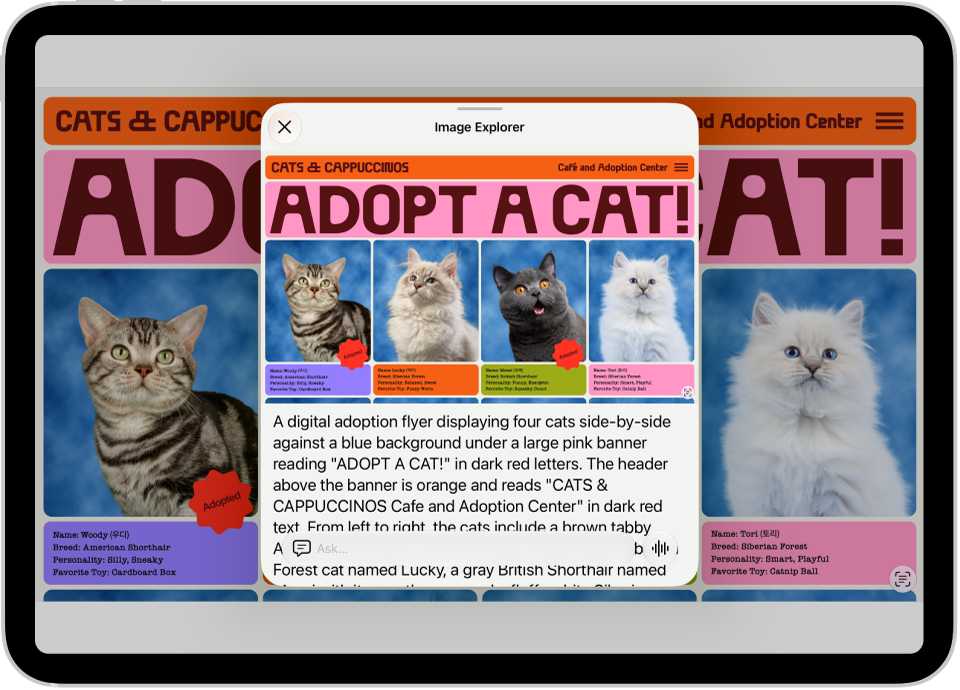
VoiceOver Recognition describes the people, objects, and text in images, even in apps and on webpages that don’t provide accessibility information. And with Apple Intelligence, you can also ask questions about images and get enhanced descriptions.
Note: Apple Intelligence on iPadOS 27 or later is available on an Apple Intelligence-enabled iPad mini (A17 Pro) and iPad models with M1 or later. Apple Intelligence is not available in all languages or regions. Usage limits may apply.*
-
Open the Settings app on your iPad.
-
Tap Accessibility, tap VoiceOver and tap VoiceOver Recognition. Do any of the following:
- Explore content in an image, get descriptions, and ask questions: Turn on Explore Image.
- Ask questions and get information about images: Turn on Ask About Image.
- Get detailed descriptions of images: Turn on Intelligent Image Description.
-
To get descriptions of text found in images, turn on Text Recognition.
-
Go to an app such as Photos or Safari and select an image.
-
Swipe down to hear more options and then double-tap when you hear Intelligent Image Description, Explore Image, or Ask About Image.
-
Move your finger around the image to find out the position of each object.
Note: Image descriptions aren’t available in all languages.
Add custom descriptions of images in Photos
- Open the Photos app on your iPad.
- Double-tap the image you want to add a custom description to.
- Double-tap the Edit button, then double-tap the Markup button.
- Double-tap the Add button and then double-tap Image Description.
- Enter your image description.
- Double-tap the Done button, then double-tap the Done button again.
After you add a custom description to a photo in the Photos app, you’ll hear the description when you select the photo in the photo picker, and when you double-tap it.
Get descriptions of interface elements
When apps and webpages don’t provide accessibility information, VoiceOver Recognition still describes interface elements.
- Open the Settings app on your iPad.
- Tap Accessibility, tap VoiceOver, and then tap VoiceOver Recognition.
- Tap Screen Recognition and turn on Screen Recognition.
- Tap Apply to Apps and select an app from the list to improve the accessibility of a specific app.
*Apple Intelligence is available with Siri and device language set to Chinese (Simplified), Chinese (Traditional), Danish, Dutch, English, French, German, Italian, Japanese, Korean, Norwegian, Portuguese, Spanish, Swedish, Turkish, or Vietnamese. Some features may not be available in all regions or languages. Some devices may not be available in all regions. Siri AI is available in beta in iOS 27, iPadOS 27, macOS 27, watchOS 27, and visionOS 27 and requires an Apple Intelligence–enabled device set to a supported language. Available in English to start. Siri AI will not be initially available in the EU on iOS, iPadOS, and watchOS. Certain Apple Intelligence features that rely on server-side models are subject to daily usage limits, including but not limited to Siri AI, Intelligent Photo Editing Tools, Image Playground, and AFM 3 Cloud models in Shortcuts. Daily limits may vary by feature, request complexity, system demand, system policies, and other factors. Expanded access to such features will be available for a fee in the future. Use of these features is subject to the Apple Intelligence Terms and Conditions.
See also









