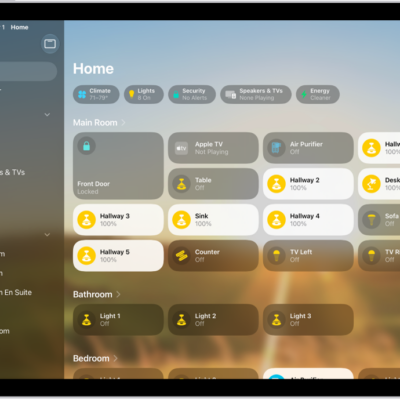
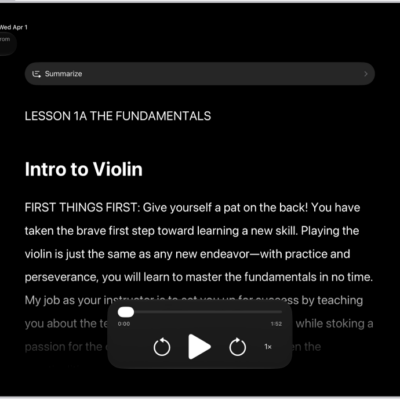
With Voice Control on your iPad, you can speak commands to interact with what’s on the screen, perform gestures and button presses, dictate and edit text, and more. And with Apple Intelligence, you can describe onscreen elements in your own words instead of using exact labels—refer to an item by its name, what it does, its color, or where it appears on the screen.
You can pause or resume Voice Control, see what commands you can use, label onscreen items, and show a numbered grid on the screen.
Note: When Voice Control is on, you use Voice Control to dictate text; standard iPadOS Dictation isn’t available. If you just want to enter text using Dictation, without controlling your iPad with your voice, see Dictate text. Voice Control isn’t available in all languages.
Note: Apple Intelligence on iPadOS 27 or later is available on an Apple Intelligence-enabled iPad mini (A17 Pro) and iPad models with M1 or later. Apple Intelligence is not available in all languages or regions. Usage limits may apply.* To use Apple Intelligence with Voice Control, you must have your system language and Voice Control language set to English. See Change the language and region and Set up Voice Control.
Set up Voice Control
The first time you turn on Voice Control, iPad has to be connected to the internet over a Wi-Fi network. After iPad finishes a one-time file download from Apple, you can use Voice Control without an internet connection.
- Start the Settings app on your iPad.
-
Tap Accessibility, tap Voice Control, tap Set Up Voice Control, and follow the onscreen instructions.
When the download is complete, the Voice Control icon appears in the status bar to indicate that Voice Control is turned on.
-
Set options such as the following:
- Language: Set the language and download languages for offline use.
- Commands: View the available commands and create new commands.
-
Vocabulary: Teach Voice Control to recognize new words and phrases. You can enter a word or phrase and teach Voice Control how you pronounce it, or import a vocabulary list.
Note: Not all Voice Control languages support a custom vocabulary.
- Show Confirmation: When Voice Control recognizes a command, a visual confirmation appears at the top of the screen.
- Play Sound: When Voice Control recognizes a command, a sound plays.
- Show Hints: See command suggestions and hints.
- Flexible Item Names: With Apple Intelligence, you can refer to onscreen items in your own words instead of using their exact labels. This is turned on by default and can be turned off to use exact labels.
- Continuous Overlay: Display numbers, names, or a grid over screen elements.
- Attention Aware: On an iPad with Face ID, Voice Control wakes up when you look at your iPad and goes to sleep when you look away.
-
Prefer Bluetooth Mic: Use AirPods or Bluetooth® headsets when connected instead of the iPad microphone.
Note: Using Voice Control with AirPods and third-party headsets impacts audio quality and audio features like Siri announcements and Share Audio with AirPods.
Turn Voice Control on or off
After Voice Control is set up, you can quickly turn it on or off by doing any of the following:
- Use Control Center if you’ve added it there.
-
Use Accessibility Shortcut if you’ve set it up.
Siri: Ask Siri something like, “Turn on Voice Control.” Learn how to use Siri.
Start using commands
Using Voice Control on your iPad is as simple as saying a command. And with Apple Intelligence, you can describe what you want to act on instead of giving its exact label.
Voice Control: Say, for example, “Open Control Center,” “Go home,” “Tap item name,” or “Turn up volume.” Or with Apple Intelligence, say “Tap the button that sends the message” or “Tap the button at the bottom right.”
Quick tip: To get familiar with Voice Control and practice essential commands, try the interactive Voice Control Tutorial. Go to Settings > Accessibility > Voice Control, where you can tap Open Voice Control Tutorial.
Pause or resume Voice Control
If you don’t want what you say treated as commands or dictation, pause Voice Control. Resume Voice Control when you want it listening for commands and dictation again.
Voice Control: Say “Stop listening” or “Start listening.”
See what commands you can use
The list of available commands varies depending on the app you’re working in and what you’re doing, so text formatting commands show up while you’re writing a document, for example. Apple Intelligence also understands an item described in your own words, rather than by its exact label.
Voice Control: Say “Show commands.”
To browse the full list of supported commands and see examples of how to use them, go to Settings > Accessibility > Voice Control > Commands.
Label onscreen items
If you’re not sure what to call something, a name or number can appear next to each item on the screen, and you can use it to interact with the item. Or, with Apple Intelligence, skip the name or number and describe the item in your own words.
Voice Control: Say “Show names,” “Show numbers,” or “Show text numbers.” Or with Apple Intelligence, say “Tap the blue button at the bottom.”
To interact with an item, say its name or number, or say a command—such as “Long press”—followed by the item’s name or number. The item names or numbers disappear after you say the command.
Show a numbered grid on the screen
For easier interaction with a precise area of the screen, you can superimpose a grid.
Voice Control: Say “Show grid.”
- Interact with a location on the grid: If a number is at the location you want to interact with, say any command—such as “Tap”—followed by the grid number. The grid disappears after you say the command.
- Drill down on an area of the grid: If you need to further refine the location, say a grid number to show a more detailed grid in that area.
Say “Hide names,” “Hide numbers,” or “Hide grid” to turn the overlay off.
Enter text
In a text input area, you can use Dictation mode to dictate word by word, or Spelling mode to go character by character. Command mode, meanwhile, has Voice Control respond only to commands, so you don’t mistakenly enter a Voice Control command as text.
When you’re in a text input area and label onscreen items with numbers, numbers are shown next to each line of text. Select a line or another section of the text to display a number for each word in the selection; select a single word to show a number for each character in the word. To interact with a text item (such as a line or a word), say a command followed by the item’s name or number. For example, you can say “Delete [item number]” or “Uppercase [item number].”
| Command | Description |
|---|---|
| Voice Control: Say “Dictation mode.” | Dictate word by word.
Any words you say that aren’t Voice Control commands are entered as text. Dictation mode is on by default. In some Voice Control languages, if several words phonetically match what you say, they appear onscreen. Tap to choose the one you want. |
| Voice Control: Say “Spelling mode.” | Dictate character by character.
Spelling mode is helpful when you need to enter a password, a web address, or another sequence of characters that wouldn’t be recognized as a word in Dictation mode. When Spelling mode is on, the Spelling Mode icon appears in the text input area. To increase accuracy when entering letters, you can use the letter’s phonetic alphabet code word (for example, say “Alfa Bravo Charlie” to enter “abc”). Note: Spelling mode isn’t available in all Voice Control languages. |
| Voice Control: Say “Command mode.” | Voice Control responds only to commands.
Words and characters that aren’t commands are ignored and aren’t entered as text. Command mode is helpful when you need to say a series of commands and don’t want them inadvertently entered in a text input area. When Command mode is on, the Command Mode icon appears in the text input area to indicate you can’t dictate to enter text. |
*Apple Intelligence is available with Siri and device language set to Chinese (Simplified), Chinese (Traditional), Danish, Dutch, English, French, German, Italian, Japanese, Korean, Norwegian, Portuguese, Spanish, Swedish, Turkish, or Vietnamese. Some features may not be available in all regions or languages. Some devices may not be available in all regions. Siri AI is available in beta in iOS 27, iPadOS 27, macOS 27, watchOS 27, and visionOS 27 and requires an Apple Intelligence–enabled device set to a supported language. Available in English to start. Siri AI will not be initially available in the EU on iOS, iPadOS, and watchOS. Certain Apple Intelligence features that rely on server-side models are subject to daily usage limits, including but not limited to Siri AI, Intelligent Photo Editing Tools, Image Playground, and AFM 3 Cloud models in Shortcuts. Daily limits may vary by feature, request complexity, system demand, system policies, and other factors. Expanded access to such features will be available for a fee in the future. Use of these features is subject to the Apple Intelligence Terms and Conditions.
See also