Got a tip for us?

VoiceOver

When VoiceOver is on, standard touchscreen gestures have different effects, and additional gestures let you move around the screen and control individual items. VoiceOver gestures include two-, three-, and four-finger taps and swipes.

You can use different techniques to perform VoiceOver gestures. For example, a two-finger tap can be done with two fingers on one hand, one finger on each hand, or your thumbs. And instead of selecting an item and double-tapping it, you can use a split-tap gesture. As you explore, VoiceOver names each item you touch.

Explore and speak items on the screen

To explore the screen, drag your finger over it. VoiceOver speaks the name of each item you touch.

You can also use VoiceOver gestures to explore the screen in order, from top to bottom and left to right.

Action Gesture
Select and speak an item Tap or touch the item
Select the next item Swipe right
Select the previous item Swipe left
Move into a group of items Two-finger swipe right
Move out of a group of items Two-finger swipe left
Select the first item on the screen Four-finger tap near the top of the screen
Select the last item on the screen Four-finger tap near the bottom of the screen
Speak the entire screen from the top Two-finger swipe up
Speak the entire screen from the selected item Two-finger swipe down
Pause or continue speaking Two-finger tap
Speak additional information, such as the position within a list or whether text is selected Three-finger tap

For more information about navigation styles, see Use flat or grouped navigation.

Scroll up, down, left, and right

Use VoiceOver gestures to move to another page.

Action Gesture
Scroll up one page Three-finger swipe down
Scroll down one page Three-finger swipe up
Scroll left one page Three-finger swipe right
Scroll right one page Three-finger swipe left

Take action on an item

Use VoiceOver gestures to perform actions on an item.

Action Gesture
Select an item Tap
Activate the selected item Double tap
Touch and hold (long press) the item Triple tap
Drag a slider Tap the slider to select it, then swipe up or down with one finger; or double-tap and hold the slider until you hear three rising tones, then drag the slider
Start or stop the current action (for example, play or pause music or a video, take a photo in Camera, start or stop a recording, start or stop the stopwatch) Two-finger double tap
Dismiss an alert or return to the previous screen Two-finger scrub (move two fingers back and forth three times quickly, making a “z”)
Edit an item’s label to make it easier to find Two-finger double tap and hold

Quick tip: Besides selecting an item and double-tapping to activate it, there’s another way: Touch and hold an item with one finger, and then tap the screen with another.

Use gestures to control VoiceOver

Action Gesture
Mute or unmute VoiceOver Three-finger double tap.

If both VoiceOver and Zoom are turned on, use the three-finger triple-tap gesture.

Turn the screen curtain on or off

(When the screen curtain is on, the screen contents are active even though the display is black and appears to be turned off.)

Three-finger triple tap.

If both VoiceOver and Zoom are turned on, use the three-finger quadruple-tap gesture.

Use a standard gesture Double-tap and hold your finger on the screen until you hear three rising tones, then make the gesture. When you lift your finger, VoiceOver gestures resume.

For example, to drag a volume slider with your finger instead of swiping up and down, select the slider, double-tap and hold, wait for the three tones, then slide left or right.

Open the Item Chooser Two-finger triple tap.

To move quickly through the list of items, type a name in the search field, swipe right or left to move through the list alphabetically, or tap the table index to the right of the list and swipe up or down. You can also use handwriting to select an item by writing its name. If you use Braille Screen Input to type braille directly on the screen, when you’re not entering text, you can type to search for an item.

To dismiss the Item Chooser without making a selection, do a two-finger scrub (move two fingers back and forth three times quickly, making a “z”).

Open the VoiceOver quick settings Two-finger quadruple tap.
Start or stop Live Recognition Four-finger triple tap. See Get live descriptions of your surroundings with VoiceOver.

Use the VoiceOver rotor

With the onscreen rotor, you can change VoiceOver settings, jump between items on the screen, select special input methods like Braille Screen Input or Handwriting, and more; read our guide, Control VoiceOver using the rotor.

You can use these gestures with the rotor.

Action Gesture
Choose a rotor setting Two-finger rotation
Move to the previous item or increase (depending on the rotor setting) Swipe up
Move to the next item or decrease (depending on the rotor setting) Swipe down

See also

With handwriting mode in VoiceOver, you can enter text by writing characters on the screen with your finger. In addition to typing or dictation, you can use handwriting mode to enter your iPad passcode silently or to open apps from the Home Screen.

You can also use it to quickly navigate a long list, and to select an item on the Home Screen by spelling its name, even when there are multiple matches.

Use handwriting mode

  1. Set the rotor to Handwriting.

    If Handwriting isn’t in the rotor, go to Settings > Accessibility > VoiceOver > Rotor, then add it.

  2. To choose a character type (lowercase, numbers, uppercase, or punctuation), swipe up or down with three fingers.

    To hear the selected character type, tap with three fingers.

  3. Trace a character on the screen with your finger.

    You can also do any of the following:

    • Enter an alternate character (a character with an accent, for example): Write the character and then swipe up or down with two fingers until you hear the character you want.
    • Enter a space: Swipe right with two fingers.
    • Go to a new line: Swipe right with three fingers.
    • Delete the previous character: Swipe left with two fingers.
  4. To exit handwriting mode, do a two-finger scrub (move two fingers back and forth three times quickly, making a “z”), or set the rotor to a different setting.

Enter your passcode silently with handwriting mode

  1. On the passcode screen, set the rotor to Handwriting.
  2. Write the characters of your passcode with your finger.

Select an item on the Home Screen

  1. On the Home Screen, set the rotor to Handwriting.
  2. Start writing the name of the item with your finger.

    If there are multiple matches, continue to spell the name until it’s unique, or swipe up or down with two fingers to choose from the current matches.

Quickly navigate a long list

  1. Select the index to the right of the list (for example, next to your Contacts list or in the VoiceOver Item Chooser).
  2. Set the rotor to Handwriting and then use your finger to write the letter you want to go to.

See also

You can use the onscreen VoiceOver rotor to change how VoiceOver works. You can adjust the VoiceOver volume or speaking rate, move from one item to the next on the screen, and select special input methods.

VoiceOver speaks each rotor setting as you rotate your fingers, and the available settings depend on what you’re doing. You can also add or reorder rotor settings, and with an Apple external keyboard, use the rotor to adjust settings like typing echo.

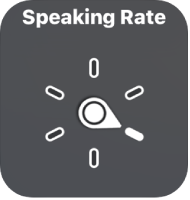
The rotor control with the dial pointing to the Speaking Rate setting.

When you use an Apple external keyboard to control VoiceOver, use the rotor to adjust settings such as volume, speech rate, use of pitch or phonetics, typing echo, and reading of punctuation.

Use the VoiceOver rotor

  1. When VoiceOver is turned on, rotate two fingers on your screen as if you’re turning a dial. If you prefer to use one finger on each hand, simultaneously drag up with one finger and drag down with the other.

    VoiceOver speaks the rotor setting. Keep rotating your fingers to hear more settings. Stop rotating your fingers when you hear the setting you want.

  2. Swipe your finger up or down on the screen to use the setting.

    The available rotor settings and their effects depend on what you’re doing. For example, if you choose Headings when you’re browsing a webpage, swipe down or up to move the VoiceOver cursor to the next or previous heading.

Customize the VoiceOver rotor

  1. Open Settings, tap Accessibility, and then tap VoiceOver.
  2. Do any of the following:
    • Add or reorder the rotor settings: Tap Rotor. Then choose the settings you want, or drag the Reorder button to reorder settings.
    • Add another language: See Change the speaking voice.
    • Have VoiceOver confirm rotor actions: Tap Verbosity, then turn on Speak Confirmation.

See also

You can customize the settings for VoiceOver, such as the audio options, language, voice, speaking rate, and verbosity.

You can adjust the volume of VoiceOver speech and sounds, temporarily reduce the volume of other audio while VoiceOver is speaking, and change the speaking voice. Your iPad’s volume buttons control the volume of VoiceOver speech, too, along with all other iPad audio.

Here’s how to change your VoiceOver settings on iPad.

Adjust the volume of VoiceOver speech and sounds

  • To increase or decrease your iPad’s volume, including the volume of VoiceOver speech and sounds, as well as all other iPad audio, press the volume buttons on iPad.
  • To temporarily reduce the volume of other iPad audio while VoiceOver is speaking, go to Settings > Accessibility > VoiceOver > Audio, tap Audio Ducking, then select When Speaking. Drag the Ducking Amount slider to set how much the volume decreases for other iPad audio—like media and calls—when VoiceOver is speaking.
  • To set other audio options, go to Settings > Accessibility > VoiceOver > Audio, then set options such as the following:
    • Sounds: Adjust and preview sound effects.
    • Send to HDMI: Route audio to externally connected devices, such as an instrument amplifier or a DJ mixer.

Set the VoiceOver language

  • Change the primary language: VoiceOver uses the same language you choose for your iPad. To choose a different primary language, go to Settings > General > Language & Region, then tap Add Language.
  • Switch languages using the rotor: Use the rotor to switch to a voice for another language.
  • Automatically switch languages: VoiceOver can detect text in another language and automatically switch to a voice for that language. Go to Settings > Accessibility > VoiceOver > Speech, then turn on Detect Languages.

Note: VoiceOver isn’t available in all languages.

Change the speaking voice

Change the VoiceOver speaking voice, or add another voice, then use the rotor to move between voices as needed.

  1. Open Settings, tap Accessibility, and then tap VoiceOver.
  2. Tap Speech, then do one of the following:
    • Change the primary voice: Tap the name of the current primary voice, then tap Voice.
    • Add another voice: Tap Add Rotor Voice.
  3. Choose a voice. To choose an enhanced voice, tap the Download button first.

Adjust the speaking voice

Go to Settings > Accessibility > VoiceOver, then do any of the following:

  • Adjust the speaking rate: Drag the Speaking Rate slider.
  • Adjust the pitch: Tap Speech, tap a voice, then drag the slider. You can also turn on Pitch Change to have VoiceOver use a higher pitch when speaking the first item of a group (such as a list or table) and a lower pitch when speaking the last item of a group.
  • Specify the pronunciation of certain words: Tap Speech > Pronunciations, tap the Add button, enter a phrase, then dictate or spell out how you want the phrase to be pronounced.

    Note: You can dictate only if you turned on Enable Dictation in Settings > General > Keyboard.

Set how much VoiceOver tells you

Go to Settings > Accessibility > VoiceOver > Verbosity, then do any of the following:

  • Change how VoiceOver speaks punctuation: Tap Punctuation, then choose a group. You can also create new groups—for example, a programming group in which “[” is spoken as “left bracket.”
  • Change how VoiceOver reads notifications: Tap System Notifications. By default, VoiceOver reads notifications, including incoming text messages, as they occur—even if iPad is locked. Unacknowledged notifications are repeated when you unlock iPad.
  • Choose additional options: Have VoiceOver speak hints, uppercase letters, embedded links, and more. VoiceOver can even confirm rotor actions and tell you when the flashlight is turned on.

Customize VoiceOver settings for an activity

Say you’re programming. Customize a group of VoiceOver settings for that activity, and the settings for speech, audio, verbosity, typing, navigation, and braille kick in automatically when you open certain apps or adjust the rotor.

  1. Open Settings, tap Accessibility, tap VoiceOver, and then tap Activities.
  2. Choose an existing activity or tap Add Activity.
  3. Adjust the settings and then below Automatic Switching, do any of the following:
    • Apply the settings for certain apps: Tap Apps and then select the ones you want this setting to apply to.
    • Apply the settings for certain contexts: Tap Context, then select one or more contexts, such as Word Processing, Messaging, or Console.

Use flat or grouped navigation

Go to Settings > Accessibility > VoiceOver > Navigation Style, then choose one of the following:

  • Flat: VoiceOver moves sequentially through each item on the screen when you use the move next and previous commands.
  • Grouped: VoiceOver moves through items and groups of items on the screen. To move into a group, use a two-finger swipe right. To move out of a group, use a two-finger swipe left.

Set a delay between touching the screen and selecting an item

You can control the amount of time between when you touch the screen and when VoiceOver selects the item you’ve touched. Increasing this value may help reduce accidental touches.

Go to Settings > Accessibility > VoiceOver, tap Delay before Selection, then tap the Increment button or the Decrement button to increase or decrease the delay.

Adjust VoiceOver visuals

Go to Settings > Accessibility > VoiceOver, then turn on any of the following:

  • Large Cursor: If you have difficulty seeing the outline around the selected item, you can enlarge and thicken the outline.
  • Caption Panel: The text spoken by VoiceOver is displayed at the bottom of the screen.

Use Quick Settings to adjust VoiceOver from anywhere

When VoiceOver is turned on, you can access Quick Settings by doing a two-finger quadruple tap.

To customize Quick Settings, do the following:

  1. Open Settings, tap Accessibility, tap VoiceOver, and then tap Quick Settings.
  2. Choose the settings you want, or drag the Reorder button to reorder settings.

Reset VoiceOver settings

  1. Start the Settings app on your iPad.
  2. Tap Accessibility, then tap VoiceOver.
  3. Tap Reset VoiceOver Settings. (You may need to scroll down.)

Reset VoiceOver Commands

  1. Start the Settings app on your iPad.
  2. Tap Accessibility, then tap VoiceOver, then tap Commands.
  3. Tap Reset VoiceOver Commands.

See also

If you use a pointer device with iPad, you can adjust how it works with VoiceOver. You can set the pointer to ignore, follow, or move the VoiceOver cursor, and adjust the delay before VoiceOver speaks the item under the pointer. You can also make the pointer easier to see.

  1. Open Settings, tap Accessibility, and then tap VoiceOver.
  2. Below Pointer Control, tap any of the following:
    • Pointer: Set the pointer to ignore, follow, or move the VoiceOver cursor.
    • Speak Under Pointer: You can adjust the delay to speak the item under the pointer.

See also

With VoiceOver, a gesture-based screen reader, you can use iPad even if you can’t see the screen. VoiceOver gives audible descriptions of what’s on your screen, so you can hear the battery level, who’s calling, or what item your finger is on. You can also customize the VoiceOver speaking voice to suit your needs.

As you touch the screen or drag your finger over it, VoiceOver speaks the name of the item your finger is on, including icons and text. You use VoiceOver gestures to interact with an item, such as a button or link, or to move to another item.

When you go to a new screen, VoiceOver plays a sound, then selects and speaks the name of the first item on the screen, typically in the top-left corner. It also tells you when the screen changes to landscape or portrait orientation, when the screen becomes dimmed or locked, and what’s active on the Lock Screen when you wake iPad.

Turn VoiceOver on or off

Important: VoiceOver changes the gestures you use to control iPad. When VoiceOver is on, you must use VoiceOver gestures to operate iPad.

To turn VoiceOver on or off, you can do any of the following:

  • Go to Settings > Accessibility > VoiceOver, then turn VoiceOver on or off.
  • Use Control Center if you’ve added VoiceOver there.
  • Use the Accessibility Shortcut if you’ve set it up to turn on VoiceOver.

Siri: Ask Siri something like, “Turn on VoiceOver.” Learn how to use Siri.

Siri knows when VoiceOver is on and often reads more information back to you than appears on the screen. You can also use VoiceOver to read what Siri shows on the screen.

Use an interactive tutorial to learn VoiceOver

To learn VoiceOver basics and practice essential gestures, try the interactive VoiceOver Tutorial.

With VoiceOver turned on, go to Settings > Accessibility > VoiceOver, then tap VoiceOver Tutorial to get started.

Practice VoiceOver gestures

In the VoiceOver Practice area, you can safely try out VoiceOver gestures and hear what they do, all without performing any action or otherwise affecting iPad.

Try different techniques to discover which works best for you. If a gesture doesn’t work, try a quicker movement, especially for a double tap or swipe gesture. To swipe, try brushing the screen quickly with your finger or fingers. For best results using multifinger gestures, touch the screen with some space between your fingers.

  1. Open Settings, tap Accessibility, and then tap VoiceOver.
  2. Turn on VoiceOver, tap VoiceOver Practice, and then double-tap to start.
  3. Practice the following gestures with one, two, three, and four fingers:
    • Tap
    • Double tap
    • Triple tap
    • Swipe left, right, up, or down
  4. When you finish practicing, tap Done. Then double-tap to exit.

See also

If you use VoiceOver on iPhone, and don’t need to see what’s on the screen, you can turn on the screen curtain. It improves battery life and helps maintain privacy. And even though the display is off, your iPhone stays active.

With VoiceOver on, triple-tap with three fingers to turn the screen curtain on or off. If both VoiceOver and the Zoom feature are turned on, quadruple-tap with three fingers.

With VoiceOver on your Apple Watch, you can perform many functions with a press, swipe, or turn of the Digital Crown.

You can change or customize a watch face, check notifications from the watch face, open Control Center from the watch face, and show widgets, and there’s more, from the App Switcher and Grid View to reading mail and navigating with the Digital Crown. Try the following while viewing the current watch face.

  • Change the watch face: Triple-tap the screen, turn the Digital Crown to browse available faces, then press the Digital Crown to choose the face.
  • Customize a watch face: Triple-tap the display, swipe down to choose Edit, then double-tap. Swipe left or right with two fingers to browse the customizable features. Turn the Digital Crown to customize the selected feature. When you finish, press the Digital Crown, then double-tap the face to save your changes.
  • Check notifications from the watch face: Swipe down with two fingers.

    To check notifications from most other screens, tap the time in the top-right of the display, then swipe down with two fingers.

  • Open Control Center from the watch face: Press the side button.
  • Show widgets: From the watch face, scroll down with the Digital Crown or swipe up with two fingers.
  • Open the App Switcher: Double-click the Digital Crown, then turn the Digital Crown to scroll through recent apps. Double-tap an app to open it.
  • Open any app in Grid View: Press the Digital Crown once to go to the Home Screen. Turn the Digital Crown to scroll through apps. Drag your finger to highlight an app, then double-tap to open it. Or use Siri to open it: hold down the Digital Crown until you feel the double tap, then say “launch” followed by the app name (for example, “launch Mail”).
  • Read mail: Press the Digital Crown once to go to the Home Screen. Swipe to highlight the Mail app, double-tap (or hold down) the Digital Crown to use Siri, then say “launch Mail.” When the Mail app opens, turn the Digital Crown to navigate and hear messages. Navigate through the message with the Digital Crown.
  • Navigate with the Digital Crown: Triple-tap with two fingers, then turn the Digital Crown to select an item. Triple-tap with two fingers to turn off Digital Crown Navigation.

See also

Apple Watch supports many international braille tables and refreshable braille displays. You can connect a Bluetooth wireless braille display to read VoiceOver output, including contracted and uncontracted braille.

When you edit text, the braille display shows the text in context, and your edits are automatically converted between braille and printed text. You can also use a braille display with input keys to control your Apple Watch when VoiceOver is turned on. And you can change the braille display settings on your watch.

Connect a braille display

  1. Turn on the braille display.
  2. On Apple Watch, open Settings, tap Accessibility, tap VoiceOver, tap Braille, and then choose the display.

Change the braille display settings

  1. On Apple Watch, open Settings, tap Accessibility, tap VoiceOver, and then tap Braille.
  2. Set any of the following:

    Setting Description
    Output Set the braille display output to uncontracted six-dot, uncontracted eight-dot, or contracted braille.
    Input Choose the input method for entering braille on the display—uncontracted six-dot, uncontracted eight-dot, or contracted braille. You can also turn on Automatic Translation.
    Word Wrap Wrap words to the next line.
    Alert Display Duration Adjust the duration that an alert is visible on your braille display.
    Braille Tables Add tables to the Braille Table rotor.

See also

VoiceOver can help you set up your Apple Watch and pair it with your iPhone, and it speaks what’s on the display as you go. See Use VoiceOver.

You can try automatic pairing with your iPhone camera, or pair manually with a six-digit pairing code. When pairing succeeds, you feel a tap from Apple Watch and hear “Your Apple Watch is paired.” Then it syncs with your iPhone.

Here’s how to set up Apple Watch using VoiceOver.

Set up Apple Watch using VoiceOver

  1. If your Apple Watch isn’t on, turn it on by holding down the side button.
  2. On your Apple Watch, turn on VoiceOver by triple-clicking the Digital Crown.
  3. Bring your iPhone near your Apple Watch.
  4. On your iPhone, select Continue, then double-tap.
  5. On your iPhone, tap Set Up Apple Watch and then double-tap.
  6. To try automatic pairing, point the iPhone camera at the watch from about 6 inches away.

    When you hear the pairing confirmation, follow the spoken prompts to complete the setup of your Apple Watch. If you have difficulty, follow steps 7 through 13 to manually complete the setup.

  7. On your iPhone, select Pair Apple Watch Manually. Then double-tap.
  8. On your Apple Watch, select the Info button in the bottom-right corner, then double-tap.
  9. On your Apple Watch, select your Apple Watch ID near the top of the screen. You hear the unique identifier for your Apple Watch—it’s something like “Apple Watch 52345”.
  10. On your iPhone, select this same identifier and then double-tap.
  11. Select the six-digit pairing code on your Apple Watch to hear it.
  12. Enter the pairing code from your Apple Watch on your iPhone using the keyboard.

    When pairing succeeds, you feel a tap from Apple Watch and you hear “Your Apple Watch is paired.” If pairing fails, tap to respond to the alerts. Your Apple Watch and the Apple Watch app on your iPhone reset so you can try again.

  13. On your iPhone, choose Restore from Backup or Set Up as New Apple Watch and then double-tap.

When you’ve completed setup, Apple Watch syncs with your iPhone. This takes a few moments—tap Sync Progress on your iPhone to hear progress. When you hear “sync complete” your Apple Watch is ready to use, displaying the watch face. Swipe left or right to explore watch face features.

See also