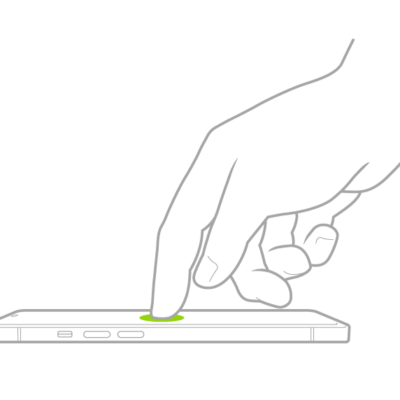
You can use the onscreen VoiceOver rotor to change how VoiceOver works. You can adjust the VoiceOver volume or speaking rate, move from one item to the next on the screen, and select special input methods.
VoiceOver speaks each rotor setting as you rotate your fingers, and the available settings depend on what you’re doing. You can also add or reorder rotor settings, and with an Apple external keyboard, use the rotor to adjust settings like typing echo.
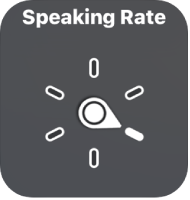
When you use an Apple external keyboard to control VoiceOver, use the rotor to adjust settings such as volume, speech rate, use of pitch or phonetics, typing echo, and reading of punctuation.
Use the VoiceOver rotor
-
When VoiceOver is turned on, rotate two fingers on your screen as if you’re turning a dial. If you prefer to use one finger on each hand, simultaneously drag up with one finger and drag down with the other.
VoiceOver speaks the rotor setting. Keep rotating your fingers to hear more settings. Stop rotating your fingers when you hear the setting you want.
-
Swipe your finger up or down on the screen to use the setting.
The available rotor settings and their effects depend on what you’re doing. For example, if you choose Headings when you’re browsing a webpage, swipe down or up to move the VoiceOver cursor to the next or previous heading.
Customize the VoiceOver rotor
- Open Settings, tap Accessibility, and then tap VoiceOver.
- Do any of the following:
- Add or reorder the rotor settings: Tap Rotor. Then choose the settings you want, or drag the Reorder button to reorder settings.
- Add another language: See Change the speaking voice.
- Have VoiceOver confirm rotor actions: Tap Verbosity, then turn on Speak Confirmation.
See also
- Operate iPad when VoiceOver is on
- Change your VoiceOver settings on iPad
- Accessibility features for vision on iPad