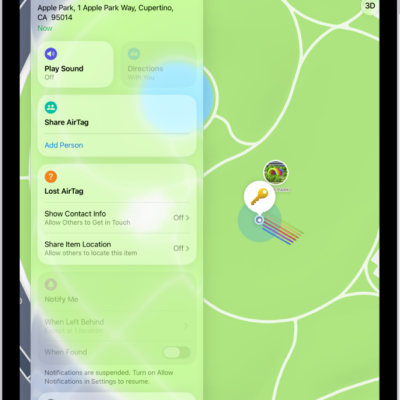
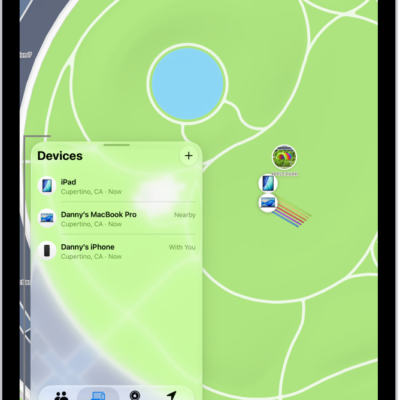
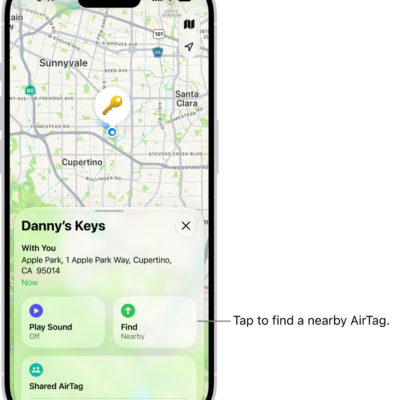
You can use certain third-party products with the Find My app. You can register these products to your Apple Account using your iPad, and then use Find My to locate them if they’re lost or misplaced.
You can also get notified if you leave your item behind. See Set separation alerts in case you leave an AirTag or item behind in Find My on iPad. If an item is registered to someone else’s Apple Account, though, they need to remove it before you can add it. You can also add an AirTag to Find My. See Add an AirTag in Find My on iPad.
Add a third-party item
- Open the Find My app on your iPad.
- Follow the manufacturer’s instructions to make the item discoverable.
- Tap the Add button, then choose Add Other Item.
- Tap Connect, type a name and select an emoji and tap Continue.
- Tap Continue to register the item to your Apple Account. Then tap Finish.
Trouble adding an item? Check with the manufacturer to see if Find My is supported.
Before you can add an item that’s registered to someone else’s Apple Account, that person needs to remove it. Check out our guide, Remove an AirTag or other item from Find My, if you need the steps.
Change an item’s name or emoji
- Open the Find My app on your iPad.
- Tap Items at the bottom-left side of the screen and tap the item whose name or emoji you want to change. Then tap the more button.
- Tap Change Name and Emoji.
- Choose a name from the list or choose Custom Name to type a name and select an emoji.
- Tap the done button.
Keep your item up to date
Keep your item up to date so you can use all the features in Find My.
- Open the Find My app on your iPad.
- Tap Items at the bottom-left side of the screen, tap the item you want to update, and tap the more button.
-
Tap Update Available and then follow the onscreen instructions.
Note: If you don’t see Update Available, your item is up to date.
While the item is updating, you can’t use Find My features.
View details about an item
Once an item is registered to your Apple Account, Find My can show you more details about it, like the model or serial number, plus whether the manufacturer offers a third-party app.
- Open the Find My app on your iPad.
- Tap Items at the bottom-left side of the screen and tap the item you want more details about, then tap the more button.
- Do either of the following:
- View details: Tap Show Details.
- Get or open third-party app: If an app is available, you see the app icon. Tap Get or the Download button to download the app. If you’ve already downloaded it, tap Open to open it on your iPad.
See also