You can attach photos, videos, and documents to an email message for recipients to easily download and save. You can also scan a paper document and send it as a PDF, or draw right in a message.
Depending on the file size, attachments might appear inline with the text, or as the Insert Attachment button at the end of the message. Documents come from Files, including the ones in Recents or Shared. And if your file exceeds the maximum size your email account allows, you’ll be able to send it using Mail Drop.
Attach a photo, video, or document to an email
Documents, videos, and photos you attach and send in your email messages are easy for recipients to download and save.
- Go to the Mail app on your iPad.
-
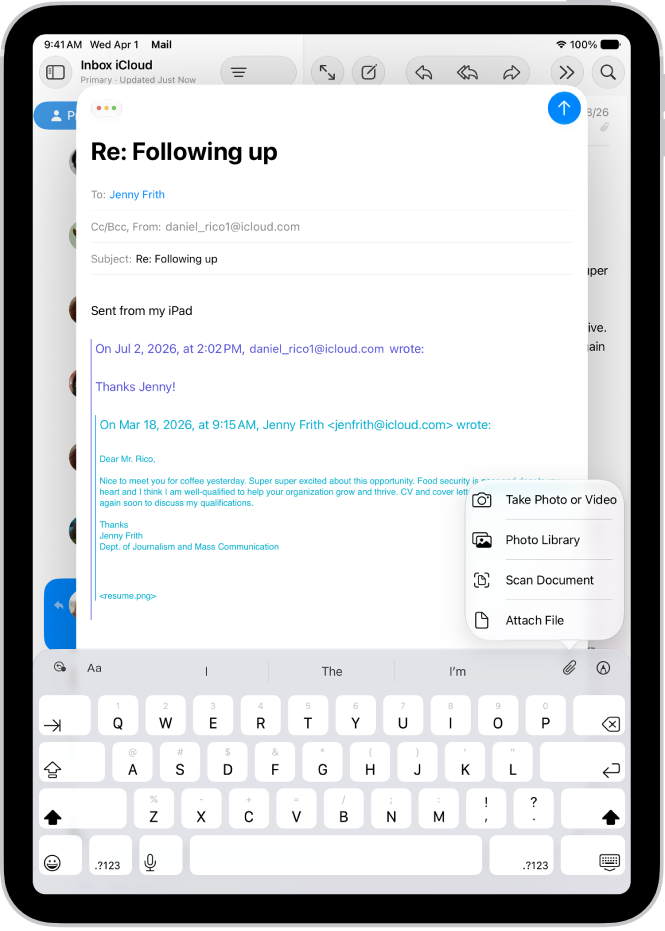
Tap in the message where you want to insert the attachment, tap the Insert Attachment Actions button, and do one of the following:
-
Attach a document: Tap Attach File and then locate the document in Files.
In Files, tap Recents or Shared, then tap a file, location, or folder to open it.
- Attach a saved photo or video: Tap Photo Library, then choose a photo or video. Tap the Done button to return to the message.
- Take a new photo or video and attach it to the message: Tap Take Photo or Video, then take a new photo or video. Tap Use Photo or Use Video to insert it into your message, or tap Retake if you want to reshoot it.
-
Attach a document: Tap Attach File and then locate the document in Files.
Note: If the file exceeds your email account’s maximum size, the onscreen instructions help you send it using Mail Drop.
Scan and attach a document to an email
You can scan a paper document and send it as a PDF.
- Open the Mail app on your iPad.
- Tap in the message where you want to insert the scanned document and tap the Insert Attachment Actions button above the keyboard.
-
Tap Scan Document and then position iPad so that the document page appears on the screen—iPad automatically captures the page.
To capture the page manually, tap the Take Picture button or press a volume button.
- Scan additional pages, then tap Save when you’re done.
-
To make changes to the saved scan, tap it and then do any of the following:
- Crop the image: Tap the Crop button.
- Apply a filter: Tap the Show Filter Settings button.
- Rotate the image: Tap the Rotate button.
- Delete the scan: Tap the Delete Scan button.
Create and attach a drawing to your email
Some ideas are hard to put into words, so you can draw in an email message to demonstrate them. Your drawing goes into the message as an attachment recipients can view and download.
- Open the Mail app on your iPad.
- Tap in the message where you want to insert a drawing and then tap the Insert Drawing button above the keyboard to show the Markup toolbar.
- Choose a drawing tool and color. Write or draw with your finger.
- When you’re finished, tap the Done button and then tap Insert Drawing.
To resume work on a drawing, tap the drawing in the message, tap the Disclosure arrow in the menu that appears, then tap Markup.
See also