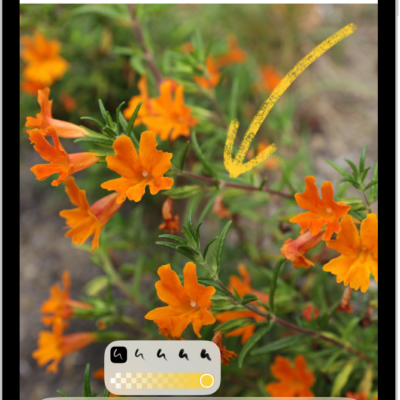
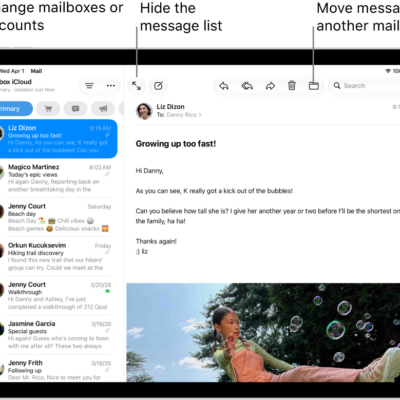
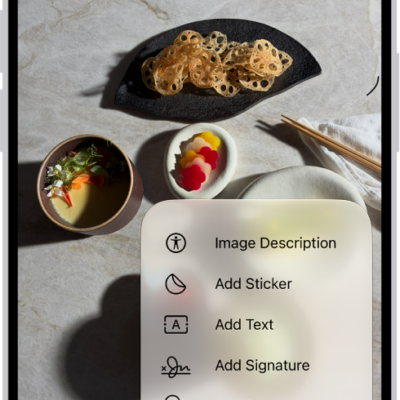
In the Mail app, you can annotate email attachments to give feedback on a draft, decorate a photo, and more. You can draw and write on a photo, video, or PDF attachment, then save or send it back.
Markup’s drawing tools let you draw with just your finger. When you’re finished, you can reply to the sender, start a new message, or discard your edited attachment, and you can save the annotated attachment to your files.
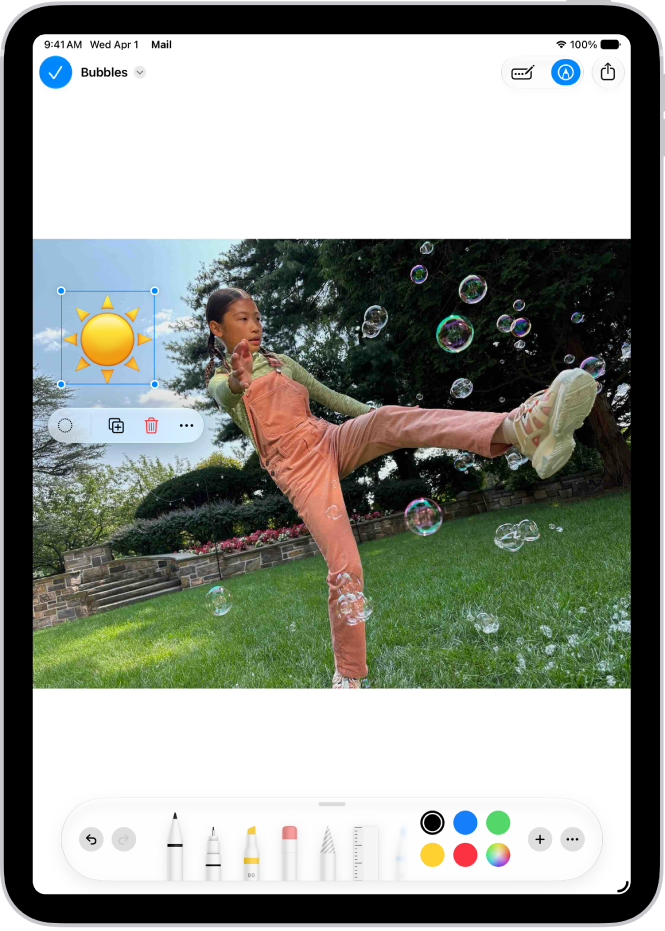
- Open the Mail app on your iPad.
- In the message, tap the attachment. Tap the Markup button.
- Using the drawing tools, draw with your finger.
- When you’re finished, tap the More button. Then choose to reply to the attachment sender, start a new message, save the annotated attachment to your files, or discard your edited attachment.
See also