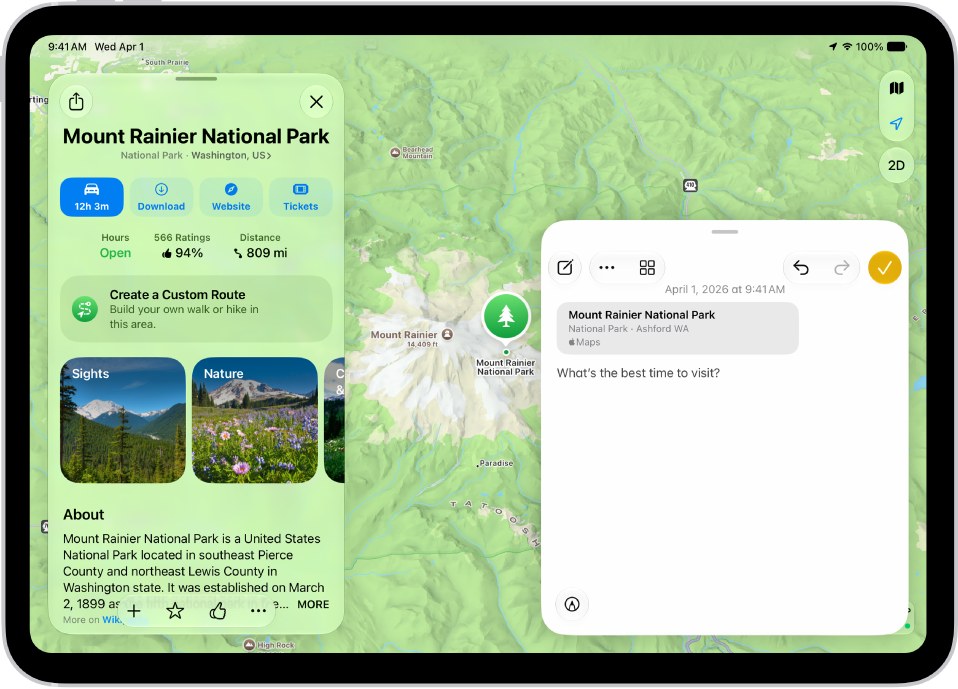
You can use Quick Notes to jot down information over any app or screen on iPad. Add links, images, tags, and mentions to a Quick Note so you can get to important names, numbers, and ideas easily.
When you highlight text in Safari or add a link from an app, you see a Quick Note thumbnail the next time you visit the site, and it takes you right back to what you were viewing. You can access all your Quick Notes in the Notes app, and a Quick Note you make on iPad shows up on your iPhone and Mac, too. You can even make one with Apple Pencil or a keyboard shortcut.
Take a Quick Note
Do any of the following to make a Quick Note:
- From any app or screen: Add the Quick Note button to Control Center, tap the Quick Note button. Tap the Done button when you’re done.
- From supported apps: Tap the Share button, tap More, then tap Add to Quick Note. Tap the Done button when you’re done.
- If your iPad is connected to an Apple external keyboard, use the Globe-Q keyboard shortcut to open Quick Notes. If Quick Notes is already open, you can use Command-N to create a new note.
Take Quick Notes with the corner gesture
Swipe up from the bottom right corner of the display using Apple Pencil.
Quick tip: This gesture works with your finger, too. Go to Settings > Multitasking & Gestures and turn on Swipe Finger from Corner.
Go to Settings > Apps > Notes, tap Corner Gestures, then do any of the following:
- Turn on Allow Finger to Swipe from Corner.
- Tap Left Corner Swipe or Right Corner Swipe, then choose an action.
View and organize Quick Notes
- Start the Notes app on your iPad.
-
Tap Quick Notes in the folders list.
You may need to tap the Toggle Sidebar button to show the folders list.
Note: You can’t lock a Quick Note until you move it to a different folder.
Move an individual Quick Note to a different folder, and it turns into a standard note that no longer appears as a Quick Note in other apps.
See also