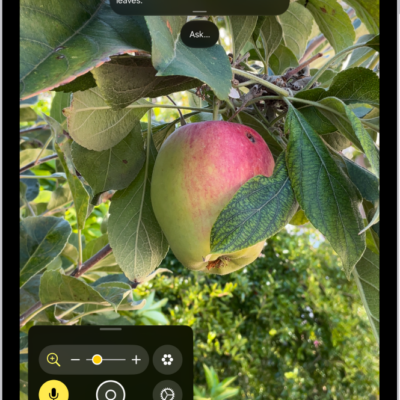
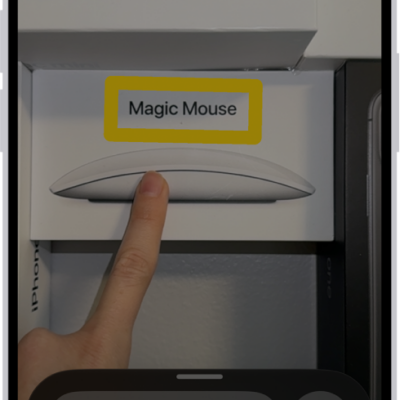
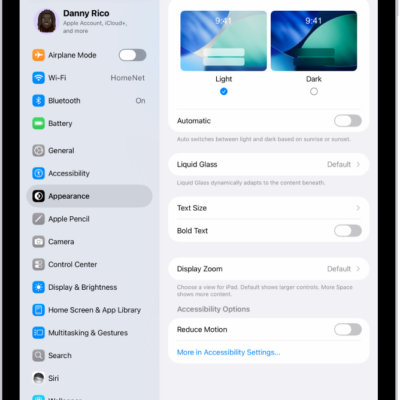
Magnifier’s Detection Mode uses sound and speech feedback to describe what’s around you if you’re blind or have low vision, but you won’t hear it with Silent mode on. The Magnifier app on iPad can give you helpful information about:
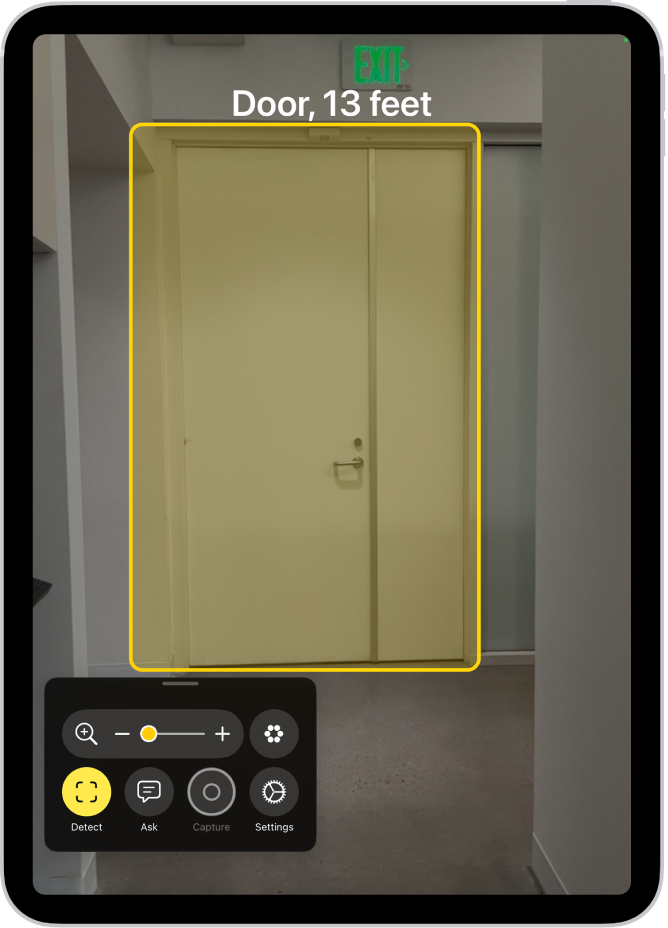
- Doors, including their attributes and how to open them
- People, and how close they are to help you maintain physical or social distance
- Furniture, when chairs or sofas are detected, and whether they’re occupied
Important: Detection Mode should not be relied on in high-risk or emergency situations, in circumstances where you may be harmed or injured, or for navigation. Detection of doors, people, and furniture is only available on supported iPad models.
Detect doors, people, and furniture near you
- Start the Magnifier app on your iPad.
-
Tap the Detection Mode button to start Detection Mode.
If you don’t see the Detection Mode button, you can add it. See Customize controls.
-
Touch and hold the Detection Mode button, then select any of the following:
- People
- Furniture
- Doors
-
Position iPad so the rear camera can detect your surroundings. When doors, people, or furniture are detected nearby, you’re notified with sounds or speech feedback. The feedback becomes more frequent as you get closer.
If you don’t hear sound or speech feedback, make sure Silent mode isn’t on. See Adjust the volume.
- To temporarily pause detection, double-tap the screen with two fingers. Double-tap again with two fingers to resume detection. To stop Detection Mode, tap the Detection Mode button.
Customize the settings for detecting doors
- Start the Magnifier app on your iPad.
- Tap the Settings button and then tap Detect.
- Tap Doors and then customize any of the following:
- Units: Choose Meters or Feet.
- Sound pitch distance: Tap the Decrement button or the Increment button to adjust the distance for sound feedback. When a door is detected within this distance, the pitch of the sound feedback increases.
- Feedback: Turn on any combination of Labels, Sounds, and Speech. If you turn on Speech, iPad speaks the distance between you and the door.
- Color: Select a color to outline detected doors.
- Door Attributes: Turn on any combination of door attributes, such as the size of the detected door, how to open the door, and if the door is currently open.
- Door Decorations: Turn on Door Decorations to get information about text and signs on or near the detected door, such as a sign for an accessible entrance or a restroom.
- When you’re finished, tap the Back button, tap it again, and tap the Done button.
Customize the settings for detecting people
- Start the Magnifier app on your iPad.
- Tap the Settings button and then tap Detect.
- Tap People and then customize any of the following:
- Units: Choose Meters or Feet.
- Sound pitch distance: Tap the Decrement button or the Increment button to adjust the distance for sound feedback. When people are detected within this distance, the pitch of the sound feedback increases.
- Feedback: Turn on any combination of Labels, Sounds, and Speech. If you turn on Speech, iPad speaks the distance between you and another person.
- People Detection Actions: Turn on People Detection Actions to get information about people holding doors near you.
- When you’re finished, tap the Back button, tap it again, and tap the Done button.
Customize the settings for detecting furniture
- Start the Magnifier app on your iPad.
- Tap the Settings button and then tap Detect.
- Tap Furniture, then customize any of the following:
- Units: Choose Meters or Feet.
- Sound pitch distance: Tap the Decrement button or the Increment button to adjust the distance for sound feedback. When furniture is detected within this distance, the pitch of the sound feedback increases.
- Feedback: Turn on any combination of Labels, Sounds, and Speech. If you turn on Speech, iPad speaks the distance between you and the furniture.
- Announce Seat Occupancy: Turn on Announce Seat Occupancy to get information about the number of people occupying chairs and sofas.
- When you’re finished, tap the Back button, tap it again, and tap the Done button.
See also
- Get live descriptions of your surroundings
- Detect text around you and have it read out loud using Magnifier on iPad
- Magnify or get information about things around you with Magnifier on iPad
- Accessibility features for vision on iPad
Tags: accessibility, Magnifier