In the Contacts app, you can add multiple accounts—such as iCloud, Microsoft Exchange, Google, and Yahoo. You can choose a default account, set up LDAP or CardDAV accounts, show or hide accounts, and delete accounts.
Third-party apps can add contacts, too, though those contacts are managed by the app and can’t be edited in Contacts. For accounts that don’t support Push, you can set a Fetch schedule instead.
Here’s how to add or remove accounts in Contacts on iPad.
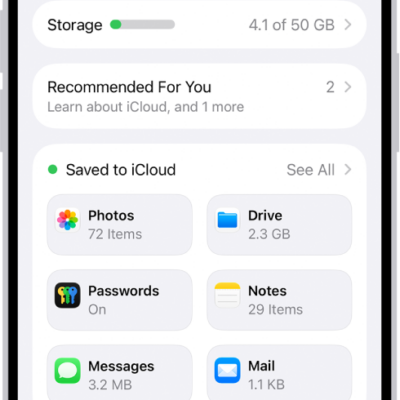
Add your iCloud contacts
- Start the Settings app on your iPad.
- Tap [your name], then tap iCloud.
- Tap See All next to Saved to iCloud and turn on Contacts.
Add your contacts from other accounts
You can manage contacts from other accounts, like Yahoo, Microsoft Exchange, and Google, right in the Contacts app.
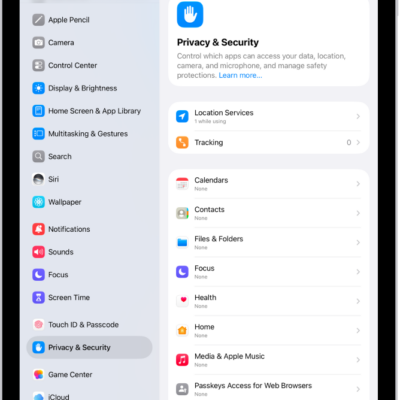
- Start the Settings app on your iPad.
- Tap Apps, then tap Contacts.
- Tap Contacts Accounts and tap Add Account.
- Choose an account, sign in to it, then turn on Contacts.
Note: For an account without Push notification support, a Fetch schedule keeps your contacts from that account updated. Go to Settings > Apps > Contacts and tap Contacts Accounts, then tap Fetch New Data, and choose a schedule under Fetch. If you choose Automatically, your iPad downloads new data while it’s charging and connected to Wi-Fi.
Add contacts from contacts provider apps
If you allow it, third-party apps can add contacts to the Contacts app. The third-party app manages those contacts, and they can’t be edited in the Contacts app.
- Start the Settings app on your iPad.
- Tap Apps, then tap Contacts.
- Tap Providers, then turn on the option for an app.
Choose your default account
You can select a default account where new contacts are automatically added.
- Start the Settings app on your iPad.
- Tap Apps, then tap Contacts.
- Tap Default Account and tap the account you want to make your default.
Set up an LDAP or CardDAV account to access business or school directories
- Start the Settings app on your iPad.
- Tap Apps, then tap Contacts.
- Tap Contacts Accounts and tap Add Account.
- Tap Add Other Account and then tap Add LDAP Account or CardDAV Account.
- Enter the account information.
Remove a contact account
Remove an account, and its contacts leave your iPad. They’re still in your internet account (for example, iCloud.com or Google) and on any other devices you’d already set up.
-
Turn off iCloud contacts: Go to Settings > [your name] > iCloud. Tap See All next to Saved to iCloud, then turn off Contacts.
You can choose to keep or delete the previously synced iCloud contacts on your iPad.
-
Temporarily stop using an account: Go to Settings > Apps > Contacts > Contacts Accounts, tap the account, then turn off Contacts.
To view the contacts in that account on your iPad again, turn on Contacts.
-
Delete an account: Go to Settings > Apps > Contacts > Contacts Accounts, tap the account, then tap Delete Account.
If you don’t see Sign Out or Delete Account, your account may be managed by your organization. See an administrator for removal instructions.
See also