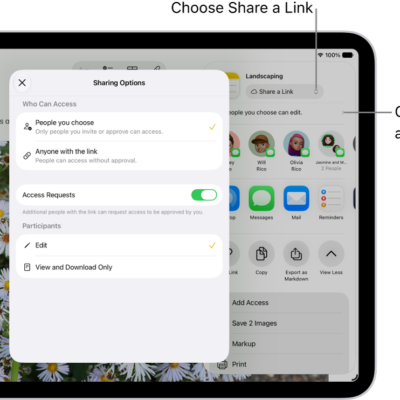
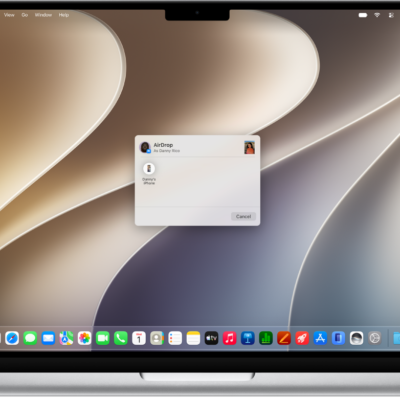
You can access iCloud Drive and store files, create folders, and share documents with friends and family. Your content is on all your devices signed in to the same Apple Account, including a Mac, where iCloud Drive is in the Finder.
iCloud Drive is built into the Files app, and you can also use it on Windows devices with iCloud for Windows, or online at iCloud.com. Storage limits depend on your iCloud storage plan. You can also pick the apps that can store and edit content there.
Turn on iCloud Drive
- Open Settings, tap [your name], and then tap iCloud.
- Tap Drive, then turn on Sync this iPad.
Browse iCloud Drive
- Open the Files app on your iPad.
- Tap the Sidebar button at the top of the screen.
-
Tap iCloud Drive below Locations.
If you don’t see Locations, tap the Sidebar button again. If you don’t see iCloud Drive below Locations, tap Locations.
- To open a folder, tap it.
Choose which apps use iCloud Drive
You decide which apps can store and edit content on iCloud Drive.
- Open Settings, tap [your name], and then tap iCloud.
- Tap See All next to Saved to iCloud.
- Turn on each app you want saved to iCloud, and turn off each one you don’t want saved.
See also