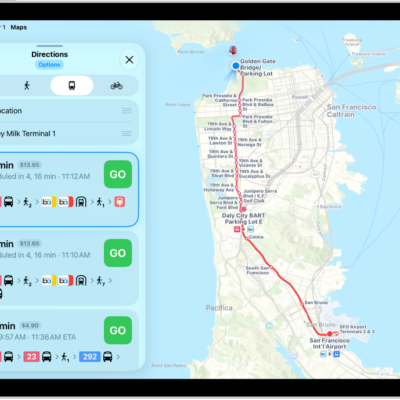
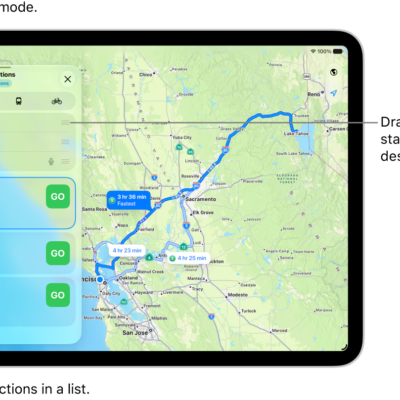
While following driving, cycling, transit, and walking directions, you can get an overview of your route and a list of upcoming turns.
On an iPad with Wi-Fi + Cellular, you’re able to zoom out and see the whole route onscreen from start to finish, or see the directions in a list instead. You can also share a route with someone in the Maps app, and return to turn-by-turn directions anytime.
Note: Features for Wi-Fi + Cellular models require a cellular data plan and Cellular Data turned on in Settings > Apps > Maps. See View or change your cellular data.
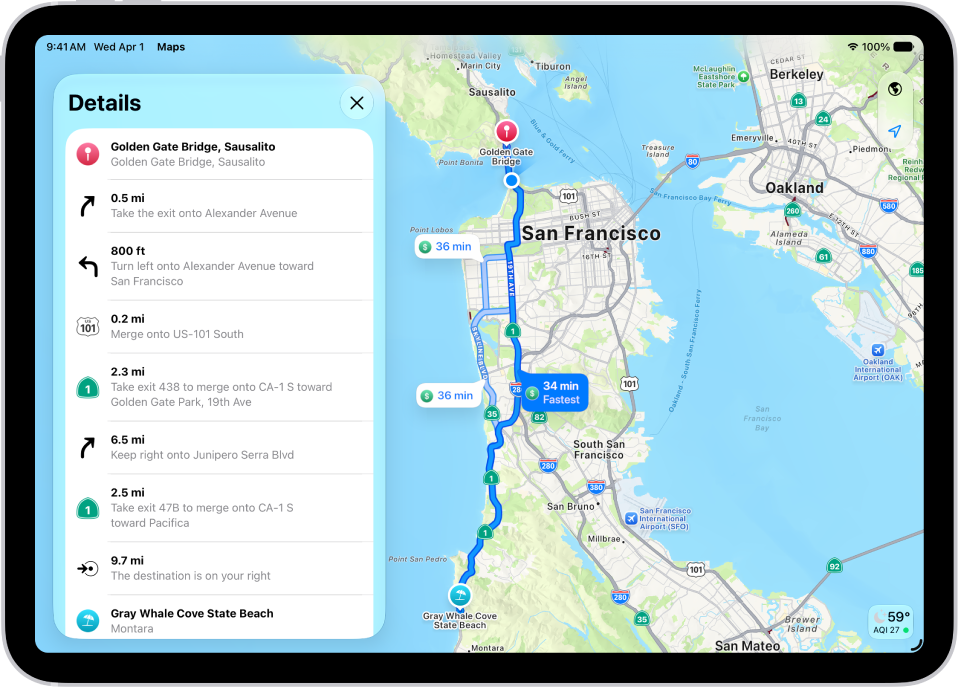
Get an overview of your route
If you’ve got an iPad with Wi-Fi + Cellular, zooming out shows your entire route onscreen, from the starting point to the destination.
- Go to the Maps app on your iPad.
- Get directions.
- Tap the Overview Mode button.
To return to turn-by-turn directions, tap the Turn-by-Turn Mode button.
View a list of upcoming directions
Directions can also appear in a list on an iPad with Wi-Fi + Cellular.
- Open the Maps app on your iPad.
- Get directions.
- Tap anywhere on the route card except the Go button.
- Scroll down to see more directions.
- When you’re finished, tap the Close button.
Share a route with someone
- Open the Maps app on your iPad.
- Get directions.
- Tap anywhere on the route card except the Go button.
- Scroll to the bottom of the card and tap Share. Then choose a way to share the route.
- Tap Done.
See also