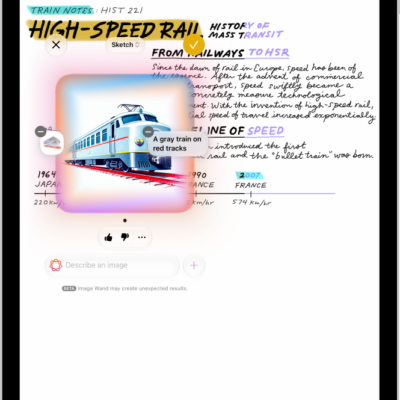
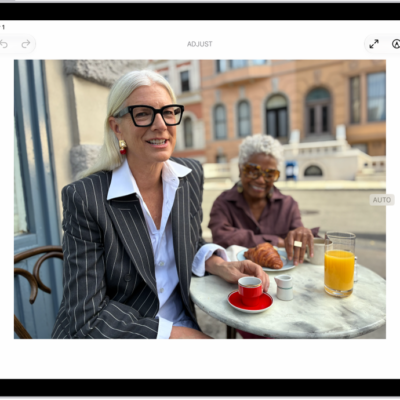
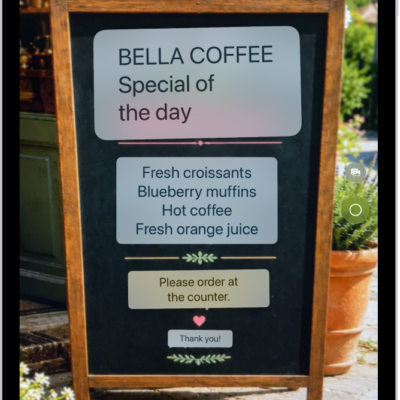
In the Image Playground app, you can use Apple Intelligence to create original images within seconds, starting with simple text descriptions, photos, and people from your Photos library.
You can also use Image Playground to create images in Messages, Lock Screen wallpapers, contact posters, and more. You can choose a style, like Any Style or Illustration, and add up to three people from your library. A Genmoji you create can even be saved with your stickers.
Note: Apple Intelligence on iPadOS 27 or later is available on an Apple Intelligence-enabled iPad mini (A17 Pro) and iPad models with M1 or later. Apple Intelligence is not available in all languages or regions. Usage limits may apply.*
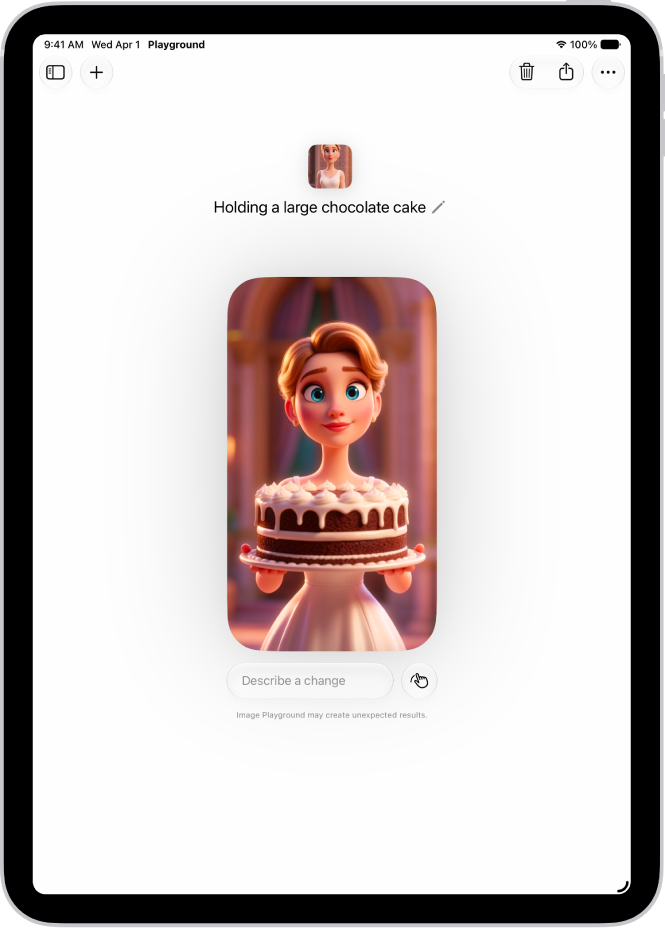
Create or edit an image
- Open the Image Playground app on your iPad.
- Tap the New Image button.
-
Do any of the following to customize your image:
- Describe it: Enter a description.
-
Choose a style: Tap the Style button and then choose an Apple Intelligence style (like Any Style or Illustration) or tap ChatGPT** to describe the style you want.
Note: If you choose Any Style, you can describe the style you want as part of your image description. If you choose Genmoji, you can save it with your stickers.
-
Add a person from your Photos library: Tap the Add Person button and select a person. You can add up to three people.
Note: If you provide a text description that doesn’t match the person you selected, your image is personalized based on the photo you selected rather than the text description.
- A photo of something else, like a pet, nature, or food: Tap the Add Photo button and choose an option.
- Choose the aspect ratio: Tap the Aspect Ratio button and then choose an option.
-
Tap the Submit button to create your image.
All changes are automatically saved to your gallery. If you created a Genmoji, tap Add Emoji to add it with your stickers. To view the images in your gallery, tap the Back button. All the versions you create for a single idea are grouped together.
Besides the Image Playground app, you can create original images with Image Playground features in apps like Freeform and Messages. See our guide, Create and send original images using Image Playground in Messages, and our article, Create new, original images in Freeform. You’ll also find Image Playground in Keynote, Pages, Apple Invites, supported third-party apps, and more.
Edit an existing image
- Open the Image Playground app on your iPad.
- Tap an image in the gallery.
-
Do any of the following to refine your image:
- Describe a change: Enter a description to transform the background, change the style, or add something entirely new.
-
Make targeted edits: Tap the Edit button and then tap, brush, or circle a specific object. You can move it, resize it, or swap it out with another image. Use the buttons at the bottom of the screen to add elements, or to change or remove the object you selected. Tap Apply Change when you’re ready to save your edits.
Note: Swipe up or down to move between versions of your image. You can move to a different version at any time and keep refining from there.
- When you’re finished, tap the Done button.
Share, copy, or delete an image
- Open the Image Playground app on your iPad.
-
Touch and hold an image. Then do any of the following:
- Share your image: Tap the Share button and choose a share option.
- Copy your image: Tap the More button, then tap Copy or Duplicate.
-
Delete your image: Tap the Delete button and tap Delete.
Note: If you delete an image from Image Playground, it’s deleted on all your devices where you’re signed in to the same Apple Account.
You can block access to image creation features, like Image Playground, in Screen Time settings. See Block or allow Siri and Apple Intelligence features. The recommended age for realistic images is 18+.
*Apple Intelligence is available with Siri and device language set to Chinese (Simplified), Chinese (Traditional), Danish, Dutch, English, French, German, Italian, Japanese, Korean, Norwegian, Portuguese, Spanish, Swedish, Turkish, or Vietnamese. Some features may not be available in all regions or languages. Some devices may not be available in all regions. Siri AI is available in beta in iOS 27, iPadOS 27, macOS 27, watchOS 27, and visionOS 27 and requires an Apple Intelligence–enabled device set to a supported language. Available in English to start. Siri AI will not be initially available in the EU on iOS, iPadOS, and watchOS. Certain Apple Intelligence features that rely on server-side models are subject to daily usage limits, including but not limited to Siri AI, Intelligent Photo Editing Tools, Image Playground, and AFM 3 Cloud models in Shortcuts. Daily limits may vary by feature, request complexity, system demand, system policies, and other factors. Expanded access to such features will be available for a fee in the future. Use of these features is subject to the Apple Intelligence Terms and Conditions.
**ChatGPT uses generative models and outputs may vary. Check important information for accuracy. When using the ChatGPT extension, you choose what content to send to ChatGPT. Your request and attachments, as well as limited data associated with the request, such as current time zone, country, device type, language, and feature being used when making the request, are sent to ChatGPT to answer your request and enable ChatGPT to provide you accurate and relevant results.
See also