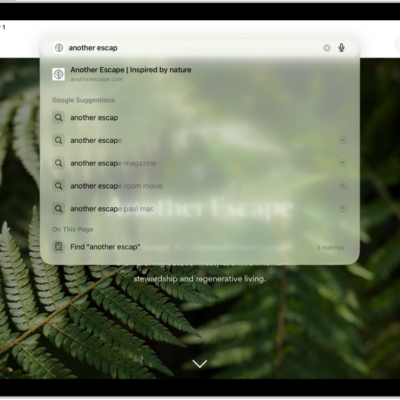
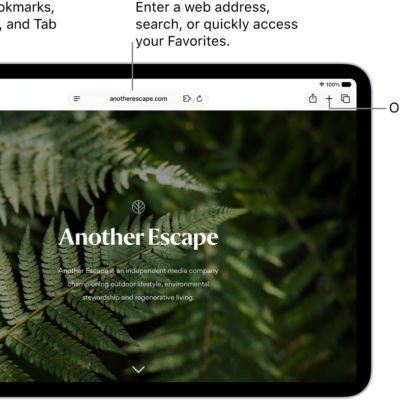
Enter a URL or a search term to find websites or specific information.
You can see your favorite websites as suggestions while you search, search for text within a webpage, and choose a different search engine. Your favorites can also appear when you enter an address or create a new tab. With Visual Look Up, you can even identify and learn about popular landmarks, plants, pets, and more in your photos.
Here’s how to search for websites using Safari on iPad.
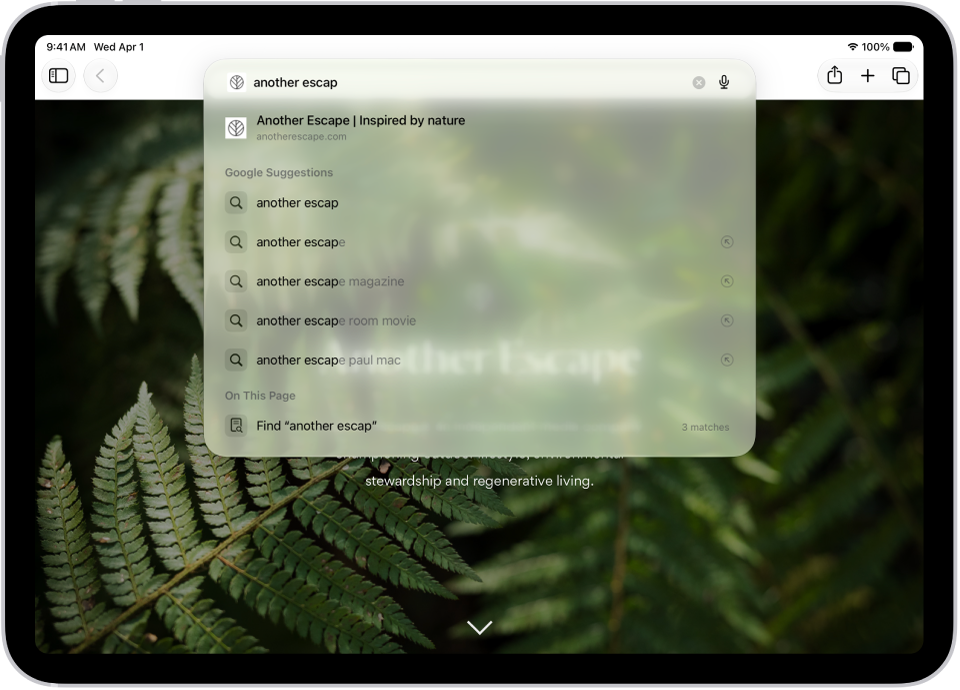
Search the web
- Go to the Safari app on your iPad.
- Enter a search term, phrase, or URL in the search field.
- Tap a search suggestion, or tap the Go button on the keyboard.
If you don’t want to see suggested search terms, go to Settings > Apps > Safari, then turn off Search Engine Suggestions (below Search).
See your favorite websites while you search
When you enter an address, search, or create a new tab, your favorites can show up as suggestions.
- Start the Settings app on your iPad.
- Tap Apps, then tap Safari.
-
Tap Start Page Favorites, then tap Favorites.
If you have multiple folders in your favorites, you can select the one you want to appear in Safari search suggestions.
Search a webpage
Safari can find a specific word or phrase on a webpage.
- Start the Safari app on your iPad.
- Go to a webpage.
- Tap the Page Menu button. Tap the Search Document button.
- Enter the word or phrase in the search field.
- Tap the Next Result button to find other instances.
Choose a search engine
- Start the Settings app on your iPad.
- Tap Apps, then tap Safari.
- Tap Search Engine and choose a search engine.
Search for objects in your photos
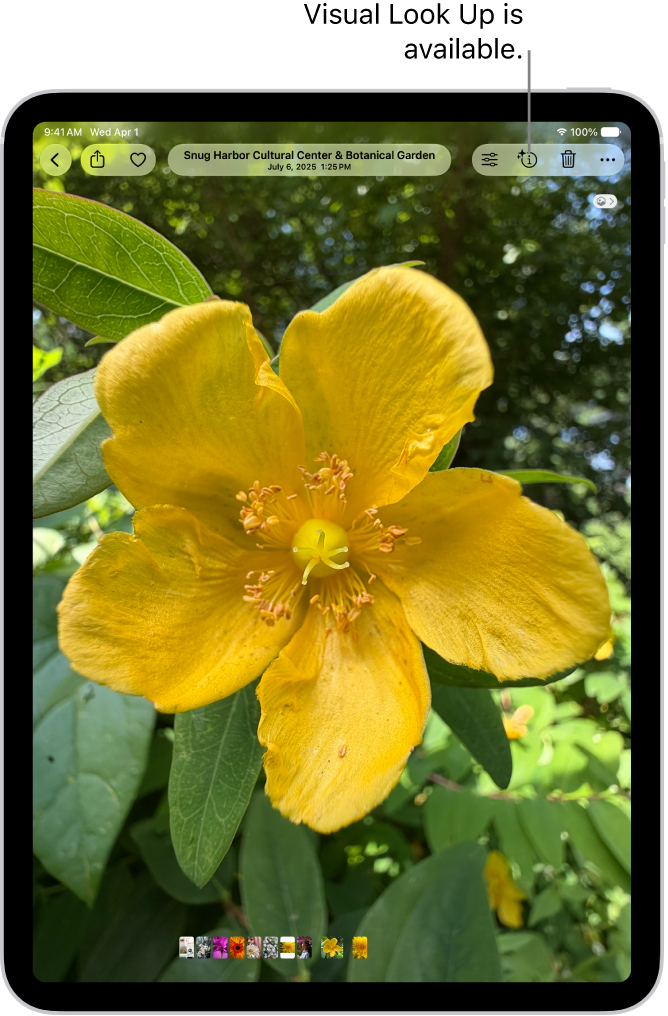
Visual Look Up can identify popular landmarks, plants, pets, and more in your photos and videos, and help you learn about them. Read our article, Use Visual Look Up to identify objects in your photos and videos.
See also