The Reminders app helps you remember anything you need to track. You can set reminders, make grocery lists, create checklists for projects, and organize tasks in to-do lists.
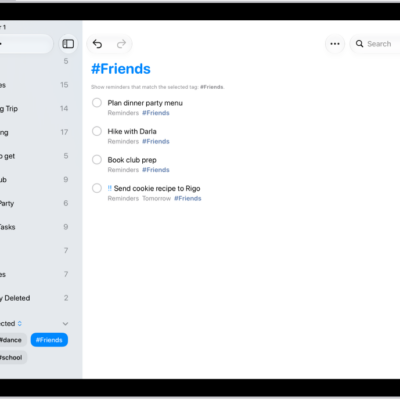
You can type, dictate, ask Siri, or even scribble with Apple Pencil when you need to remember something. A grocery list automatically sorts items into categories, and you can invite people to work on a list, categorize with tags, and manage your reminders with Smart Lists.
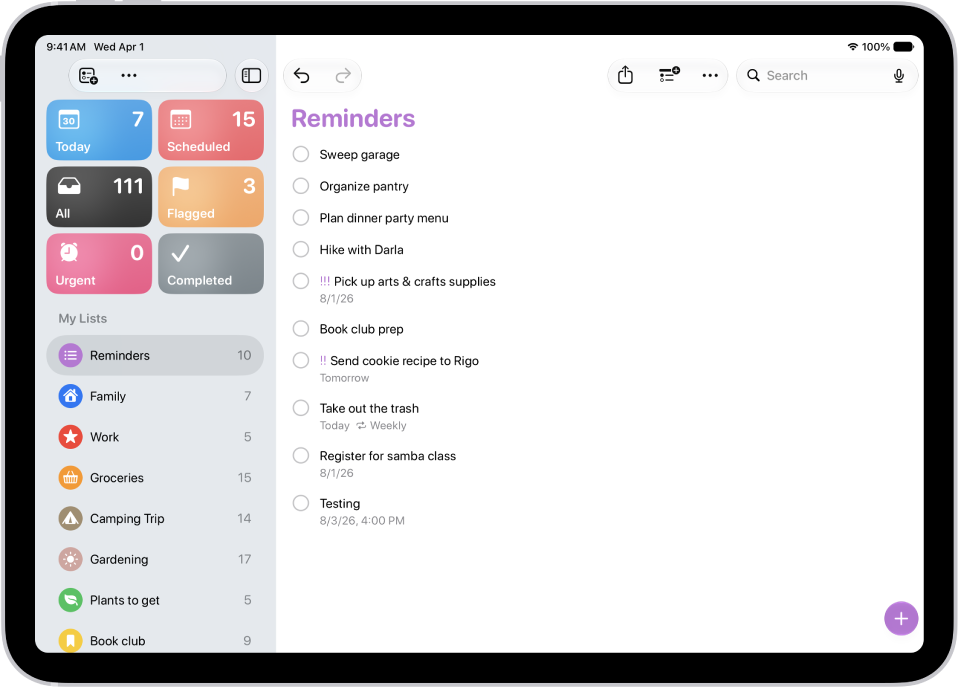
Set a reminder
When you need to remember something, type it, dictate it, ask Siri, or scribble it with Apple Pencil.
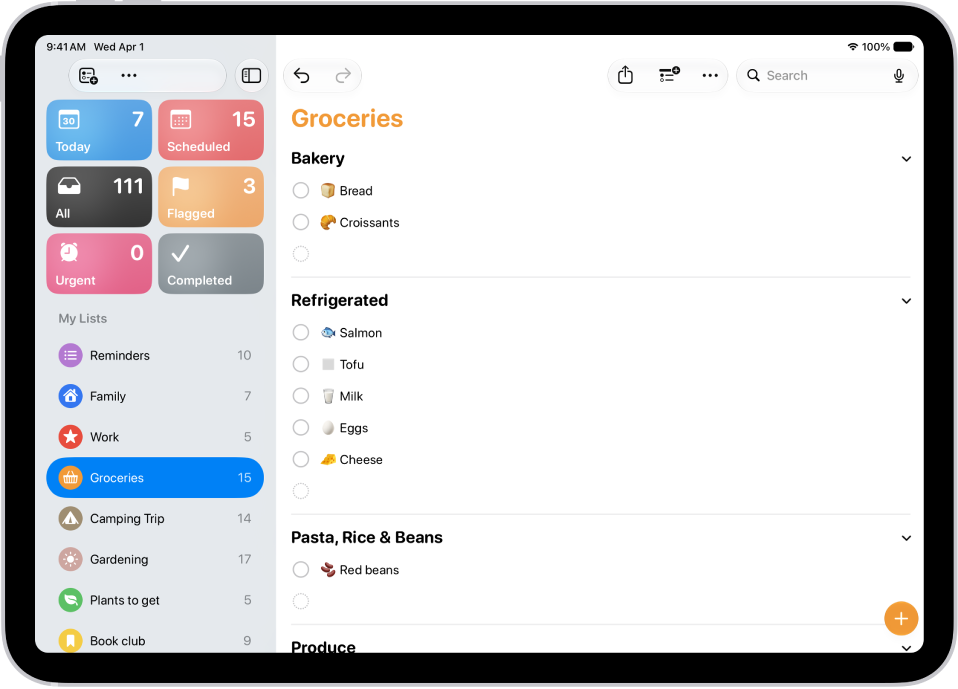
Create a grocery list
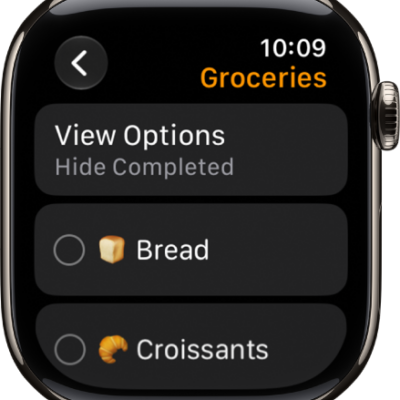
Make your shopping easier with a grocery list that automatically sorts items into categories. To convert a regular list into a grocery list, tap the More button (at the top-right corner), tap Show List Info, tap List Type, then choose Groceries.
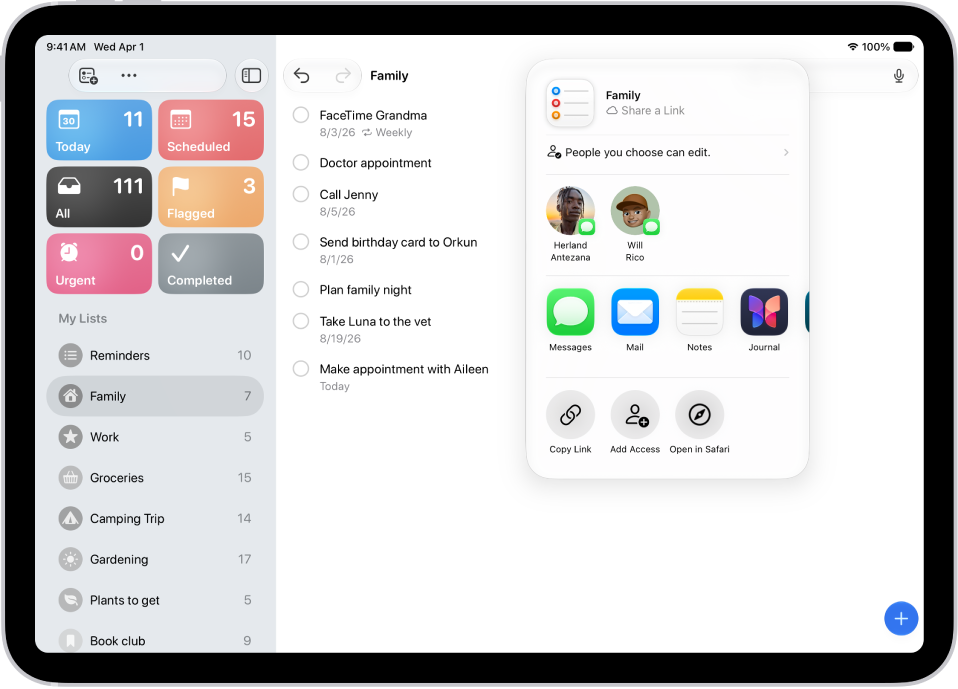
Collaborate on a list
To invite people to work on a list, tap the Share button, then choose a sharing option.
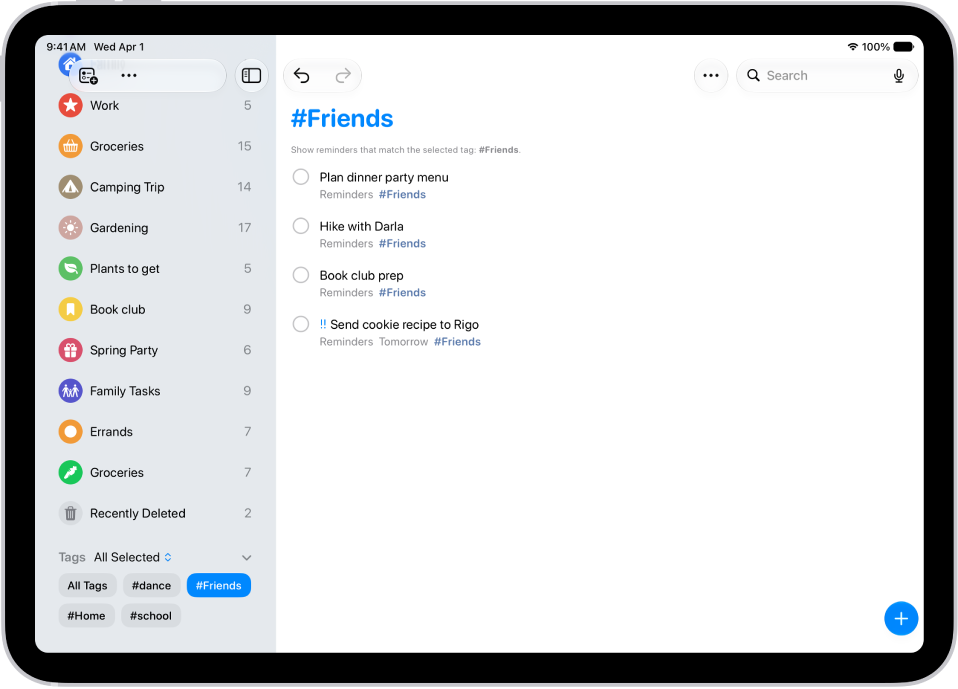
Organize your reminders
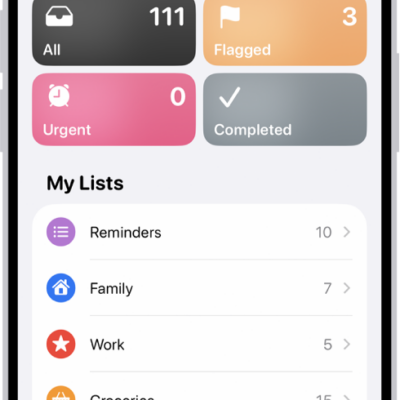
Create new lists that suit your needs, use tags to categorize, and manage your reminders with Smart Lists.
Note: To use all the Reminders features described in this guide, you need updated reminders in iCloud. With other accounts, some features aren’t available.
For more help with Reminders, these guides are worth a look:
- Create reminders on iPad
- Make a grocery list in Reminders on iPad
- Share lists and collaborate in Reminders on iPad
- Use Smart Lists in Reminders on iPad