You can set the onscreen keyboard on iPad to show only uppercase letters. If you use a physical keyboard, you can adjust key sensitivity and make it easier to press key combinations. You can also set typing options, like auto-correction, and add keyboards for other languages or alternative layouts.
With Sticky Keys, you can press keys one at a time instead of together, and Key Repeat and Slow Keys change how the keys respond on an external keyboard. And in landscape orientation, you get a larger keyboard for typing in many apps.
Set the onscreen keyboard to display only uppercase letters
If it’s easier to read uppercase letters, you can set an option so the onscreen keyboard doesn’t display lowercase letters.
Go to Settings > Accessibility > Keyboards & Typing, then turn off Show Lowercase Keys.
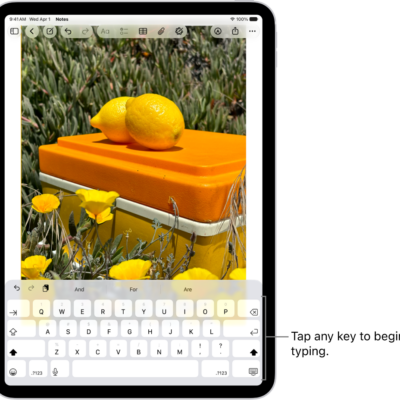
Quick tip: In many apps, including Mail, Messages, Notes, and Safari, you get a larger keyboard for typing when you rotate iPad to landscape orientation; see our article, Change or lock the screen orientation.
Change how the keys respond on an external keyboard
If you use a physical keyboard with iPad, you can adjust the sensitivity of keys and make it easier to press combinations of keys.
Go to Settings > Accessibility > Keyboards & Typing, then tap any of the following:
- Key Repeat: You can set how long you must press and hold a key before it starts repeating and how fast it repeats once it starts. You can also prevent the key from repeating at all.
- Sticky Keys: When you need to press multiple keys at the same time, you can press each key separately instead. For example, enter the keyboard shortcut Command-Z by pressing Command, then pressing Z.
- Slow Keys: Adjust the time between when you press a key and when it’s activated.
See also
- Move the iPad onscreen keyboard
- Type with the onscreen keyboard on iPad
- Control iPad with an external keyboard
- Accessibility features for mobility on iPad