Many apps give you a different view when you rotate iPad, as long as the rotation lock is off. You can also lock the screen orientation so it doesn’t change when you rotate iPad, and while it’s locked, the Lock Rotation icon appears in the status bar.
Rotate the screen
-
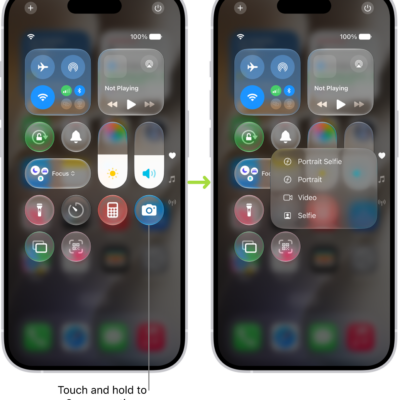
To make sure the rotation lock is off, open Control Center and tap the Lock Rotation button if it’s red.
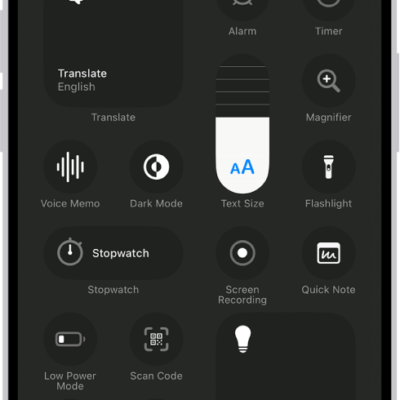
Note: If you don’t see the Lock Rotation button, add it to Control Center. See Customize controls.
-
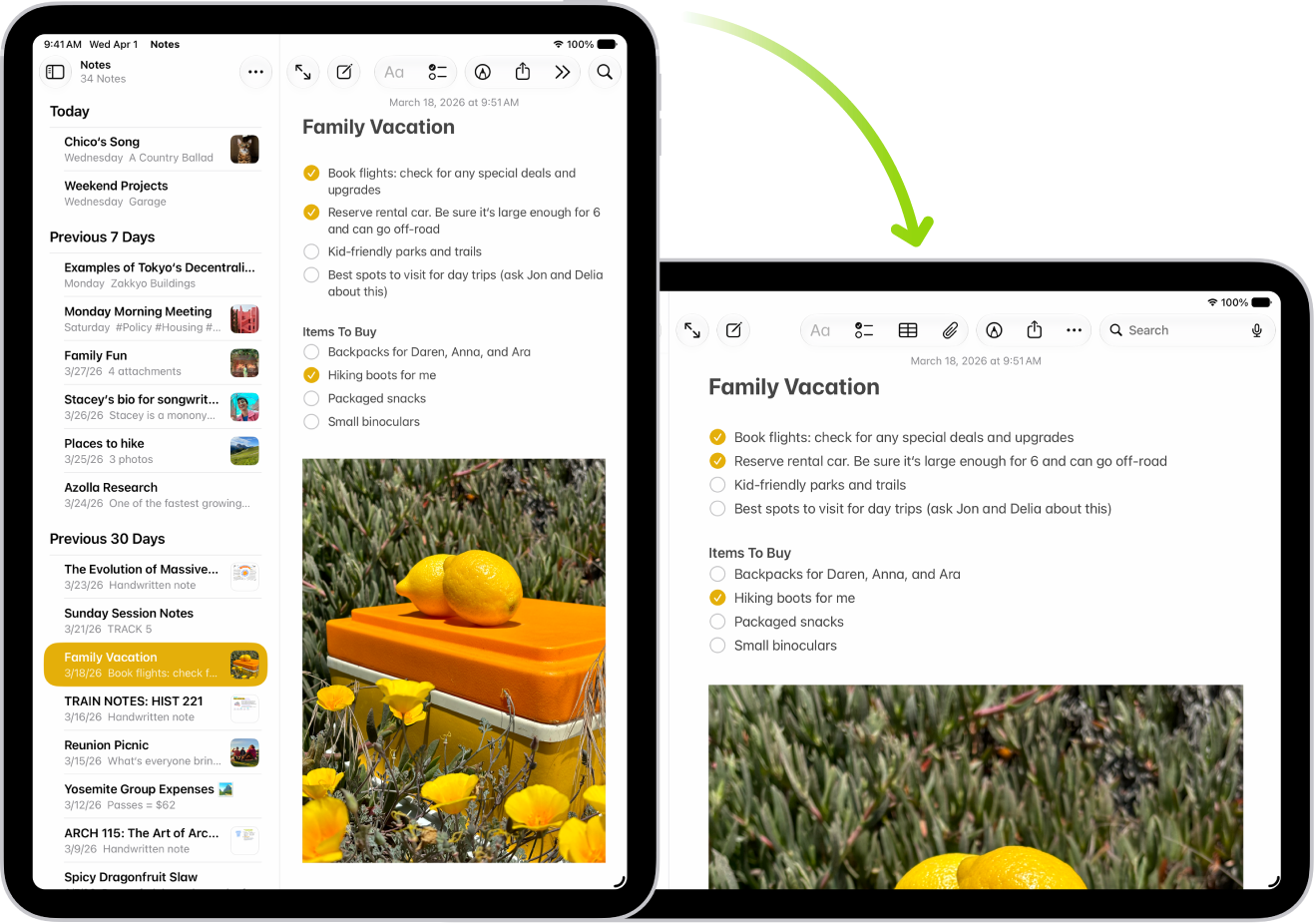
Turn your iPad sideways.
Lock or unlock the screen orientation
The screen orientation can be locked so it won’t change when you rotate iPad.
Open Control Center, then tap the Lock Rotation button. The button is red when the orientation is locked, and gray when it isn’t.
Note: If you don’t see the Lock Rotation button, add it to Control Center. See Customize controls.
With the screen orientation locked, you’ll see the Lock Rotation icon in the status bar.
See also