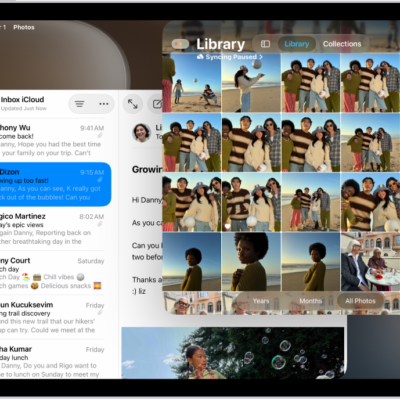
You can open a new window in any app that supports multiple windows, like Mail, Notes, Safari, and Files. You can even open a window for just one item, like a note or a Mail message, and view all the open windows of a particular app with App Exposé.
Open a new window in an app
- Touch and hold the app icon for an app that supports multiple windows (for example, Mail, Notes, Safari, Files, and others) until a menu appears.
-
Choose New Window from the menu.
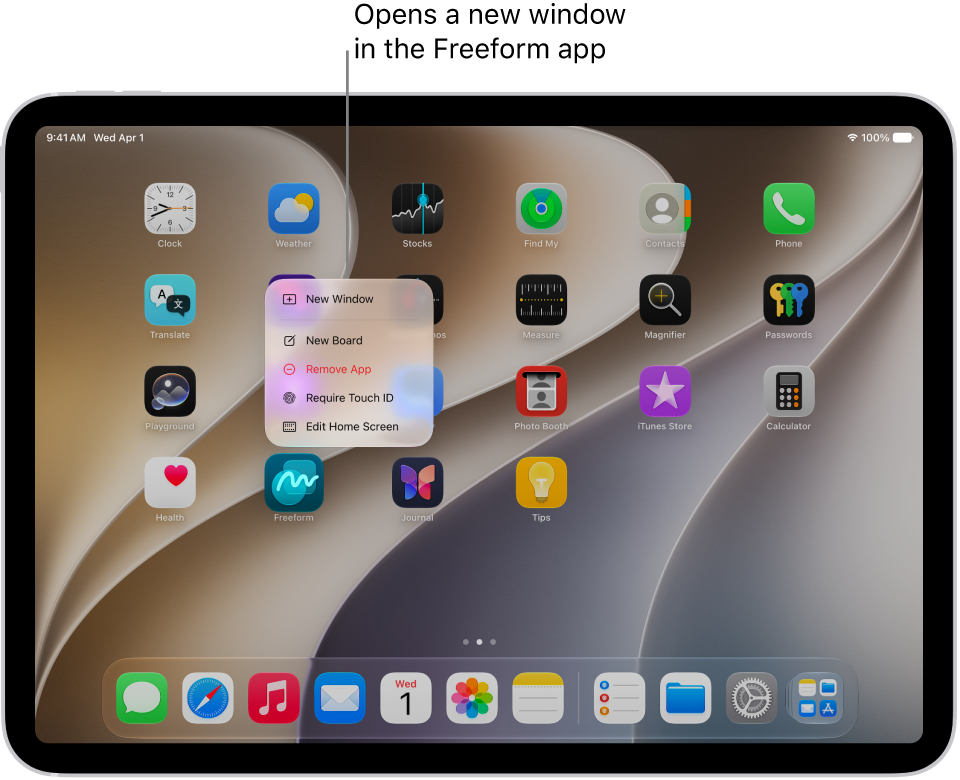
Note: There’s another way to open a new window in an app: Drag the app icon from the Dock onto another window from the same app. Or drag content out of the app window or to the edges of iPad (a Note or a Mail message, for example), and a window opens for just that content.
View an app’s open windows
If you have multiple windows open in an app, App Exposé can show you all of them at once.
-
Do any of the following:
- Swipe up from the bottom edge of the screen to reveal the Dock.
- Go to the Home Screen.
-
On the Home Screen or in the Dock, touch and hold the app with the windows you want to view and tap Show All Windows or tap a specific window that’s listed under Open Windows.
Note: If you touch and hold an app on the Home Screen for too long, all the apps begin to jiggle. Tap Done at the top right, then try again.
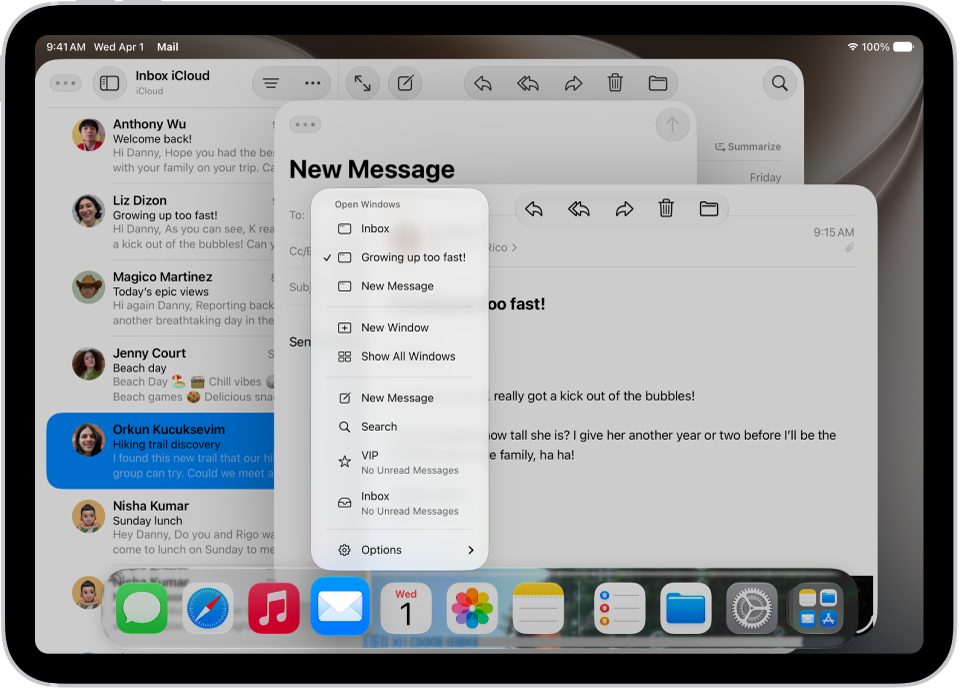
Tip: Here’s another way to view an app’s open windows: Swipe up from the bottom of the screen, pause in the middle to open Exposé, then tap one of the app icons to open App Exposé for that app.
For more ways to move between apps, see our guide, Switch between apps on iPad.
View hidden windows for an app
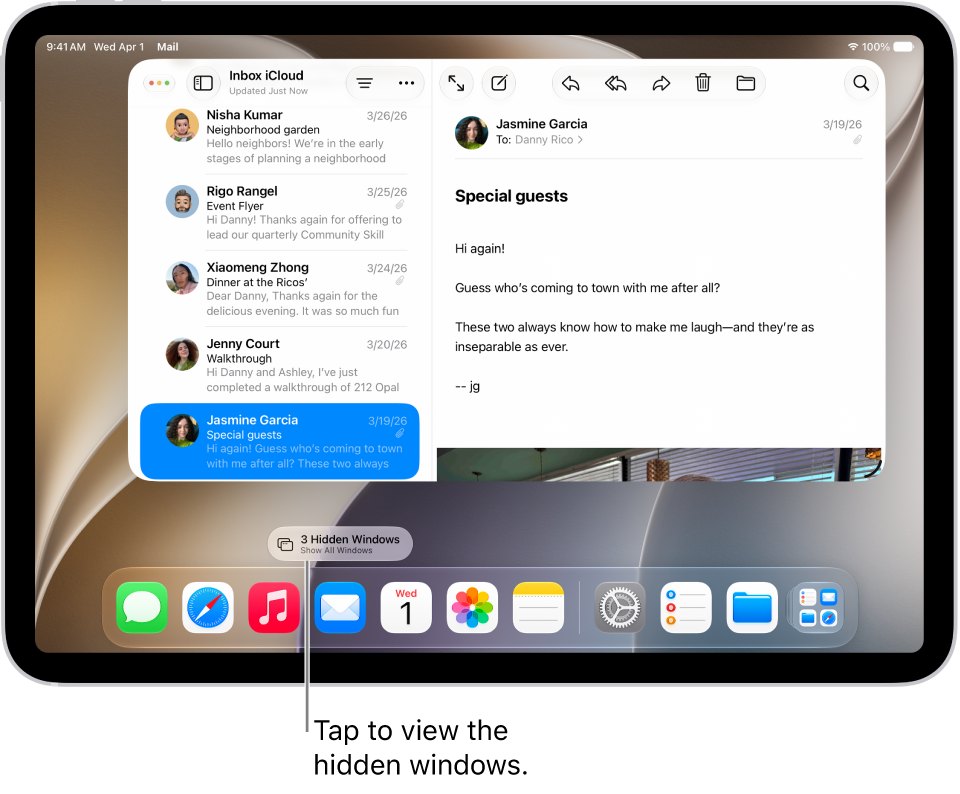
When you switch to an app with hidden windows—that are either minimized, full-screen, or behind another app—a pill-shaped button appears that you can tap to view all the open windows of the app.
See also