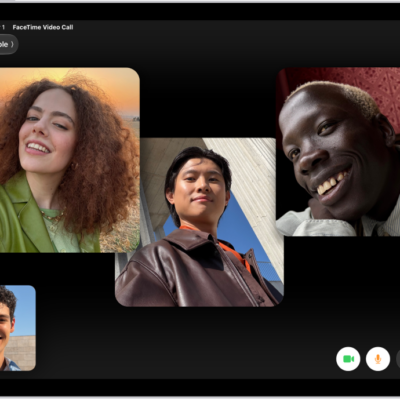
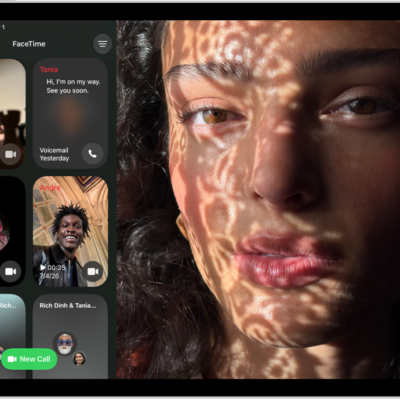
During a call in the FaceTime app, your video settings let you turn Portrait mode, Studio Light, and Center Stage on or off, switch between cameras, or turn your camera on or off.
Portrait mode blurs the background and puts the visual focus on you, while Studio Light dims the background and illuminates your face. Both are available on supported models, and you can adjust the amount of background blur or the intensity of light, too. You’ll also be able to switch to the rear camera.
Blur the background with Portrait mode
Turn on Portrait mode on supported models, and it automatically blurs the background and puts the visual focus on you, much like Portrait mode in Camera.
- During a call in the FaceTime app on your iPad, tap your tile. When you’re on a call in a third-party videoconferencing video app, open Control Center. Then tap the name of the app.
-
Tap Portrait.
To turn Portrait mode off, tap the button again.
To adjust the amount of background blur in Portrait mode, open Control Center, tap FaceTime (or the name of the third-party videoconferencing app), then use the Portrait slider.
Highlight your face
Studio Light, on supported models, dims the background and lights up your face.
- During a call in the FaceTime app on your iPad, tap your tile. When you’re on a call in a third-party videoconferencing video app, open Control Center. Then tap the name of the app.
-
Tap Studio Light.
To turn Studio Light mode off, tap the button again.
To adjust the intensity of light in Studio Light mode, open Control Center, tap FaceTime (or the name of the third-party videoconferencing app), then use the Studio Light slider.
Turn Center Stage off or on
With Center Stage on supported models, your front camera adjusts automatically to keep you in frame as you move around within the field of view during a FaceTime call.
- During a call in the FaceTime app on your iPad, tap your tile. When you’re on a call in a third-party videoconferencing video app, open Control Center. Then tap the name of the app.
-
Center Stage is on by default. Tap Center Stage to turn it off.
To turn Center Stage on, tap it again.
On some iPad models, the Center Stage button appears in your tile. To turn on Center Stage, you can tap your tile, then tap the Center Stage button.
Switch to the rear camera
- During a call in the FaceTime app on your iPad, tap your tile.
- Tap Flip.
To switch back to the front camera, tap Flip again.
Note: With the rear camera, tapping 1x enlarges the image, and tapping it again brings the image back to normal size.
Turn off your camera
- During a call in the FaceTime app on your iPad, tap the screen to show the FaceTime controls (if they aren’t visible).
-
Tap the Camera Switch button.
Tap the Camera Switch button to turn the camera back on.
See also