Customize iPad in ways that work best for you with features for vision, hearing, mobility, speech, and cognitive accessibility—whether you need them temporarily or on an ongoing basis. You can hear what’s on the screen with the built-in screen reader, make text bigger, or control iPad using just your eyes or spoken commands. You can also get real-time captioning of spoken audio, create a custom voice that sounds like you, and set up a simplified interface for someone with a cognitive disability.
You can turn on accessibility features when you set up your iPad for the first time, or at any time in Settings > Accessibility.
Note: Not all features are available in all countries, regions, or languages.
Vision
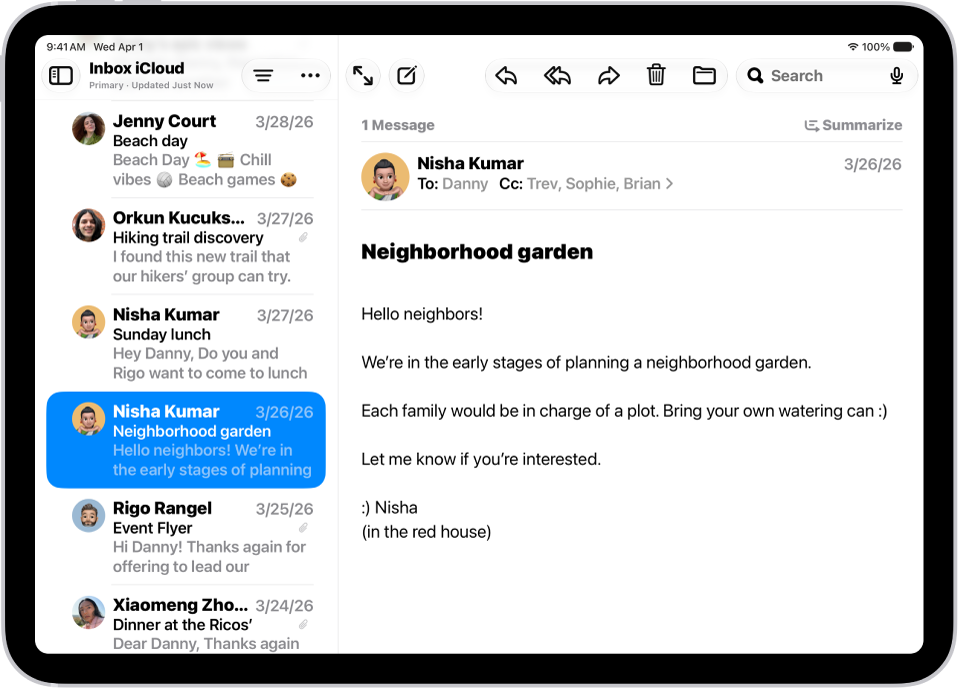
The built-in screen reader lets you hear what’s on the screen and navigate iPad with gestures. You can also adjust display colors, make text bigger, zoom in on the screen, and more.
Your iPad can even work as a magnifying glass. Hold it up, and you’ll get descriptions of your surroundings.
Learn more about accessibility features for vision
Mobility
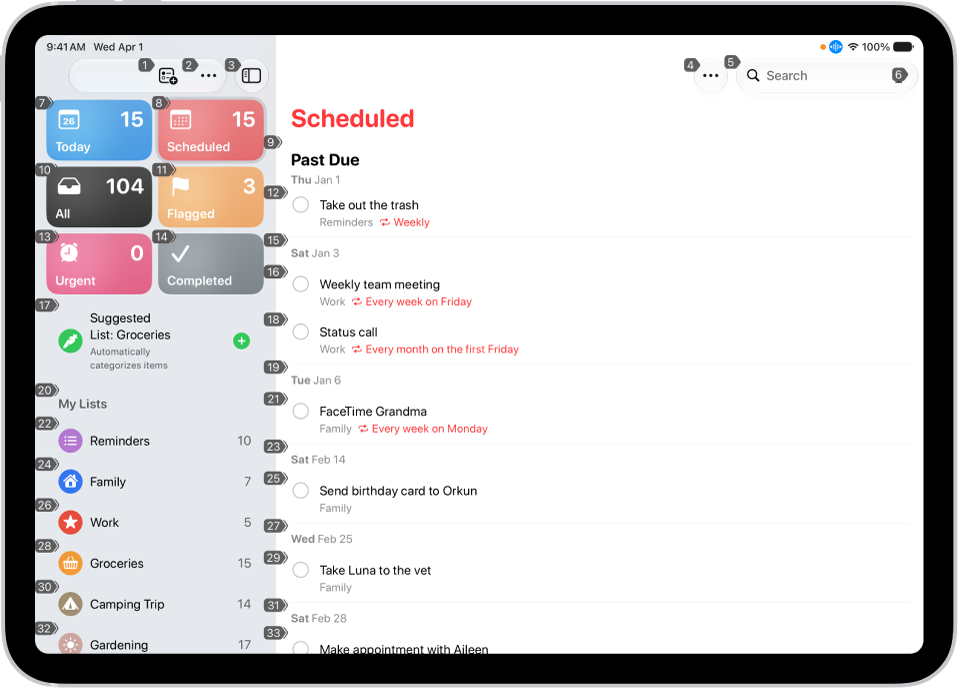
Your eyes or spoken commands are all you need to navigate and perform actions on iPad. Or connect an assistive device or an external keyboard to control iPad with it.
You can also make it easier to use gestures and set other options so iPad responds best to your touch.
Learn more about accessibility features for mobility

Hearing
You can get real-time captions of spoken audio from an app or live conversation, have iPad recognize sounds, turn on flash notifications, and more.
You can also pair hearing devices with your iPad, and adjust headphone audio so it’s right for you.
Learn more about accessibility features for hearing
Speech
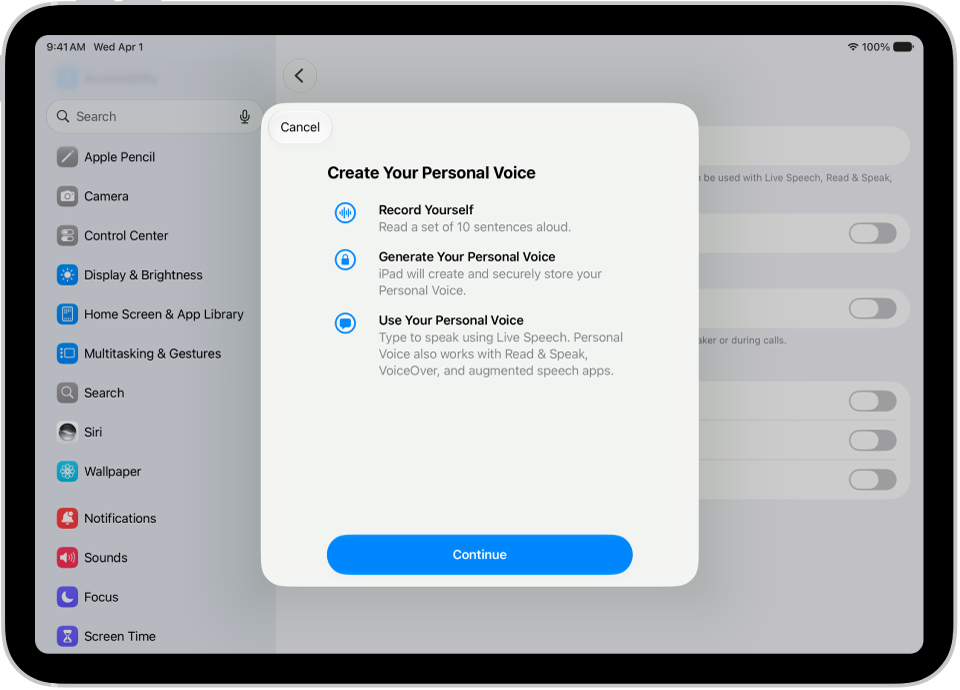
To have what you type spoken out loud, pick one of dozens of system voices or create a custom voice that sounds like you.
Siri can also recognize a wider range of speech patterns, and you can teach iPad to perform an action when you say a word or make a sound you choose.
Learn more about accessibility features for speech
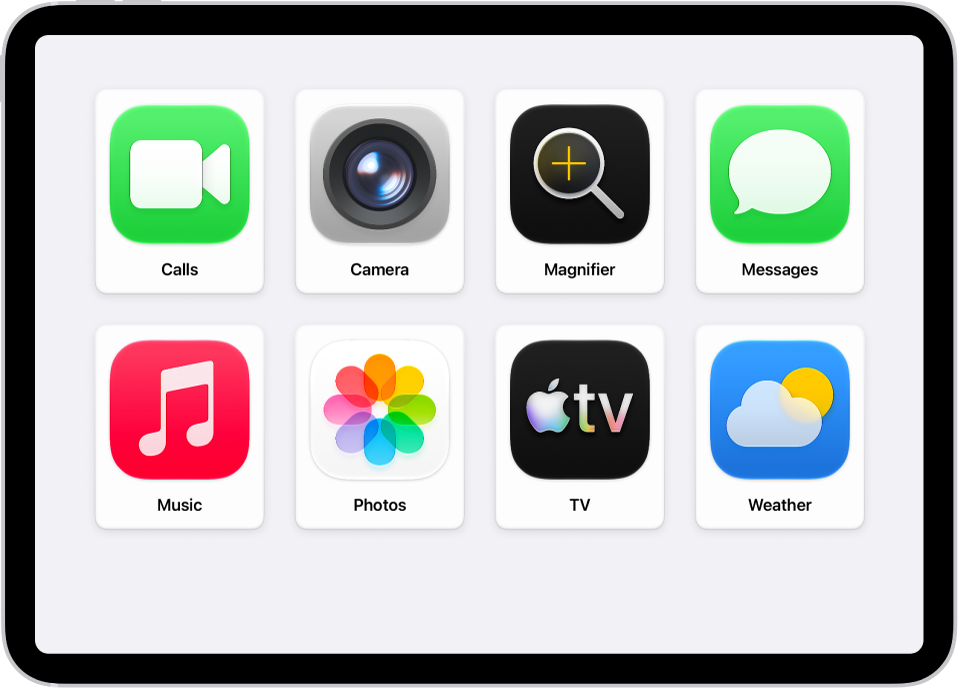
Cognitive
With iPadOS accessibility features, you or someone you care for can use iPad with greater independence. Someone with a cognitive disability might use an iPad set up with a simplified interface, for example, or you can temporarily lock iPad to one app when a child is using it.
Learn more about cognitive accessibility features
Quick tip: You can use Siri, the click of a button, or Control Center to control your go-to accessibility features and settings. To learn how, see our guide, Quickly turn accessibility features on or off.
See also