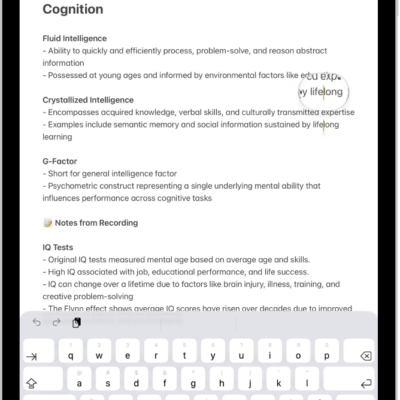
iPad comes with built-in tools for communicating in the way that works best for you, whether you’re nonspeaking, at risk of speech loss, or someone with a speech disability.
You can have what you type spoken out loud, create a synthesized voice that sounds like you, and control iPad with your voice. Siri can also wait longer while you finish speaking, and Dictation lets you enter text with just your voice.
To explore accessibility features for speech, go to Settings > Accessibility, then scroll down to the Speech section.
Type to speak
-
Live Speech
If you’re unable to speak or you have a speech disability, type what you want to say and have iPad speak it.
-
Personal Voice
If you’re at risk of losing your ability to speak, create a synthesized voice that sounds like you.
-
Type to Siri
Type your Siri requests instead of speaking them.
Control iPad with your voice
-
Use voice commands
Speak commands to navigate and interact with what’s on the screen, dictate and edit text, and more.
-
Use simple sounds
You can use voiced or voiceless sounds—like an S-sound or a mouth pop—to navigate and interact with what’s on the screen.
-
Vocal Shortcuts
Have iPad perform an action when you speak a word or another sound of your choosing.
-
Have Siri listen for atypical speech
If you have an acquired or progressive condition that affects speech, have Siri recognize a wider range of atypical speech patterns.
You can also have Siri wait longer for you to finish speaking, or use Dictation to enter text using just your voice.
Quick tip: For quick control of your go-to accessibility features and settings, use the click of a button or Control Center. Check out our guide, Quickly open features with Accessibility Shortcut.
See also