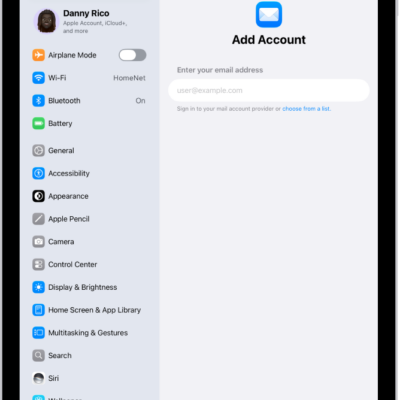
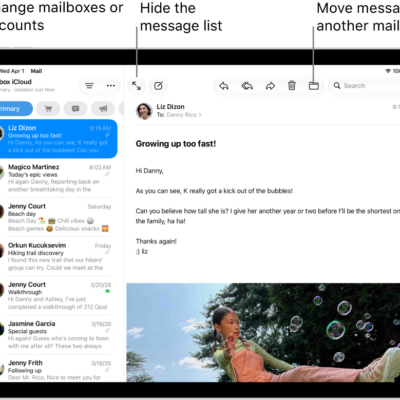
You can adjust your preferences for the Mail app in Settings. Customize your email signature, mark addresses outside specific domains, and more.
You can add and remove email accounts, set a fetch schedule, and choose whether Siri makes suggestions based on the way you use Mail. You can also allow content from Mail to appear in Search, and group emails in a conversation together with Organize by Thread.
Here’s how to change your Mail settings on iPad.
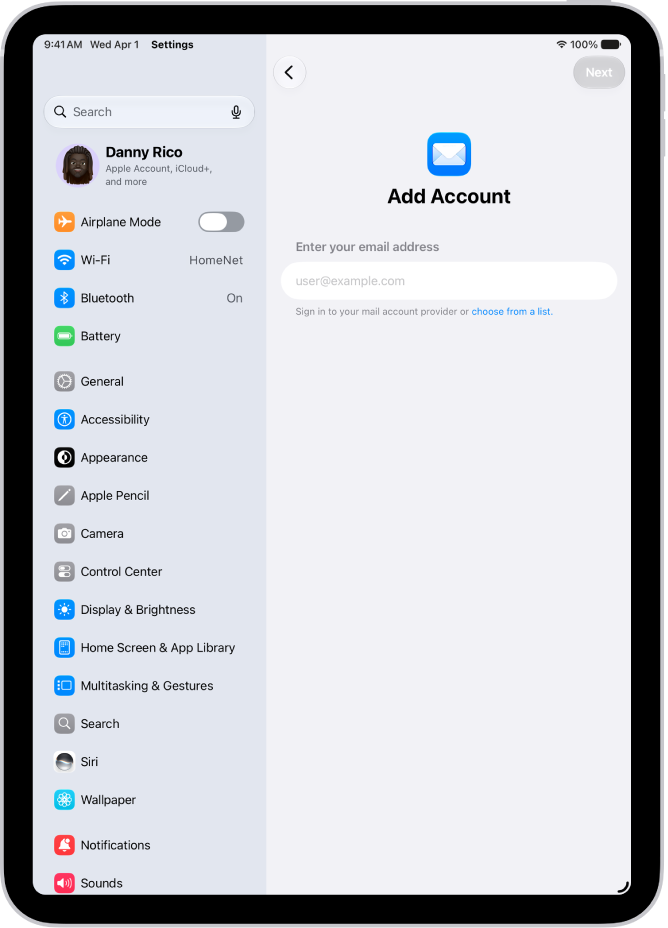
Customize your Mail settings
- Open the Settings app on your iPad.
- Tap Apps and then tap Mail.
- Adjust any of the following settings:
- Mail Accounts: Add and remove email accounts.
- Fetch New Data: Set a fetch schedule for your email accounts.
- Siri: Allow Siri to make suggestions across apps based on the way you use Mail.
- Search: Allow content from Mail to appear in Search.
- Default Mail App: Choose the email app for new emails you draft outside of a specific app, such as emails you create using Siri.
- Message List: Change settings for your message list, such as showing To/Cc labels, choosing the length of email previews, and assigning swipe actions.
- Messages: Turn on Privacy Protection, Ask Before Deleting, and Follow Up Suggestions.
- Threading: Turn on Organize by Thread to group emails in a conversation together in your message list. Adjust other settings for how threads appear and muting threads.
- Composing: Customize settings for writing emails such as including attachments with replies, showing link previews, and more.
- Undo Send Delay: Set a time period of up to 30 seconds to allow yourself to unsend a message.
Customize your email signature
Your email signature, which appears automatically at the bottom of every message you send, is customizable.
- Open the Settings app on your iPad.
- Tap Apps and then tap Mail.
- Tap Signature (below Composing).
-
Tap the text field and then edit your signature.
You can only use text in your Mail signatures.
Quick tip: With more than one email account, you can tap Per Account and set a different signature for each one.
Mark addresses outside certain domains
Addressing an email message to a recipient who isn’t in your organization’s domain? The recipient’s name can appear in red as an alert.
- Open the Settings app on your iPad.
- Tap Apps and then tap Mail.
- Tap Mark Addresses (below Composing).
-
Enter the domains that are in your organization—ones that you don’t want marked in red.
You can enter multiple domains separated by commas (for example, “apple.com, example.org”).
The names of recipients in domains outside your organization appear in red, whether you send them an email or receive one from them.
Customize the Mail toolbar
To keep the actions most useful to you front and center, choose which buttons appear at the top of the Mail app.
- Open the Mail app on your iPad.
- In the menu bar, tap View and then choose Customize Toolbar.
- Drag buttons to add or remove them from the toolbar.
See also