You can use filters to show messages that meet criteria you choose, control which accounts appear during a Focus, or let Apple Intelligence surface priority emails at the top of your inbox.
You can turn off all filters, or just one specific filter. Your work email account and its notifications, for example, can show up only when your Work Focus is on. And during a Focus, you can choose which email accounts you receive notifications from.
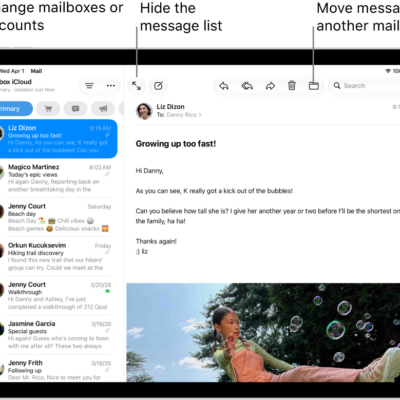
Here’s how to filter emails in Mail on iPad.
Note: Apple Intelligence on iPadOS 27 or later is available on an Apple Intelligence-enabled iPad mini (A17 Pro) and iPad models with M1 or later. Apple Intelligence is not available in all languages or regions. Usage limits may apply.*
Filter emails
- Go to the Mail app on your iPad.
- Tap the Toggle Filtering button.
- Tap Filtered by, select or turn on the criteria for messages you want to view and then tap Done.
To turn off all filters, tap the Toggle Filtering button. To turn off a specific filter, tap “Filtered by,” then deselect it.
Match a mail account to a Focus
You choose which email accounts you get notifications from when a Focus is on. With your Work Focus on, for instance, a filter can show only your work email account and its notifications.
-
Open Settings and tap Focus. Then tap a Focus.
If you don’t see the Focus option you want, tap the Add Focus button. See Set up a Focus.
- Tap Add Filter below Focus Filters and then tap Mail.
- Select the accounts you want to see in your inbox during that Focus.
View Priority Messages in your inbox
- Start the Mail app on your iPad.
-
Tap your inbox, tap the Sidebar button and tap the More button. Then tap Show Priority.
Time-sensitive messages appear at the top of your inbox in the Primary category or in List View.
Note: Apple Intelligence on iPadOS 27 or later is available on an Apple Intelligence-enabled iPad mini (A17 Pro) and iPad models with M1 or later. Apple Intelligence is not available in all languages or regions. Usage limits may apply.*
*Apple Intelligence is available with Siri and device language set to Chinese (Simplified), Chinese (Traditional), Danish, Dutch, English, French, German, Italian, Japanese, Korean, Norwegian, Portuguese, Spanish, Swedish, Turkish, or Vietnamese. Some features may not be available in all regions or languages. Some devices may not be available in all regions. Siri AI is available in beta in iOS 27, iPadOS 27, macOS 27, watchOS 27, and visionOS 27 and requires an Apple Intelligence–enabled device set to a supported language. Available in English to start. Siri AI will not be initially available in the EU on iOS, iPadOS, and watchOS. Certain Apple Intelligence features that rely on server-side models are subject to daily usage limits, including but not limited to Siri AI, Intelligent Photo Editing Tools, Image Playground, and AFM 3 Cloud models in Shortcuts. Daily limits may vary by feature, request complexity, system demand, system policies, and other factors. Expanded access to such features will be available for a fee in the future. Use of these features is subject to the Apple Intelligence Terms and Conditions.
See also