You can flag important email messages, create flagged mailboxes, and flag messages from VIPs. You can also block messages from specified senders.
A message you flag stays in your Inbox and is easier to find later. You can flag a Primary message, flag all Transactions, Updates, or Promotions messages from a single sender, or flag just one of them, and change or remove a flag later.
Here’s how to flag or block emails in Mail on iPad.
Flag an email
Flag an important email message so it’s easier to find later. It stays in your Inbox. It also appears in the Flagged mailbox.
- Go to the Mail app on your iPad.
-
Do any of the following:
- Flag a Primary message: Swipe left on the Primary message, then choose Flag.
- Flag all Transactions, Updates, or Promotions messages from a single sender: Swipe left on a message in the Transactions, Updates, or Promotions message list. Choose Flag.
- Flag a single Transactions, Updates, or Promotions message: Tap a message to open the sender’s digest view and swipe left on the message. Tap the Flag Message button.
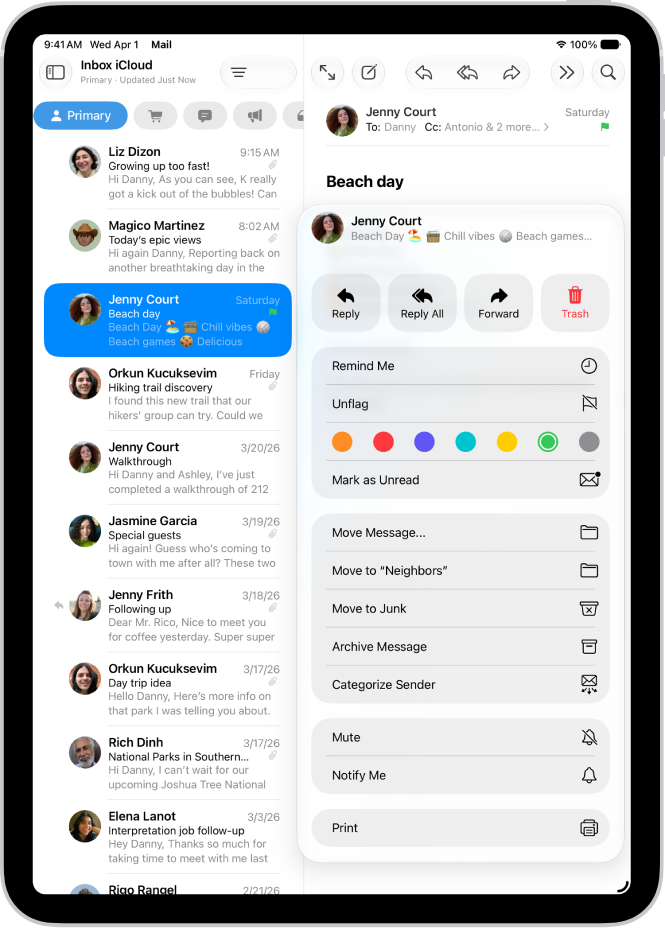
To change or remove a flag, open the message, tap the More Actions button in the bottom-right corner of the message, tap Flag, then select another color, or tap Unflag.
A flag you add to a message shows up on it in Mail on all your Apple devices signed in to the same Apple Account.
Quick tip: Add the Flag button to the Mail toolbar, and it’s easier to access. See our article, Customize the Mail toolbar.
Create a Flagged mailbox
You can add a Flagged mailbox so all your flagged email messages are easily accessible in one location.
- Start the Mail app on your iPad.
- Tap the Show Sidebar button in the upper-left corner.
- Tap Edit, then select Flagged.
Flag emails from your VIPs
When you add important people to your VIP list, their email messages show a VIP flag and land in the VIP mailbox. Read our guide, Add someone to your contacts or make them a VIP.
Block email from specified senders
You can block an email address to prevent a particular sender from emailing you in the future.
- Start the Mail app on your iPad.
- Tap a message from the sender you want to block.
- Tap their email address, tap View Contact Card, and tap Block this Contact.
See also