Use tabs to help you navigate between multiple open webpages.
You can open a link in a new tab, view a tab’s history, close tabs, and open a recently closed tab. You can see which webpages you previously visited in a tab, and close all tabs in a Tab Group at the same time. You can also organize your tabs, and view your Safari tabs from another Apple device. With the Compact Tab Bar layout, some menus look a little different.
Note: If you use the Compact Tab Bar layout, the menus and other items might look different from what’s described in this guide. To change the layout, see our article, Change the layout of Safari.
Open a link in a new tab
- Go to the Safari app on your iPad.
- Touch and hold the link. Tap Open in Background.
View a tab’s history
This tab shows which webpages you’ve previously visited.
- Open the Safari app on your iPad.
- Touch and hold the Back button or the Forward button.
Close tabs
- Open the Safari app on your iPad.
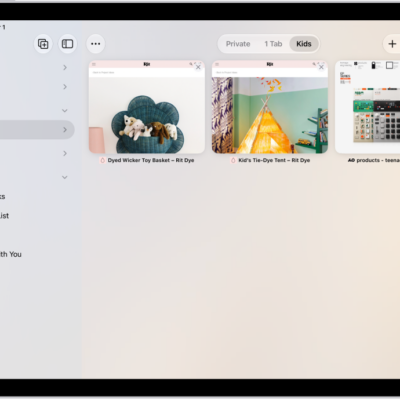
- Tap the Tabs button. Then tap the Close button in the upper-right corner of a tab to close it.
Quick tip: To close all the tabs in this Tab Group at once, touch and hold the Done button and then tap Close All [number of] Tabs.
Open a recently closed tab
- Open the Safari app on your iPad.
-
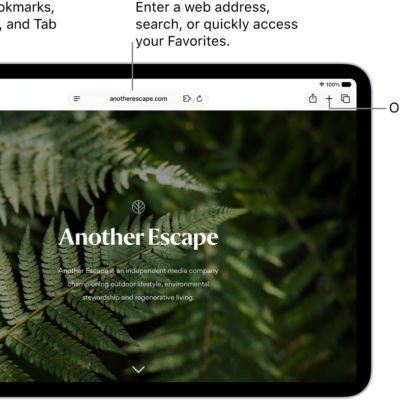
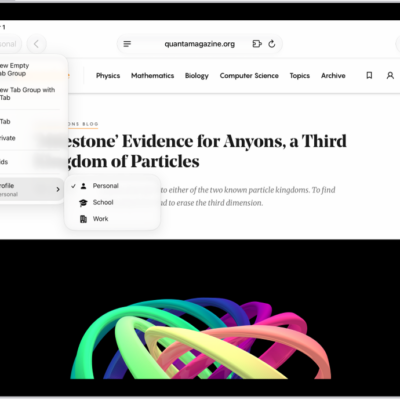
Touch and hold the New Tab button. Choose from the list of recently closed tabs.

See also
- Organize your tabs in Safari on iPad
- View your Safari tabs from another Apple device on iPad
- Share Tab Groups and collaborate in Safari on iPad