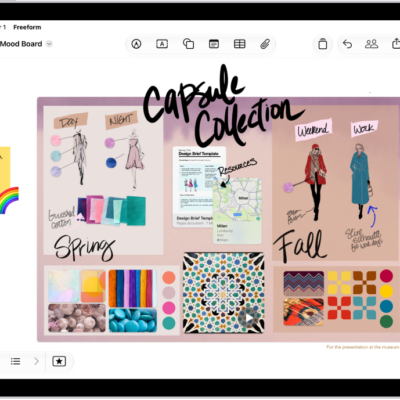
In the Freeform app, you can organize your boards into folders. You can create a subfolder, move a folder inside another folder, and rename a folder. You can also move boards into or out of a folder, several at the same time if you like.
Create a folder
- Open the Freeform app on your iPad.
-
In the sidebar, tap the New Folder button, name your folder. Tap OK.
If you don’t see the sidebar, tap the Show Sidebar button.
-
Do any of the following:
- Create a subfolder: Touch and hold a folder, then tap New Folder. You can also move a folder inside another folder.
- Rename a folder: Touch and hold a folder, tap Rename, enter a new name, and then tap OK.
Move boards into or out of a folder
- Open the Freeform app on your iPad.
- With the sidebar open, do one of the following:
- Move several boards at the same time: Tap the Folder Actions button, tap Select, and tap each board you want to move. Tap Move and then choose a folder to move them to.
- Move a board or subfolder to another folder: Touch and hold a board or subfolder. Then drag it into a folder.
- Remove a board or subfolder from a folder: Touch and hold a board or subfolder and tap Move. Then tap Move to Top Level. A removed board goes to All Boards, and a removed subfolder goes to the top level of the folder list.
See also
- Collaborate in Freeform boards and folders on iPad
- Delete and recover your Freeform boards and folders on iPad
Tag: Freeform