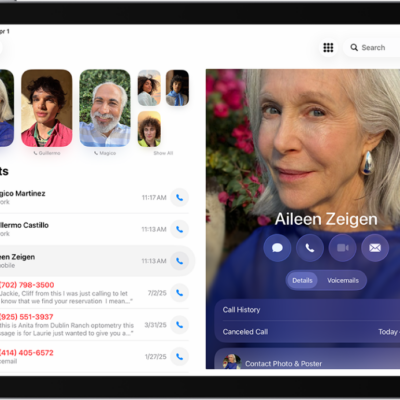
iPad has accessibility features that you can turn on the first time you turn on your iPad, to make it easier to set up and personalize other iPad features. VoiceOver, a gesture-based screen reader, tells you what’s happening onscreen, and you can zoom in on part of the screen or turn on other features during setup.
Hear what’s onscreen with VoiceOver
VoiceOver—a gesture-based screen reader—tells you what’s happening onscreen.
- After iPad is turned on, triple-click the top button (on an iPad with Face ID) or triple-click the Home button (on other iPad models) to turn on VoiceOver.
- Do any of the following and more:
- Speak the entire screen: Swipe up with two fingers.
- Find out what you’re touching: Touch the screen or drag your finger over it. VoiceOver speaks the name of the item your finger is on, including icons and text. Swipe right to select the next item. Tap with four fingers near the top to select the first item on the screen.
- Select an item: Tap to select a button or link, and activate it by double-tapping.
- Scroll to another page: Swipe with three fingers.
- Open the onscreen rotor: Turn two fingers on the screen, as if rotating a dial. See Control VoiceOver using the rotor.
Note: Basic gestures don’t work as usual when VoiceOver is on, so see our article, Use VoiceOver gestures, and our guide, Operate iPad when VoiceOver is on.
In VoiceOver settings, you can change the language, voice, speaking rate, audio options, how much detail VoiceOver provides, and more.
Zoom in on part of the screen
- Double-tap the screen with three fingers and then use the slider to set a magnification level.
- Use three fingers to scroll around the zoomed-in screen.
To magnify the screen, see our guide, Zoom in on the iPad screen.
Turn on other features during setup
You can turn on additional accessibility features from the Quick Start screen.
Tap the Accessibility Options button to turn on or adjust settings for any of the following:
- VoiceOver
- Zoom
- Display & Text Size
- Motion
- Read & Speak
- Touch (such as AssistiveTouch and Touch Accommodations, Switch Control, or any external keyboard.)
If you’ve set up accessibility features on an iPhone or iPad that’s nearby, you can transfer your settings to your new iPad with Quick Start—just follow the onscreen instructions. See Turn on and set up iPad. (See Move from an Android device to iPad if your previous device wasn’t made by Apple.)
See also