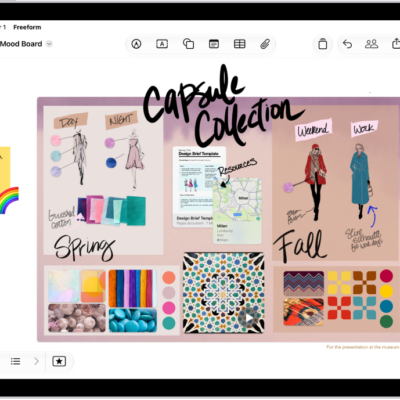
You can customize the settings for the Freeform app.
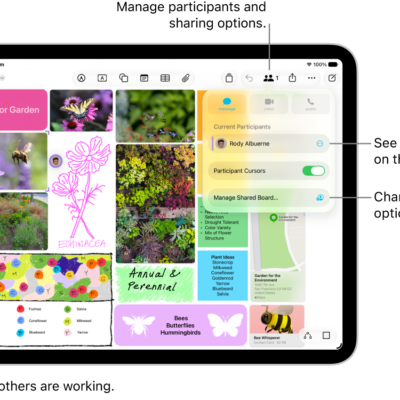
You can change access and permissions for boards and folders you share, change a board’s background, and align items more easily. A list of participants shows who has access to a board or folder, and you can grant individuals access, permissions, or even co-ownership. You can also use a dark canvas for a board.
Here’s how to change your Freeform settings on iPhone.
Change access and permissions for boards and folders
Once you start sharing or collaborating on boards and folders, you can change access and permissions for everyone or for individuals.
- Open the Freeform app on your iPhone.
-
While viewing All Boards or the folder list, touch and hold the shared board or folder and then tap Manage Shared Board (or Folder).
A list of participants appears, showing who has access to the board or folder.
-
Do any of the following:
- Grant individuals access, permissions, or co-ownership: Tap a participant’s name and then adjust their settings.
- If you own the board, change access or permissions for all: Tap Sharing Options and then adjust settings for everyone.
- Invite others with a link: Tap Sharing Options and tap Anyone with the Link, tap the Share button. Then tap Copy Link.
Note: Anyone can copy the link and send it to others. If you select “People You Choose,” though, the link only works for those invited to open the board.
Turn off Access Requests if you’d rather not review individual requests to view or edit the board or folder.
Change a board’s background
With Dark Mode turned on, a board can get a dark canvas and controls to match. A grid of gray dots on your board is another option, making it easier to see whether items line up.
- Open the Freeform app on your iPhone.
- Open a board, or tap the New Board button to start a new one.
- Tap the More button and then do any of the following:
- Use a dark canvas: Tap Show with Dark Background. If you don’t see it, make sure you turned on Dark Mode.
- Use another color in the background: Freeform boards have a black or white background. To define a workspace within your board that has a different background color, add a large rectangle of any color. Send it to the back and lock it.
- Add the dot grid background: Tap View Options and then tap Show Grid.
- Remove the dot grid background: Tap View Options, then tap Hide Grid.
Align items more easily
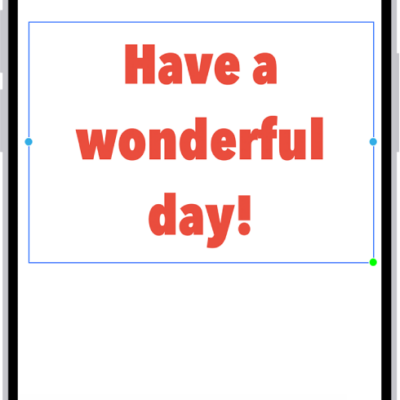
You can make edges and points align to the nearest dot on the grid as you resize or move an item. You can also use alignment guides to help you place items more precisely. When guides are on, they appear as you drag an item on a board and it aligns with another item.
- Open the Settings app on your iPhone.
- Tap Apps, then tap Freeform.
Turn on Snap to Grid, or turn on or off any of the following:
- Center Guides: These appear when the midpoints of items align.
- Edge Guides: These appear when the edges of items align.
- Spacing Guides: These appear when three or more items are equally spaced in a line.
You can also access these settings when you’re working in a board. Tap the More button, tap Alignment Settings, then tap Snap to Grid or turn on the guides you want to use. Or turn them off if you don’t want them appearing as you move items near one another on the board.
Get math hints
It’s up to you how your iPhone responds to the math problems you enter.
- Open the Settings app on your iPhone.
- Tap Apps, then tap Freeform.
Tap Math Results, then select one of the following:
- If you want problems to be solved automatically: Choose Insert Results. (The answer appears in writing that matches your own.)
- If you want suggestions to appear: Choose Suggest Results. (A Solve button appears that, when tapped, adds the answer in writing that matches your own.)
- If you don’t want to see math results: Choose Off.
You can also access these settings when you’re working in a board. Tap the More button, then tap Math Results.
Store your Freeform boards in iCloud
- Open the Settings app on your iPhone.
- Tap your name, then tap iCloud.
- Tap See All, then turn on Freeform.
Sort your boards or folders
- Open the Freeform app on your iPhone.
- While viewing boards in a category (such as Favorites) or a folder, tap the More button and then do any of the following:
- View more boards at the same time (with smaller thumbnails): Tap List.
- Change how boards and subfolders are listed: Choose Sort by Date, Name, Kind, or Shared By. To switch to descending order, tap the Sort Order button next to the sort name.
- Categorize boards by how long ago they were last opened: Tap Sort by Date, then tap Use Groups.
- Categorize boards by board owner: While viewing Shared, tap Use Groups.
Change Freeform privacy and analytics settings
Apple collects a variety of data, some of which is associated with your Apple Account. You can limit the use of certain analytics data or reset your identifier specifically used by apps in Apple Creator Studio.
- Open the Settings app on your iPhone.
- Tap Apps, then tap Freeform.
Turn on or off either of the following:
- Share Analytics Data
- Reset Identifier
If you use iCloud Passwords & Keychain, turning off analytics or resetting your identifier affects your devices with iCloud Passwords & Keychain turned on.